
What you will find here
Explore seven Microsoft tools used in project management and how they support planning, collaboration and information sharing.
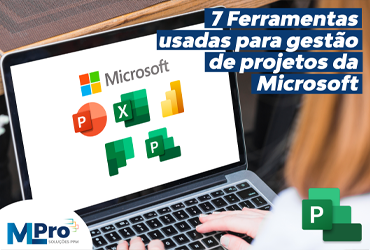
Currently, competitiveness among companies is becoming more and more fierce, and for them to have a competitive differential it is essential to manage projects more efficiently. For this, there are several tools that can help in control planning, and especially in project communication. In this article we will discuss some tools and their main characteristics, namely:
1. Microsoft PowerPoint
All the time the project manager is communicating in the projects, whether with the team, other managers, board or even with your client. For this, the need to assemble a presentation often arises to report the progress or status of the project. The main tool used is the Powerpoint. Despite meeting this need very well, Powerpoint will require from the project manager a manual information update work, with the exception of how much information comes from Power BI. The possibility of integrating Power Point with Power BI, including, is extremely useful and important for project managers and employees to have quick access to updated information automatically.
2. Microsoft Excel
In some projects there is a need to control the information through spreadsheets, working this data and putting together graphs so that the data are analyzed more easily. In this case, the most used tool is the Microsoft Excel, which allows the organization of information in spreadsheets and the generation of graphs for data analysis. In general, for a project manager, the tool can be very useful because of its functions of calculations, financial, date and time, data analysis and crossing of different spreadsheets.
3. Power BI
We know that a project itself carries various types of data. Often these data need to be “worked” making this data coherent, visually engaging and interactive. O Power BI is a business analysis and data service that allows the connection of information on a unified and scalable platform for BI (Business Intelligence).
This tool has as benefits to the project manager:
- Practical information management
- Increases productivity
- Wide and easy visualization of information
- Control project data
4. Microsoft Planner
In some situations it may be that the project manager or the team have to create plans, assign tasks, or see graphs of team progress. For this case the Microsoft Planner it could be used, but it does not integrate with the Project and, in addition, has restrictions such as: no display of timeline (Gantt) , dependencies between activities, resource management or financial.
5. Microsoft Project
The Microsoft Project it is a tool for project management that operates in different stages of management. It is well known and used when it comes to projects, as it is possible to implement projects quickly, create schedules, budgets, project performance reports and add resources. Although it is a wide tool and has several features, the biggest versus MS Project is that it is not possible to access online. In other words, it is installed on your machine and does not offer the project site, lists, folder structure, document control, integrated reports, portfolio view and risk and problem control records.
6. Project for the Web
For the management of the simplest (via Web) but still powerful projects, you can use the Project for the Web, tool that allows project management and cloud-based work. Although it is a more complete solution than Planner, Project for the Web does not have baselines, critical path, cost control or program management or portfolio. However, it is still a great option for those who want to start performing better project management. It allows greater control of the sequence of activities, identifying resources and better view of the information and status of tasks.
7. Microsoft Project Online
Without a doubt, the Microsoft Project Online is the most complete solution. If you want a solution that allows task management, resource management, financial management, baseline control and program and portfolio management, it's the right tool! This powerful tool allows you to see all your company’s projects, with better visualization and many other benefits, some of them being:
- View all projects
- Reporting centre
- Centralised timings
- Custom Reports
- Possibility of collaboration
- Monitoring the progress of tasks
- Priority of projects
And many essential resources for complete and efficient management.
08Comparing versions
To facilitate the visualization of differences between Planner, Project for the Web, Project (Desktop) and Project Online compare the information in the table below:
| Characteristics | Planner | Project for the Web | Project (Desktop) | Project Online |
|---|---|---|---|---|
| Task Management | Yes | Yes | Yes | Yes |
| Resource Assignment | Yes | Yes | Yes | Yes |
| Frame View (Grid) | Yes | Yes | Yes | Yes |
| Grid View | No, no, no. | Yes | Yes | Yes |
| Timeline View (Gantt) | No, no, no. | Yes | Yes | Yes |
| Scheduled / Dependencies | No, no, no. | Yes | Yes | Yes |
| Roadmaps | No, no, no. | Yes | No, no, no. | Yes |
| Advanced Management (baseline, critical path, superlocation) | No, no, no. | No, no, no. | Yes | Yes |
| Resource Management | No, no, no. | No, no, no. | Yes | Yes |
| Cost Management | No, no, no. | No, no, no. | Yes | Yes |
| Program Management | No, no, no. | No, no, no. | No, no, no. | Yes |
| Portfolio management | No, no, no. | No, no, no. | No, no, no. | Yes |
09Integrating Tools
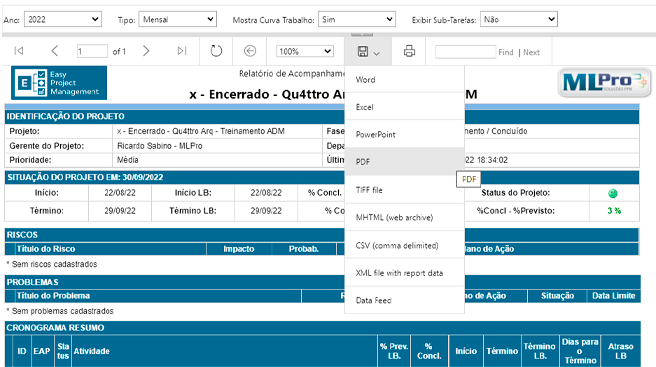
MLPro offers solutions that use basic reports developed in Power BI or advanced reports that use a connector developed by MLPro itself. These reports allow the export of data to Excel, Powerpoint or even in “pdf” format that collaborate so that the project manager has greater agility in the construction of presentations or even status report reports.
And if you are interested and want a presentation of our products, feel free to schedule an appointment with us on the button below:

Original content from the MLPro editorial library, fully preserved and translated for the English website.
