
What you will find here
Review the archived Project Server 2013 walkthrough for granting users access to Project Web App and assigning permissions.
Attribution of permissions to users in Project Server 2013 may seem confusing to those who are not familiar with the tool. We might ask ourselves:
- To give a user access to PWA, should I share the site with that user?
- Or should I use the "Manage Users" section in the PWA Settings?
Both ways are possible! But it's not that simple. Let's understand: By default (default), after installing Project Server 2013, PWA is configured with the already established SharePoint Permission Mode, i.e. a special set of SharePoint security groups is created to give access to Project Server 2013 projects and features. These groups can be Administrators, Portfolio Viewers, Project Managers, Resource Manager, etc.
When we are in SharePoint Permission Mode, Security options are not available on the PWA Settings page, it is not possible to access User Management in PWA. That's where some people get lost. In the image below, we see some groups of items such as Personal Settings, Company Data, Appearance, but we observe that group of items Security is not available. Compare with the second image below.
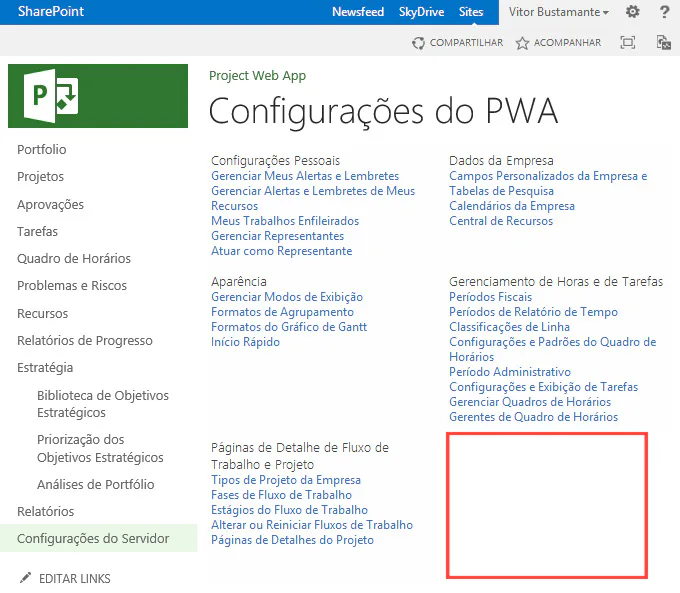
In this case, in SharePoint permission mode you can share, and the Share item is available in the top right menu, as we see in the image above.
To change permission mode and use the traditional Project Server category and group security model, you can activate the option in Office 365 or run a command in your on-premise environment. In the link below are the instructions for this command. It's a Power Shell command.
After this process is completed, "Manage Users" is available in the Project Server Permission Security Category. It should be like this:
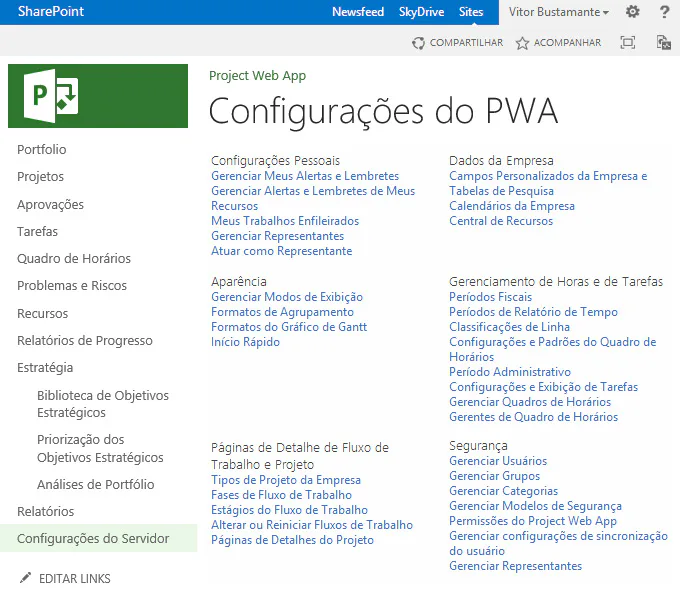
Remember that if you have chosen Project Server Permission Mode, grant users access through the security category, and not using "Share" in the top right menu.
Sources:
Original content from the MLPro editorial library, fully preserved and translated for the English website.
