
What you will find here
Follow the archived walkthrough for creating a project site template and setting it as the default in Project Web App.
First, you must create the Model Project that will have the Model Site. Customize the entire site of this project with the standards you want, including content.
Tip: The Project Site may be from a project to its project portfolio, called the Model Project to facilitate its location in the future and not be confused with a current project.
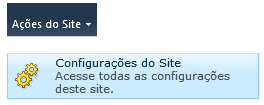
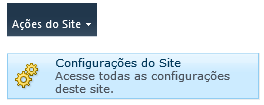
Once created, with the Template Site open, click Site Actions > Site Settings.
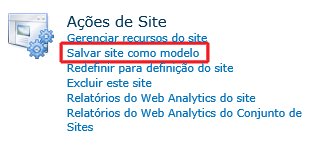
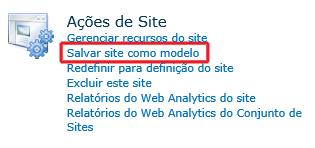
Find Save Site as Template item:
Tip: As in the future you may want to generate another model, name the templates with a pattern that indicates the date of their creation in the name (with numerical year month day - to be classified in alphanumeric order) ;-). For example: Template Site of Project 2014 11 21.
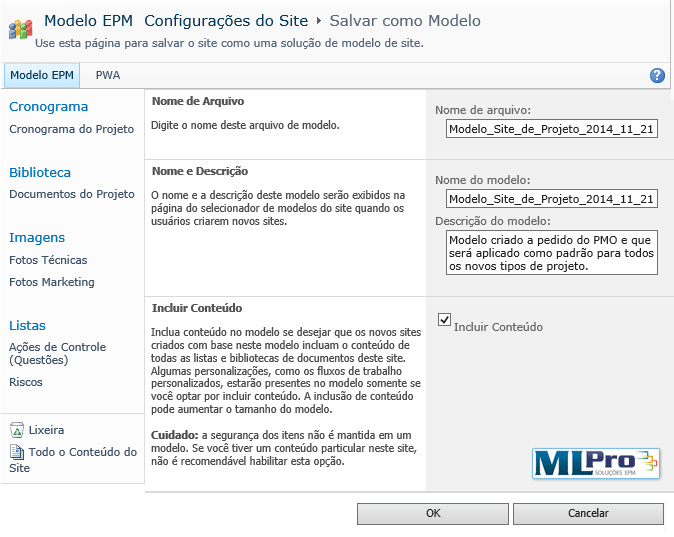
Important: Leave the 'Include Content' option marked.
After saving the template, go to the PWA page and enter 'Server Settings'.
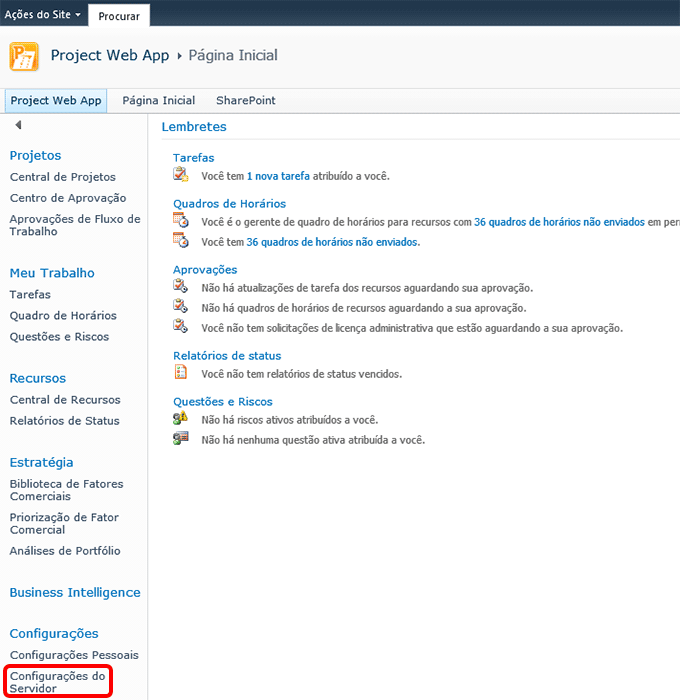
Locate the 'Company Project Types' item. In this step we will apply the model created as standard for the project types that should receive it.
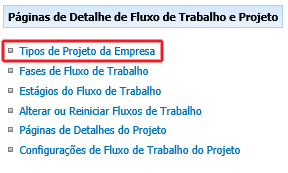
Open the type of project that will receive the default (just click on your name). Go to the end of the configuration page, in 'Project Website Template', select the template you created, and click Save. Do this for all types of project you want to apply the template. It's done!

To change a template:
To change, visit your template project website and go to Site Actions > Site Settings.
Find the 'Save Site as Template' item:
Leave the 'Include Content' option marked, save the template, go to the PWA page and enter 'Server Settings' and 'Company Project Types' (see above).
Open the type of project that will receive the new pattern (just click on your name). In 'Project Website Template', select the template you created and click Save. Do this for all types of project you want to apply the new model. It's done!
Original content from the MLPro editorial library, fully preserved and translated for the English website.
