
What you will find here
Learn how to activate delegated access in Project Web App using the procedure recorded in the MLPro technical archive.
In PWA you can act as a representative of another user and work on his behalf. In this way you also see PWA as the resource is seeing. This function is widely used for access testing and performing settings on behalf of users who are not using the tool in depth, that is, it becomes possible to enter the PWA acting on its behalf and make a configuration for it instead of asking it to do (e.g. create automatic approval rule).
1 - Creating Representatives Delegations
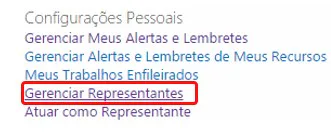
In PWA settings, click Manage Representatives.
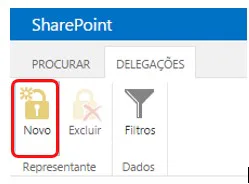
Then click New:
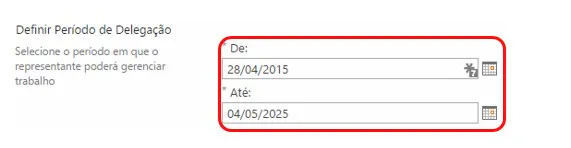
In Define Delegation Period, complete the period with beginning and end that that representation will be allowed. Normally, the system administrators act as a representative. When it is the administrators, we suggest placing the representation allowed for a long period (10 years). When there is a need for a specific resource to work only for a brief period on behalf of another (e.g. vacation, medical leave) we define the specific period and the possibility of acting as it represents ceases on the end date.
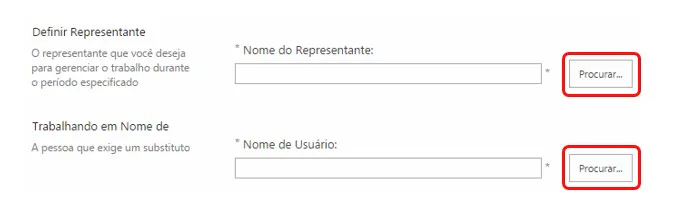
Under Set Representative, click Search to select who will act on behalf of a resource. In Working in Name, indicate the resource that will be replaced by your representative.
Click Save and you will have permission for created representation.
2 - Acting as a representative
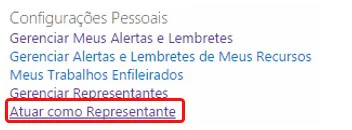
In PWA Settings, click Act as Representative.
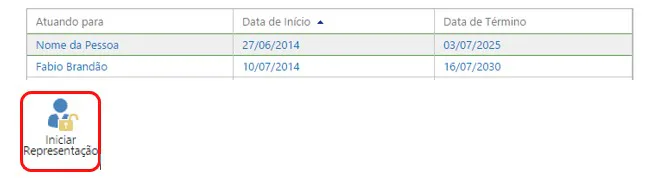
In the list of actions allowed for you, select the line of representation you want to activate and click the Start Representation button:
The following message will appear in PWA:

Indicating that your view of that page is like the visualization of the person you are representing. And your actions on that page will be recorded as the person represented. Browse as if you were the person and to stop the representation, go again in PWA Settings and Act as Representative. Click the Stop Representation button:

Original content from the MLPro editorial library, fully preserved and translated for the English website.
