
What you will find here
Organize tasks with Microsoft Planner, compare basic and premium plans, and plan your next steps as Project Online approaches retirement.
Microsoft Planner helps teams organize tasks, assign responsibility and track progress. Start with the work your team needs to coordinate, then choose the plan and features that fit those requirements.
01What is Microsoft Planner?
Planner is a task and work management app in Microsoft 365. Basic plans support visual task organization and team collaboration. Premium plans add project planning capabilities; availability depends on the license and plan type.
Organize tasks with boards, buckets and labels
Create a plan for a shared area of work. Use buckets to group tasks, then assign owners and due dates. Checklists and attachments help the team understand what each task requires.
- Choose bucket names that reflect the team's workflow.
- Use a consistent set of labels for priorities or work categories.
- Keep task status and due dates current.
- Review progress regularly with the people responsible for delivery.
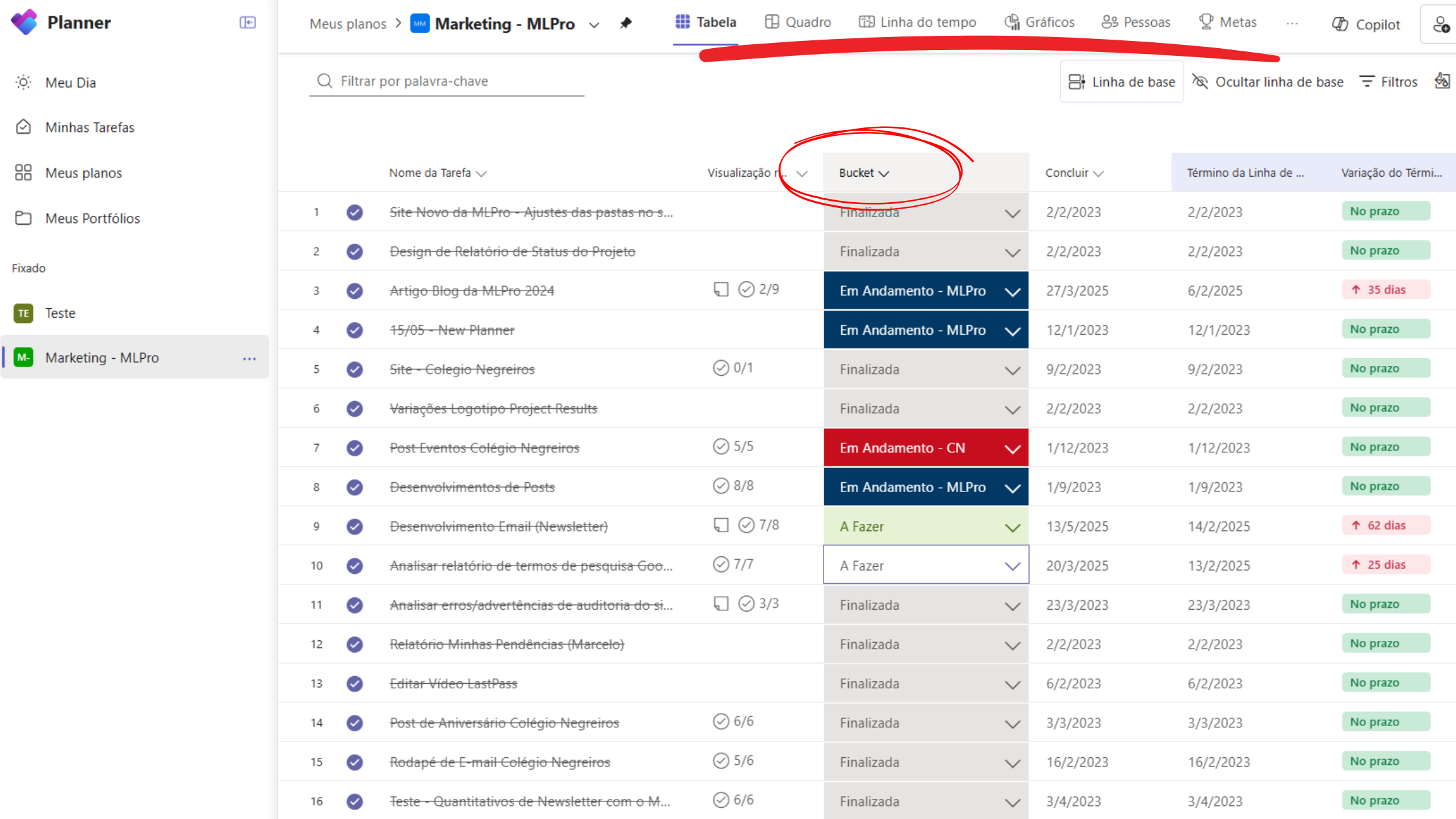
When are basic plans useful?
Basic plans can suit operational tasks, marketing activities and other shared work where a board and task status provide enough visibility. Team size alone does not determine the right tool. Dependencies, reporting needs and governance also matter.
If you need a timeline and dependencies between tasks, evaluate Planner Premium and confirm the features included in your license.
02Practical ways to improve task organization
Agree on labels and review routines
Define what each label means before using it across the plan. For example, a team might use labels for urgent work, customer requests or internal improvements. These are illustrative categories, not a required Planner configuration.
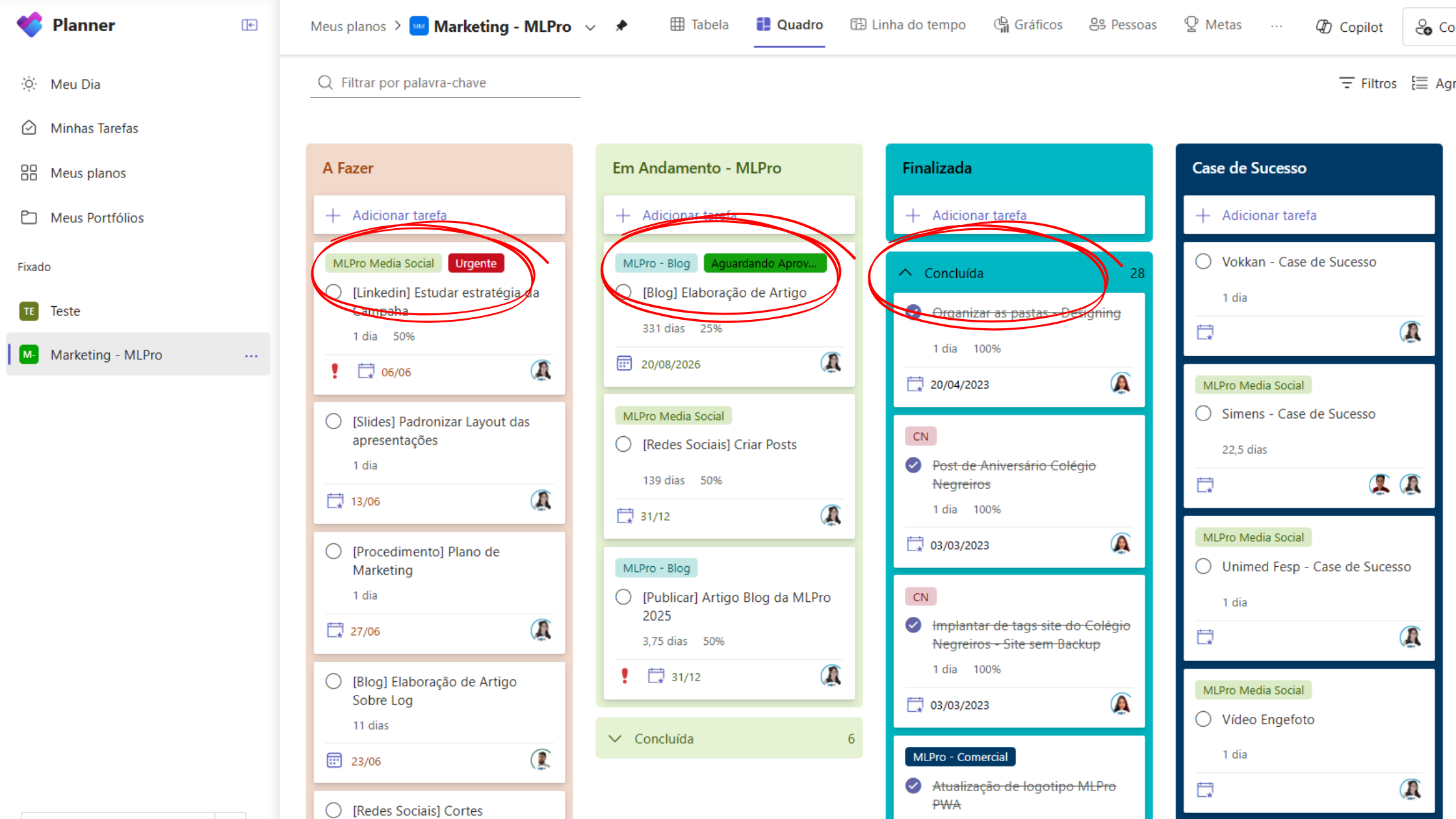
Use task status to track progress and labels to add useful context. Review overdue items and upcoming deadlines together, so the board remains a working record rather than an outdated list.
Bring task management into Microsoft Teams
Teams that already collaborate in Microsoft Teams can use Planner there to keep task discussions close to the work. Agree on where decisions are recorded and who updates the plan after a discussion.
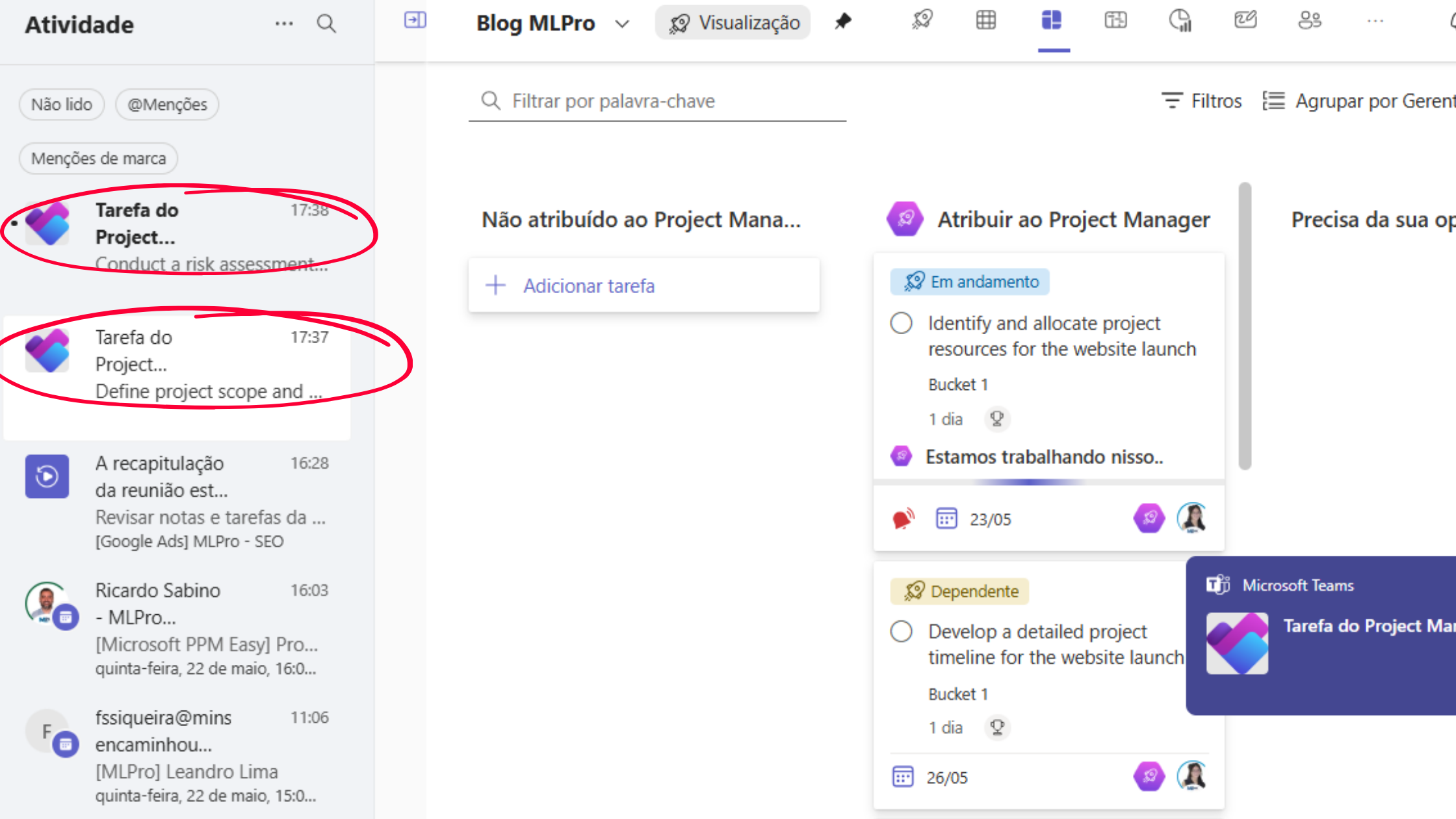
Screenshots are preserved from the original 2025 article. The current interface may differ.
03Should you use Planner, Planner Premium or Microsoft Project?
Choose according to the decisions and planning detail you need. Managing personal or team tasks is different from building a detailed schedule or deciding which projects should receive investment.
| Tool | When to consider it | What to check |
|---|---|---|
| Microsoft Planner basic plans | Task ownership, due dates and visual team collaboration. | Whether task boards and progress views meet the process requirements. |
| Planner Premium | Project planning that requires a timeline and task dependencies. | Required capabilities, license coverage and plan limits. |
| Microsoft Project desktop | Detailed schedule planning led by a project manager. | How the team will share information and report progress. |
Review Microsoft's comparison of basic and premium plans before selecting a license. Do not assume that every feature is available to every participant.
What if you need portfolio governance?
Prioritizing initiatives, consolidating indicators and governing multiple projects requires portfolio management processes. MLPro can help assess these requirements through Microsoft PPM consulting and evaluate the fit of PSA Easy.
Is Project Online an option for a new implementation?
Microsoft will retire Project Online on September 30, 2026. We therefore do not recommend it as the destination for a new implementation. Existing users should plan the transition and validate data, reports, integrations and permissions. Microsoft Project desktop is a separate product.
04How can MLPro help?
MLPro works with Microsoft PPM, Planner Premium, Power BI, Power Platform and PSA Easy. The engagement begins with an assessment of processes and requirements to define the solution and implementation scope.
A transition should include an inventory, a pilot and acceptance checks. Microsoft's plan conversion documentation describes eligibility and limitations; moving between plan types should not be presented as universally lossless or free of rework.
Contact MLPro to discuss your team's planning and portfolio management requirements.
Article from the MLPro editorial library, revised on September 20, 2026. Original authors, images and publication date preserved.
