
What you will find here
Learn how the Microsoft Project Organizer manages reusable views, reports, tables, filters, calendars and other project elements.

Microsoft Project has a very useful function and can save a lot of time for the project manager: Project Organizer, which allows you to copy objects from one project from MS Project (Standard or Professional) to another.
This includes display modes, reports, modules, tables, filters, calendars, maps, fields and groups.
If your organization only uses standard Microsoft Project models, this information may not be relevant, but the most common is that project managers customize models according to their needs.
01In what situation would I use this function?
Imagine this situation: your company owns a hundred projects. Seventy of them use the traditional calendar. The other thirty require an additional custom calendar, such as one that contains a higher number for working days per week, different hours (for nighttime, for example) among others.
In this scenario, the worst option would certainly be to manually make the custom calendar for each project. And the chances of errors in this process are high too.
With the project organizer, the process of copying these objects is quite quick and simple.
02How does the migration process work?
To start, open the project that will receive the copy of the models in Microsoft Project with check-out done.
Go on. Info > Organizer (In the “Organize the Global Model” menu) > Organizer
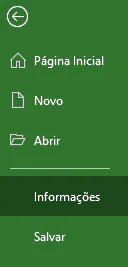
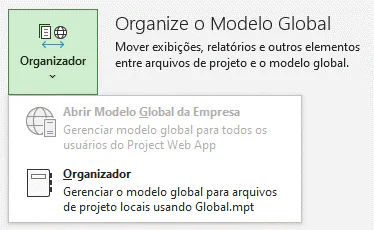
The following dialog box will be opened:
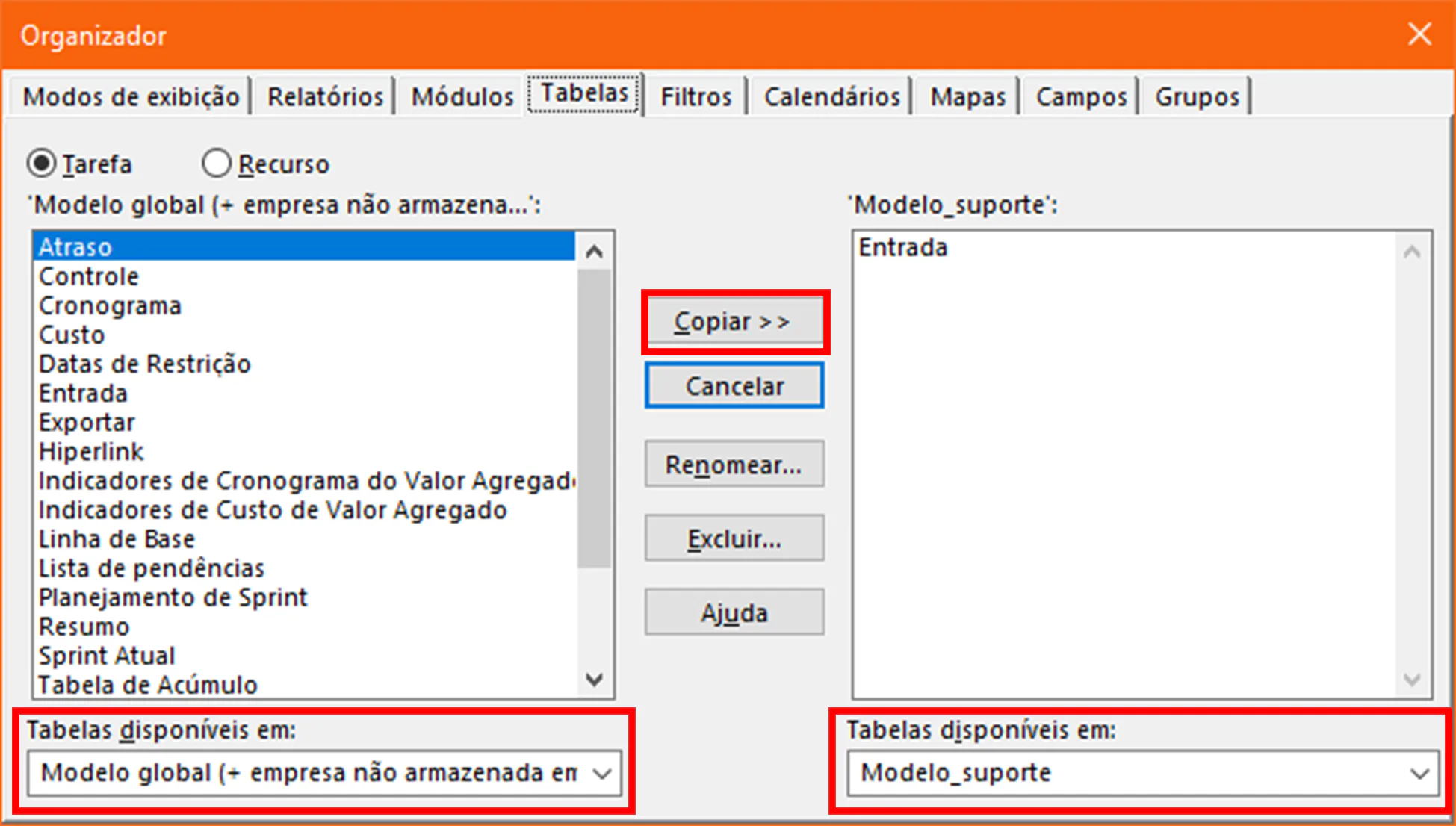
In this example, on the left side we have the overall models of the organization and all its tables available. On the left side, the project Organisation and its only table available, the table Entry.
In “ Tables available in:” you can select the source and destination projects.
Here it is possible to perform two types of exchange:
- Global Model > Project
- Project > Global Model
Copy button arrows >> indicate for the template that will receive the copy. In the image above, we are copying a global model table for a specific project.
The other buttons available are:
- Rename: Rename the model in the destination field if a differentiation of the name of the source model is required.
- Delete: You copied a model by mistake? Just delete template in destination field (never in source field).
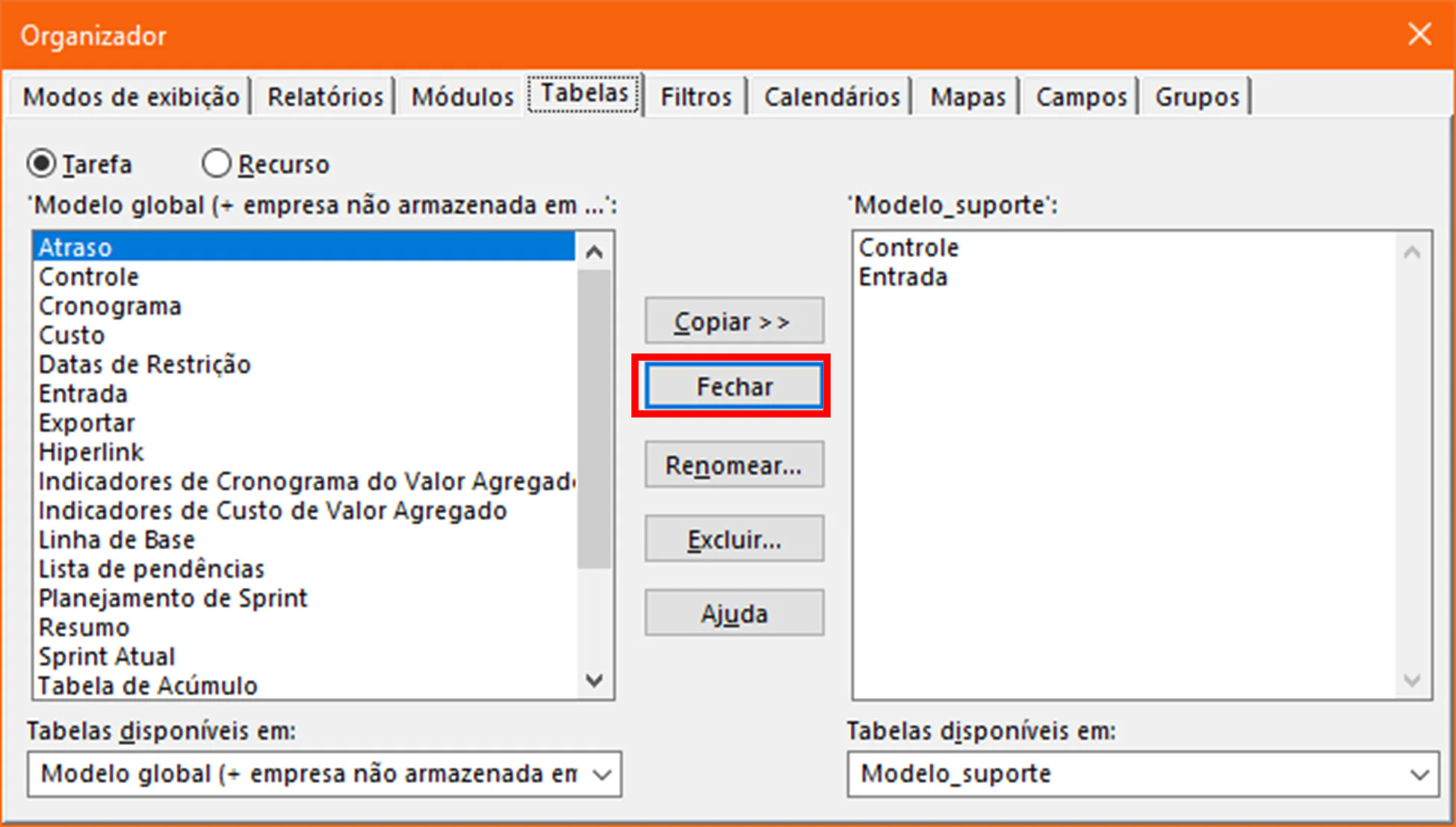
In the example above, we copied the Control model to the project Organisation.
Next step: After copying all required templates, go to Close to exit the Organizer dialog box. Save it and check in.
Ready, now you can use the model in your project without need for rework and without loss of information.
To learn more about how Project Professional can facilitate the management of your projects, talk to us. Still not using Project Professional and Project Online? Ask us about migration.
Original content from the MLPro editorial library, fully preserved and translated for the English website.
