
What you will find here
Get an introduction to Microsoft Power Automate and see how flows connect applications and automate routine work.

Microsoft Power Automate was launched as the evolution of the old Microsoft Flow, being a cloud-based service with the aim of being a practical and simple tool for creating automated workflows for tasks, processes, applications and services.
It can be easily connected with other tools as it allows integration with more than 200 tools.
In addition to the ease of connection with other tools, Microsoft Power Automate is safe, because shared information can only be accessed by users who should really have access to the data because it has access and identity management.
Because it is easy to handle, Microsoft Power Automate can be used by both business area users, to create flows of business tasks as well as IT users, who use it to create automated flows for services and applications.
Power Automate works with the concept of RPA (Automation of Robotic Process) that allows the automation of common and repetitive tasks and the user only needs to record the step by step of what needs to be done.
01Key Benefits of Microsoft Power Automate
With the use of Microsoft Power Automate, your company can get several benefits among which we highlight:
- Integration: By connecting Power Automate with other applications, data can easily be sent to other platforms and tools.
- Connectivity: One of the points we can highlight from Microsoft Power Automate is related to connectivity. You can connect it to various tools thus facilitating work through automated processes.
- Increased productivity and agility: With the automation of repeated tasks, the process will become simpler and less bureaucratic and, with that, the project team will not need to use the time performing the tasks manually, so you will have more time available for the relevant tasks of the project.
- Practicality: Power Automate allows the use of previously created models for some more common tasks. For this, just have access to the model services and fill in the necessary settings.
- Sharing: You can share the workflows with your team so they can also edit or manage the flow.
02Flow Types
For step-by-step recording, the user needs to know that Microsoft Power Automate allows the creation of several different types of flows, as described below:
- Automated flows: In this case, it is possible to create an automation that is triggered by an event such as the arrival of an email from a person or mention to your company on social network.
- Instant flows: You can start an automation by clicking a button, automating repetitive tasks from your desktop or mobile devices. For example, instantly send a reminder to the team by pressing a button on your mobile device.
- Scheduled flows: Schedule an automation such as daily data upload to SharePoint or a database.
- Flows of the business process: Ensure that everyone in your company follows the same process by defining a set of steps for people to follow.
- User interface flows: Record keyboard clicks and presses on your desktop and web applications by automating manual playback of the inherited software.
03Compatible Browsers
Power Automate is compatible with the following browsers:
- Microsoft Edge
- Internet Explorer 11
- Safari
- Chrome
- Firefox
04Connectivity
To speed up the tasks and gain greater productivity it is necessary that the information is connected to gain agility in our work. Power Automate allows you to connect with various platforms or services, both Microsoft products and products developed by third parties, among which we can highlight:
- Microsoft SharePoint
- Microsoft SQL
- Microsoft OneDrive
- OneDrive for Business
- Google Drive
- Google Sheets
- Trello
- Dynamics 365
- SalesForce. with
- Mailchimp
- Dropbox
- Client APIs
In addition, the mobile version of Power Automate is available for the Android, iOS or Windows Phone.
05Inserting Microsoft Power Automate into Microsoft Teams
To include Microsoft Power Automate, just click on apps and type Power Automate.
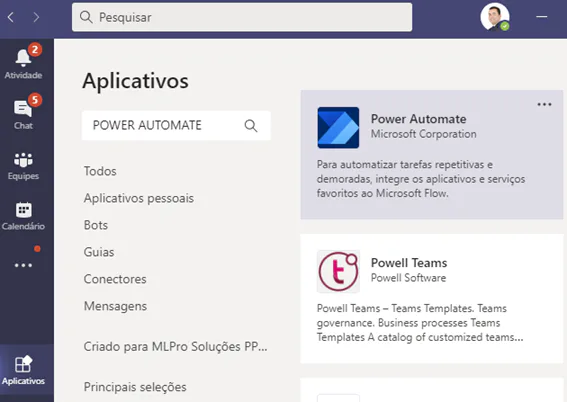
If it has not been added it will be necessary to add it, or only open it, if it has been used previously.
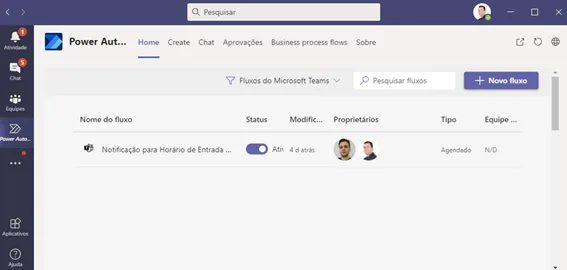
You can start a new flow through a pre-existing model:
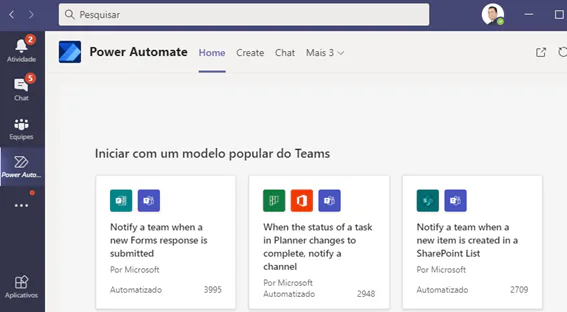
Automate has numerous templates available for example, saving attachments, sending reminders, receiving notifications, emailing, posting messages on Microsoft Teams, posting messages on Teams and more.
06Exploring Microsoft Power Automate Resources
Once you have added Microsoft Power Automate, you can create specific flows that meet the needs of your company and thus gain more agility and practicality in performing the tasks.
Among the various features of Power Automate, you can use Chat, approval history, and create business process flows to optimize your business processes.
We recommend that before creating a flow, check that a model is already available because if it exists, it can be used generating greater agility in the creation process.
You can explore the numerous possibilities in Microsoft Power Automate by checking existing models or creating custom flows.
To learn more about the resources of Microsoft Power Automate, how to automate your company's workflows, PPM solutions or how to optimize your company's project management, contact us.
Original content from the MLPro editorial library, fully preserved and translated for the English website.
