
What you will find here
Read the archived introduction to SharePoint Spaces and its use for immersive, interactive presentations.
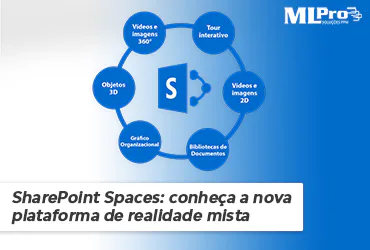
Anyone who closely observes Microsoft's releases or accompanies the publications of this blog has already realized that Microsoft is expanding the range of options in its ecosystem of applications and business solutions to meet the various types of demands and complexity of projects.
The SharePoint Spaces it is an immersive web-based platform that allows you to create and share mixed, secure and extensible reality experiences. You can add a new dimension to your intranet using 2D, 3D, interactive videos and more.
01What can you do with Spaces?
With SharePoint Spaces, you can create a way to make more immersive and interactive presentations to your partners, vendors and stakeholders in general.
Imagine, for example, presenting the prototype of your product, whether it be a garment, a toy, or even the design of a building or a sea base, so that they can be manipulated and offer a 360 degree view.
With Spaces, you can provide a tour by your company to employees who are in another city, state or country, for example. In addition to meeting the care everyone should have with the pandemic, it would be a way of including those who work from a distance.
Imagine still doing all these things using a virtual reality goggle. It is something that will further enrich the experience and immersion of this spectator.
These are just a few examples of application for this tool quite adaptable to various business models.
 Play video: Knowing SharePoint Spaces
02How do I experiment with Spaces?
To start using SharePoint Spaces, you need to activate it. For this, go to your site SharePoint and follow the steps:
Settings > Site Information > View all site setting > Site Actions > Manage website resources
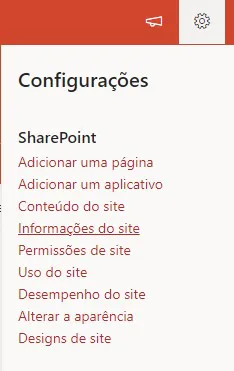
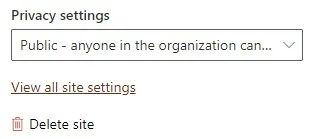

Find the item “Spaces” and click on Enable. Your Spaces are ready for use.

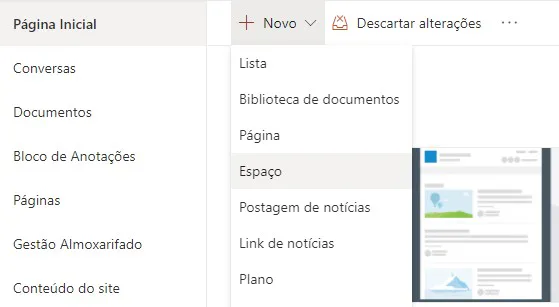
To create your first Space, go back to the home page, click + New > Space
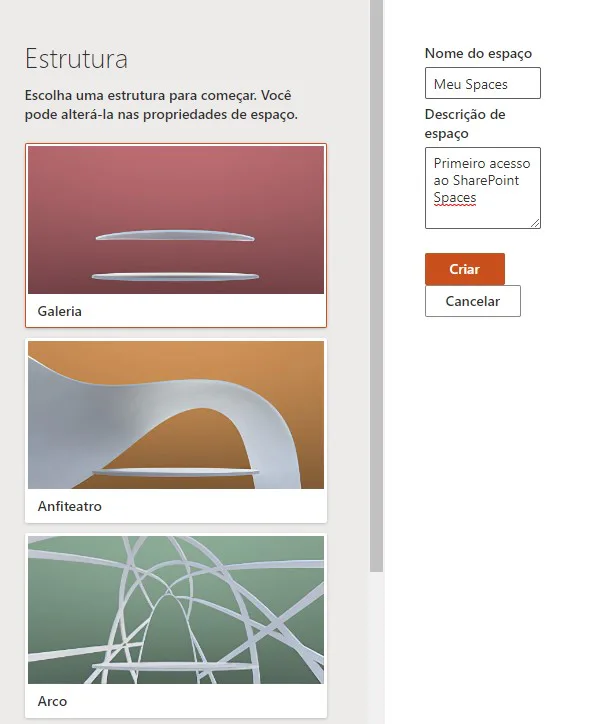
You will have to name this space and you can choose one of the available structures.
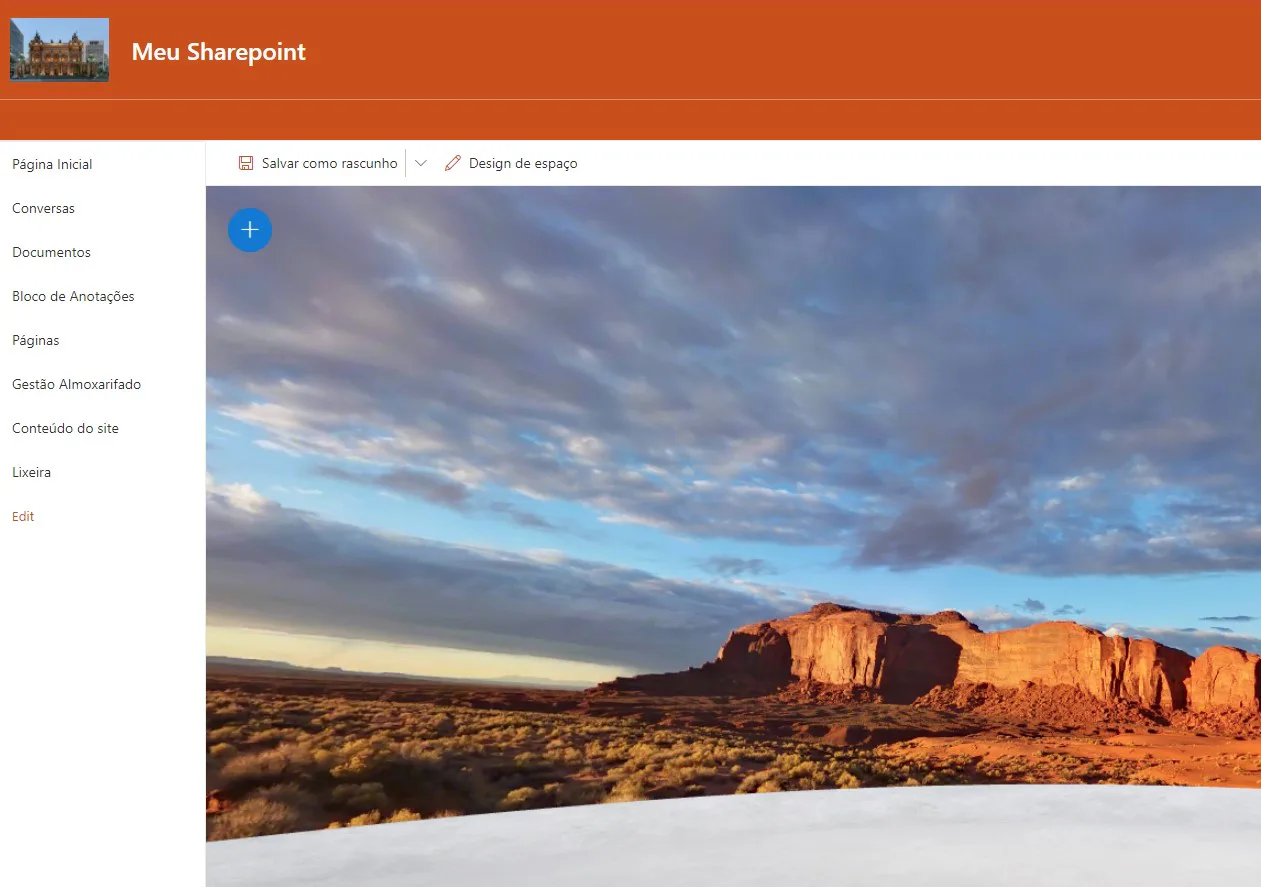
These structures are the “place” in which your presentation will be performed. There is also the option to enter a description. Done this, click Create. Your space is ready.
03Inserting interactive content
When using the tool, you will notice that SharePoint Spaces does not require you to be a graphic designer or virtual reality expert. On the contrary. It brings a friendly interface, making your experience simple and intuitive.
The contents you can insert are called jpgarts. They can be viewed in their own space or directed to another link.
To create jpgart 3D Object, follow these steps:
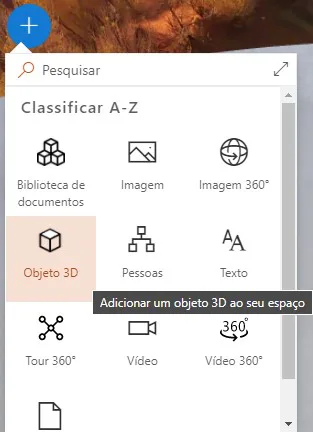
Start by clicking the button + in the upper left corner to view all your options:
Select 3D Object.
Choose a place to place it. You should choose a directory to upgrade the object. Select 3D Catalog to access the Microsoft catalog.
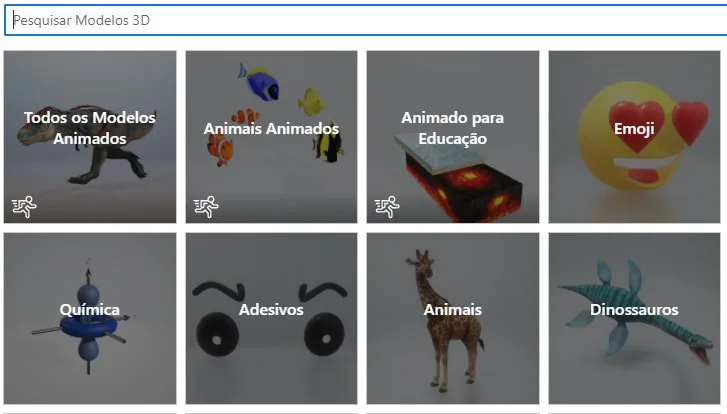
Select an object and click insert.
With the inserted object, you can make several changes.
On the bottom bar are the range, axis, height and distance options. It's really fun to search and interact with these commands.
In the sidebar it is possible to create actions, insert text, add audio, among other changes that will make a difference in the interaction with the viewer.
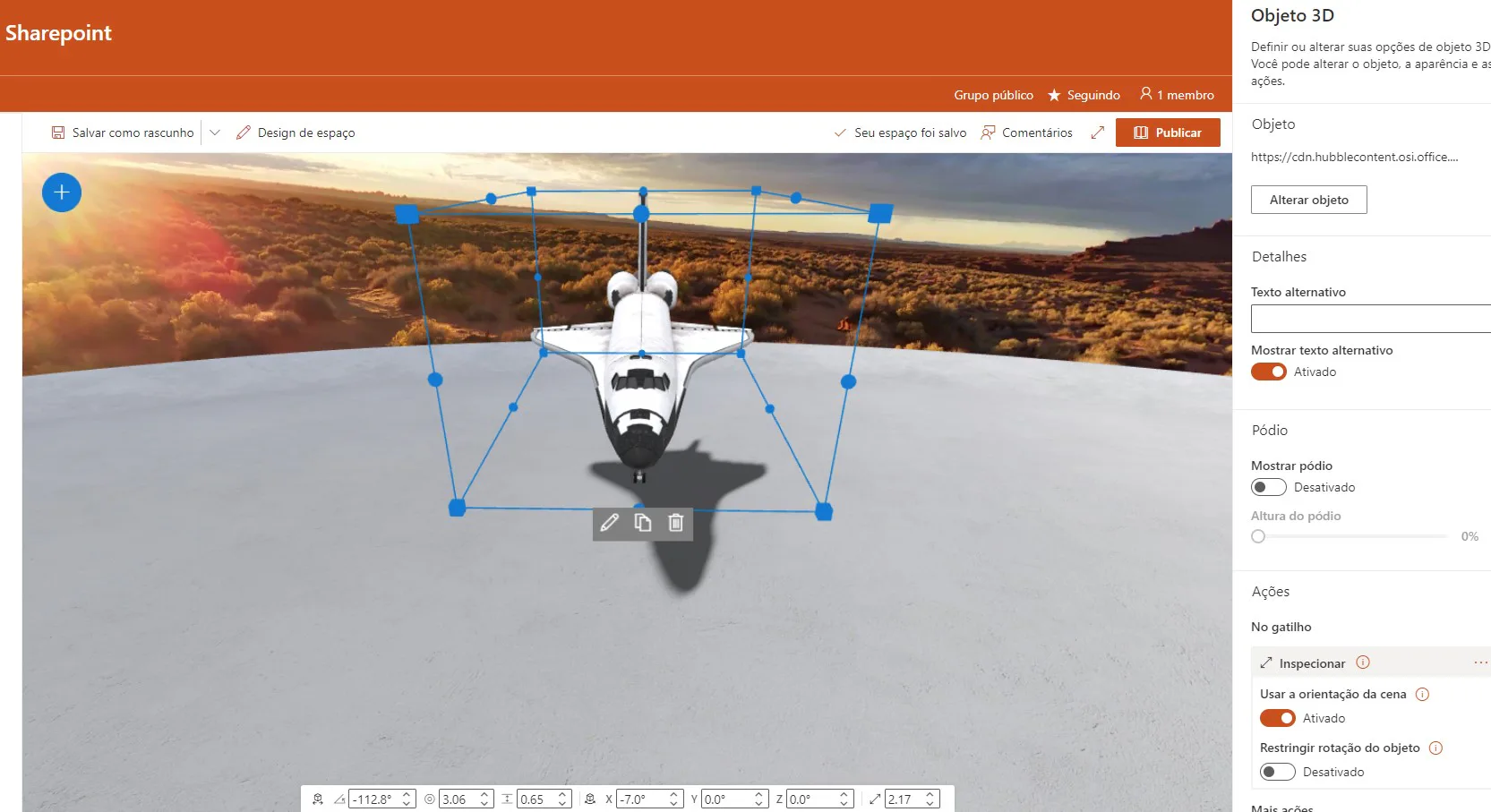
Finished editing, click Publish to share the view with other people.
There are several jpgart options that Spaces offers:
- Document Library: works as a folder to insert various types of documents and have a preview;
- Image: inserts a static image of a directory of your choice. Microsoft offers a professional image gallery for use;
- 360° image: inserts an image that allows 360° view;
- 3D Object: inserts an object with manipulable display. Microsoft offers an object gallery for you to test;
- File Viewer: allows preview of files like Word, Excel or Power Point;
- Text: creates a text panel with customizable background;
- Persons: inserts an organisation chart with the users of the organization or project;
- 360° Tour: allows viewers to move by a sequence of 360° images, connecting with each other. In one tour inside an apartment, for example, by clicking on a door, the viewer could be sent to another room and have the complete experience of seeing the whole environment. Something like a video game.
- Video: inserts a 2D video with preview;
Note: You can insert images and videos from links. However, for security reasons, these links should be part of the intranet, either of the same SharePoint or OneDrive for Business. Thus, it is not possible to enter links from Youtube videos, for example.
Did you like SharePoint Spaces? Have you had insights on how to use it in your organization?
To learn more about how SharePoint together with Project Online, Microsoft Project, Project for the Web and PPM can optimize your company's project management, please contact us.
Original content from the MLPro editorial library, fully preserved and translated for the English website.
