
What you will find here
Follow the archived walkthrough for editing an enterprise calendar through Project Professional and Project Web App.
Open Project Professional connected to the company environment, do not open any project and minimize it. By browser, go to PWA and enter Server Settings.
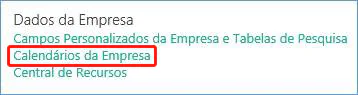
In the Company Data menu click on Company Calendar:
Select the Company Standard calendar and click Edit. The Company Standard name may be another as defined at the time of creating the calendar.
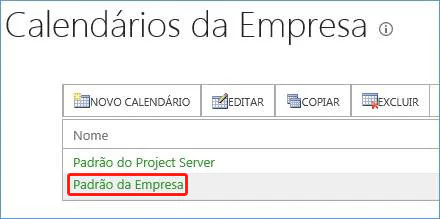
Project Professional will be opened for calendar editing.
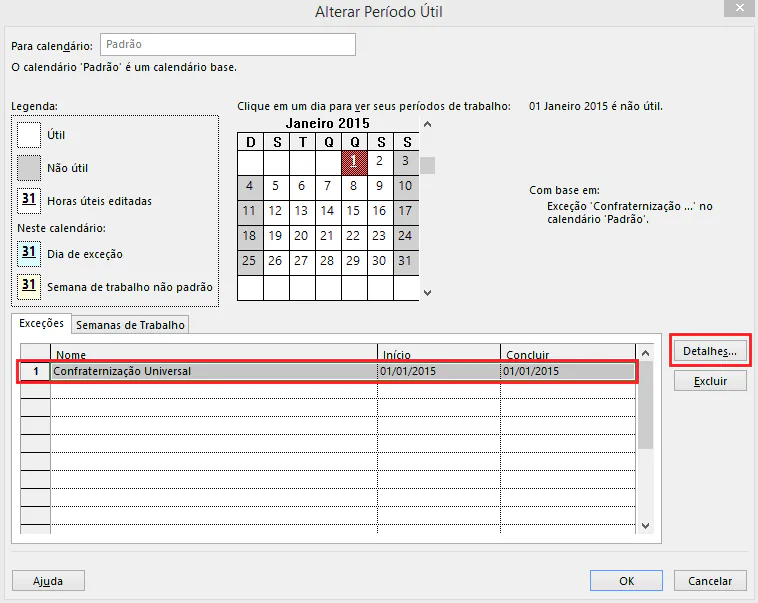
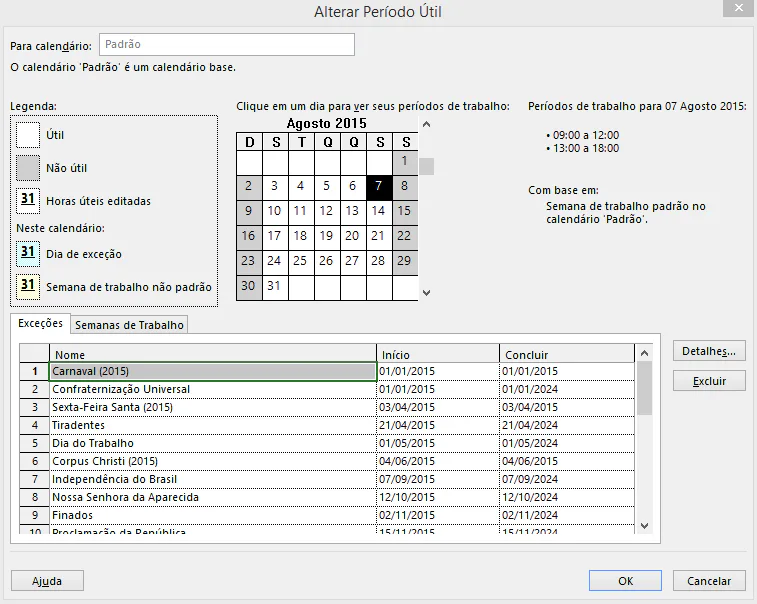
Follow an example of New Year's holiday. Place the holiday name, as indicated in the image below, and place the start and end date next to it. Then click on Details:
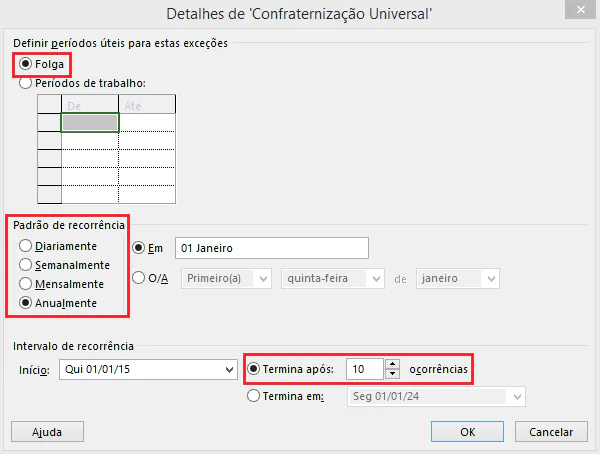
Check Folga, select the occurrence pattern in this case annually. In End after, enter the number of times the event takes place, because it is a holiday that will always take place on the same date, I chose to place a very high number of occurrences.
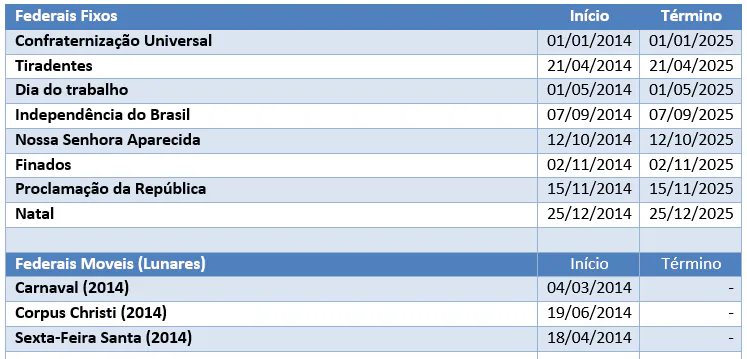
Note: In the case of holidays that do not have a fixed date, as well as carnival for example, will need to be updated annually.
Once ready, your calendar will be this way:
Below is a list of fixed and mobile holidays (lunars):
Note 2: Any task scheduled on holiday day will be automatically rescheduled to take into account the holiday break.
Note 3: In cases of holiday amendment, change the end date to extend the holiday and the rule described in Note 2 also works for the amendment.
Note 4: In the Project there is a hierarchy of calendars, which consists of the following order:
- Resource Calendar
- Task Calendar
- Project Calendar
If a resource assigned to a task has a calendar, the resource calendar will prevail, otherwise the task calendar will be used.
Original content from the MLPro editorial library, fully preserved and translated for the English website.
