
What you will find here
Explore Board view in Microsoft Planner's My Tasks and My Day areas, including the grouping options described in the walkthrough.
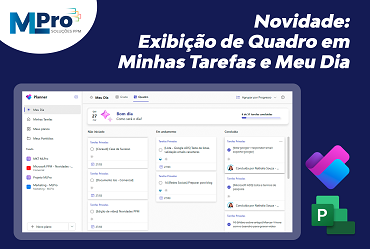
Keep up with your responsibilities by using the new frame view, which offers a faster and more visual way to help you organize and manage your tasks. This is one of the resources most requested by our users, and is now available at Planner, not only in My Tasks, but also in My Day, making the daily administration of your activities even more practical. The new display provides a more visual and structured way to control your tasks, allowing you to focus on your priorities and increase your productivity.
In this article, we will explore the benefits of this visualization, how to use it and give practical examples to help you take advantage of all your features. Whether to manage personal tasks or work on projects, frame visualization is designed to facilitate and make your planning more intuitive.
 Play video: YouTube video player
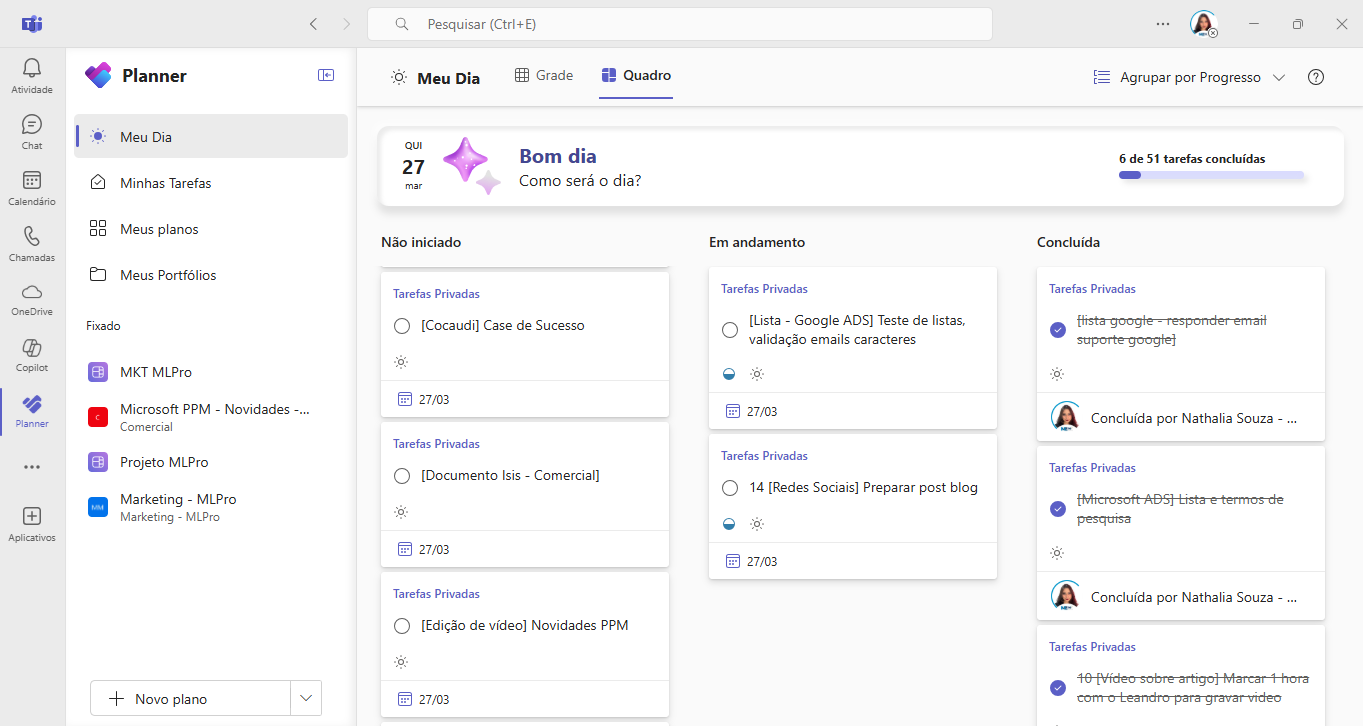
What is frame display? My Tasks and My Planner Day view allows you to organize your tasks more clearly and efficiently. Unlike the traditional list view, which presents the tasks sequentially, the frame display shows your tasks as cards organized in columns, offering a clearer and easier-to-understand overview of your workflow.
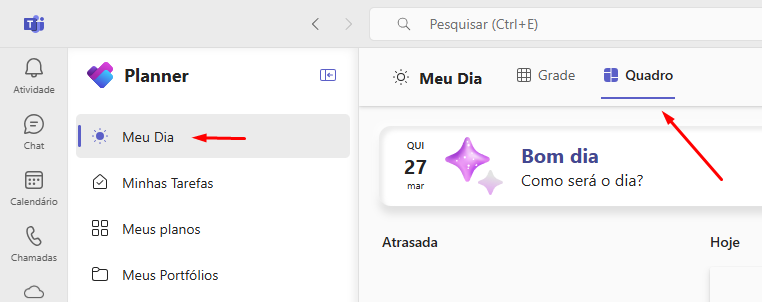
Where to find the view in frame? In My Tasks and My Day, you can switch between the list view and the frame view easily by accessing the options located in the screen header.
How to use frame view? When using the frame display, you can choose how your tasks are grouped in the columns using the "Group by" function. Options include:
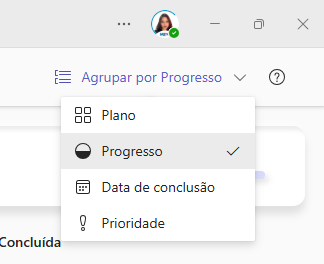
- Plan: Includes your personal tasks, signaled emails and all plans that contain tasks assigned to you.
- Progress: Not started, ongoing and completed. Move tasks between columns to update your progress.
- Date of maturity: Late, today, tomorrow, this week, next week, future and no date. To change the due date, just move tasks between columns. Note: The due date of the tasks in the premium plan cannot be changed in My Tasks and My Day.
- Priority: Urgent, Important, Medium and Low. You can move tasks between columns to adjust your priority. Note: The priority of tasks in the premium plan cannot be changed in My Tasks and My Day. Private tasks cannot be defined as 'Urgent'.
Useful Tips
- Use the "Group by Priority" option in My Tasks to ensure that you focus on the most important tasks. Just move the tasks between the columns to adjust the priority. *
- Use the "Group by due date" option to view your most urgent tasks and reschedule them quickly when moving tasks between columns. **
- Try "Group by Plan" on My Day to focus on one plan at a time, helping to keep your organization in order.
- Use "Group by Progress" on My Day to limit the amount of tasks you take on at the same time, moving them between the columns to update them to "In progress" or "Completed".
Remarks:
* the priority of tasks in the premium plan cannot be changed in My Tasks and My Day. Private tasks cannot be classified as Urgent.
** The due date of the tasks in the premium plan cannot be changed in My Tasks and My Day.
And if you are interested and want a presentation of our products, feel free to schedule an appointment with us at the following link:Microsoft PPM Easy Presentation
Original content from the MLPro editorial library, fully preserved and translated for the English website.
