
What you will find here
See how Copilot is used to create subtasks in Microsoft Planner and how subtasks help organize larger deliverables.
It is now possible to create subtasks with MLPro artificial intelligence in New Planner.
To do this, follow the following steps:
01How to use Copilot to create subtasks
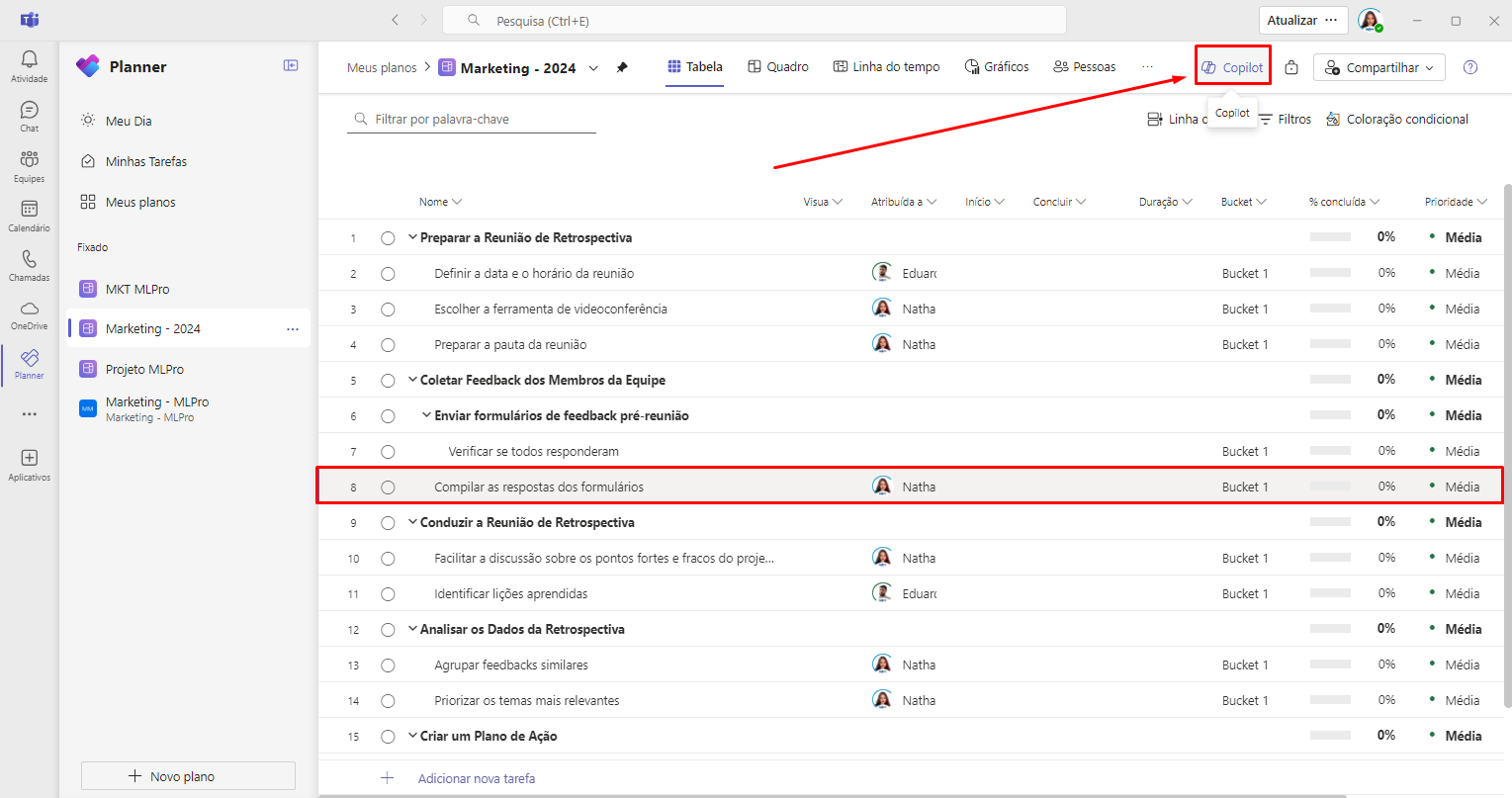
- Locate the number of the task you want to expand and select the “Copilot” button to open the panel.
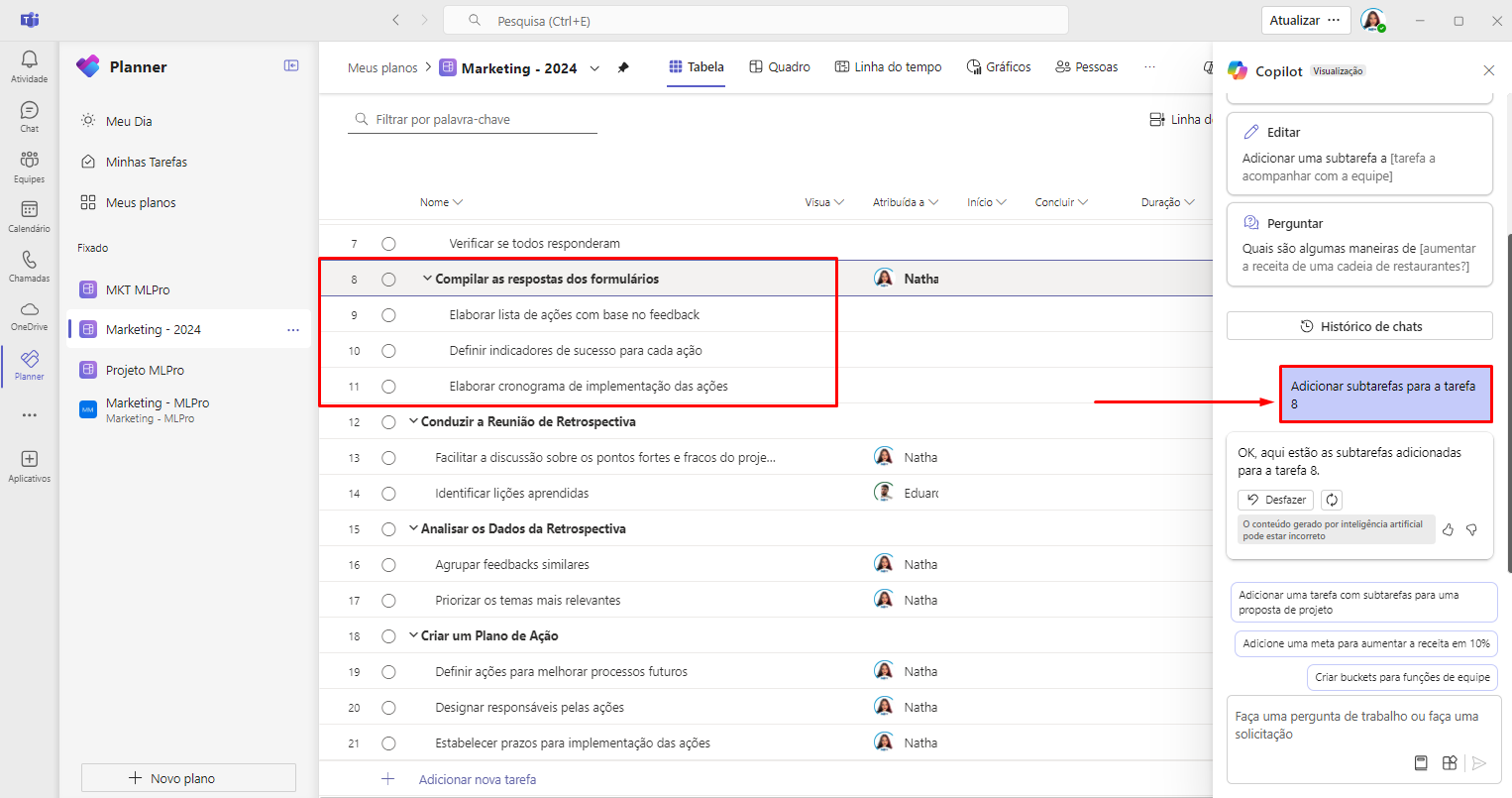
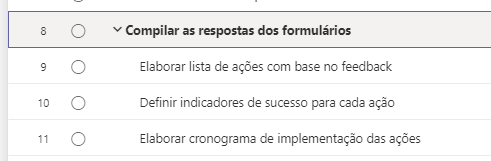
- Ask for Copilot "Add subtasks to [task number]" and wait for him to do it for you.
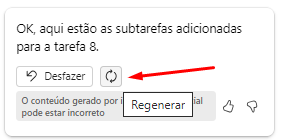
- If you are not satisfied with the generated subtasks, select the regenerate button and Copilot will try again.
02What are subtasks?
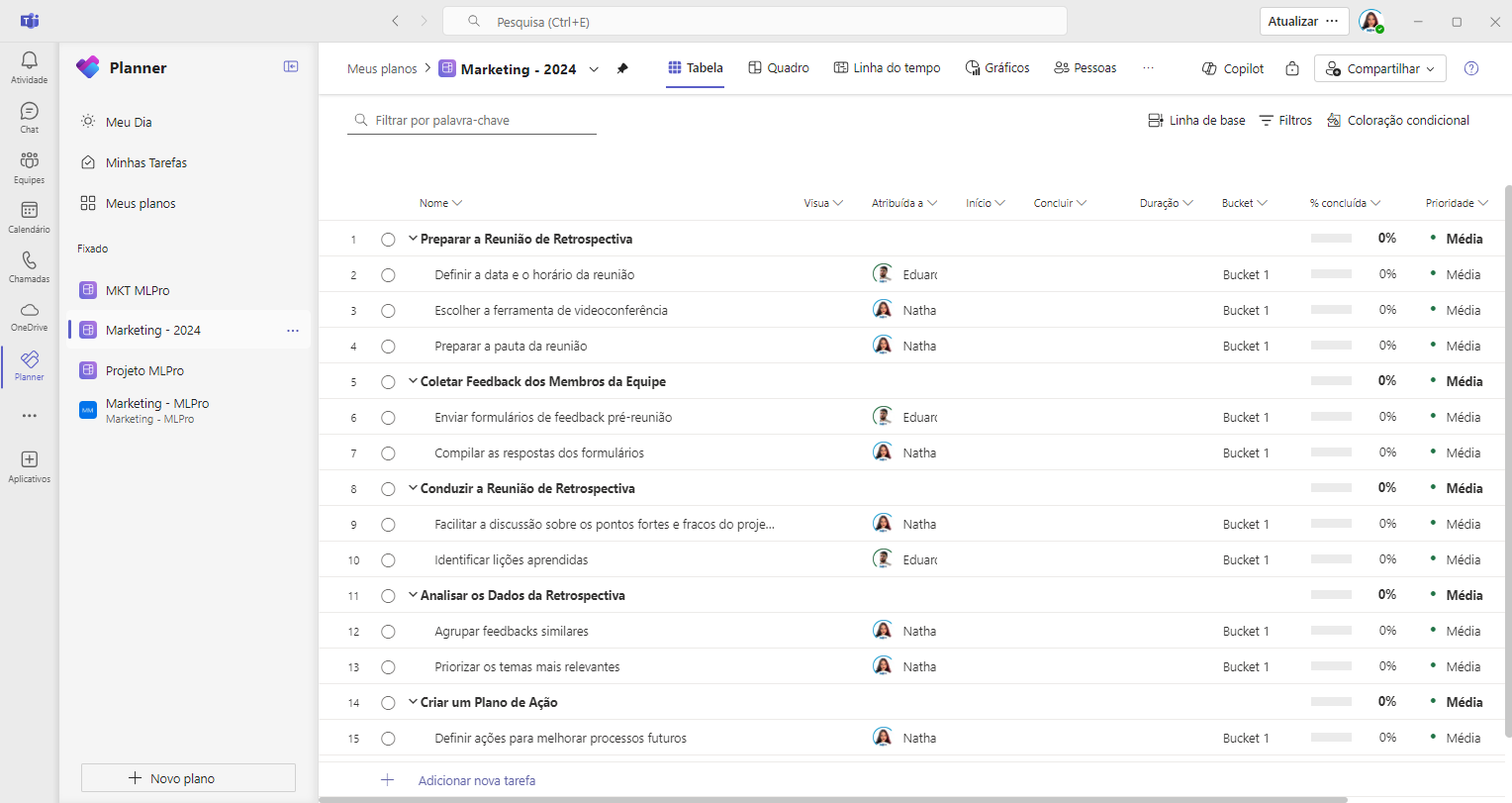
Subtasks are the ones that support the main tasks. They allow you to separate complex deliveries into smaller and manageable parts, ensuring that every detail is considered without losing the overall goal.
03Benefits of Subtasks:
- Improved Organisation and Efficient Division: Structure complex projects so you can easily find what you need. Divide large deliveries into smaller and more actionable tasks, without losing sight of the overall picture.
- Clear Responsibility: Assign specific responsibilities for more efficient collaboration.
- Precise Monitoring: Follow the progress of the main deliveries based on the status of the subtasks.
04How to use subtasks
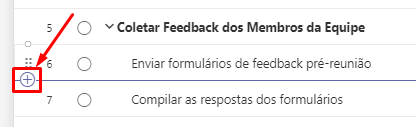
- Add a task below the main task you want to expand. Just click on the “+” as in the image below, and it will be added;
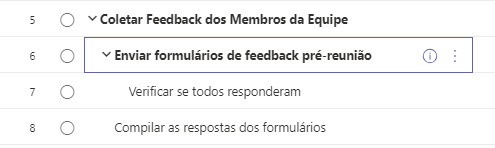
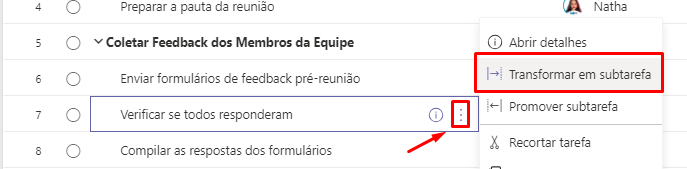
- Open the task menu and select “Turn to Subtask”;
- Take advantage of the flexibility of assigning, setting dates, prioritizing and adding attachments to your subtasks, like any other task.
05Ready to start using subtasks?
Microsoft Planner subtasks are more than a resource; they are a strategic tool that allows you to handle complex projects with confidence. Try Planner's premium features to get this and other interesting features.
And if you are interested and want a presentation of our products, feel free to schedule an appointment with us at the following link: Microsoft PPM Easy Presentation
Original content from the MLPro editorial library, fully preserved and translated for the English website.
