
What you will find here
Review the walkthrough for importing plans into the new Microsoft Planner and the steps described for the transition.
As we have gradually published here on the blog, Planner is going through a series of reformulations to gain new features, becoming New Planner.
One such news is the division into two types of projects, the basic and premium.
The basic project remains with much of the current functions, such as the creation of task frames, grid display of tasks, creation of reports, among others.
Planner Premium, on the other hand, has interesting features such as using AI in projects with Microsoft Copilot, in addition to the possibility of viewing the tasks in Gantt format, setting goals for the activities, among other novelties.
It is possible to use an evaluation period of Planner Premium for 30 days. And you can promote one of your projects in Planner to rely on all the resources of Planner Premium.
To do this, select your project at https://tasks.office.com/ and click “Copy Plan for Project”
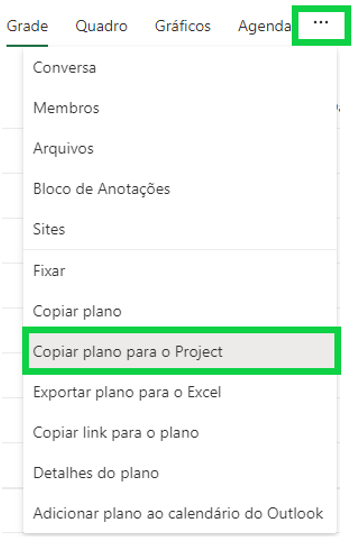
Figure 1 - Plan import screen

Figure 2 - Project import completed
After a few moments, the project will be ready.

If the option to copy the project is not available, it is possible to perform the procedure manually.
- Select your project in Planner. The URL will have the following format:
- 2. Copy text after PlanID=. That's your Planner ID number.
- Go to the Microsoft Project page. The URL should be as in the example below: https://project.microsoft.com/EUUSUARY/en-BR#/hubnew
- Add to the end of the URL above, the following text ?importPlanId= and add your Planner identification number. Then just paste this URL into the browser.
https://tasks.office.com/SEUUSUARY/en-BR/Home/Planner/#/plantaskboard?groupId=2c0f0314-b9e5-44bd-b03b-fa4a6671fa37&planId=HYzEAbe6K0-7KwoA0j5Y7WQAEpq
The result for the example above was as follows:
https://project.microsoft.com/EUUSUARY/en-BR#/hubnew?importPlanId= HYZEAbe6K0-7KwoA0j5Y7WQAEpq
Ready, you can now apply Planner Premium resources to your already registered plans.
01Import restrictions:
- Set Task Date: Project for the Web may need to change start and end dates. If this happens, two custom fields will be added: Imported Start Date and Imported End Date. Both will contain the original date of the corresponding Planner task.
- Task limit: The Project for the Web has capacity for 1000 tasks. If the project you want to import has a larger number, the Project will import 950 tasks, leaving a space for another 50 tasks to be created manually.
This is an important step to experience and understand how New Planner resources can help your productivity.
And if you are interested and want a presentation of our products, feel free to schedule an appointment with us at the following link: Microsoft PPM Easy Presentation
Original content from the MLPro editorial library, fully preserved and translated for the English website.
