
What you will find here
Review the February 2023 web project planning updates: extended Timeline zoom, custom work calendars, resource calendars and the setup steps in this guide.
In February we had news for Project for the Web!!! Microsoft brought new updates on timeline and new function of custom calendar to leave your experience in the tool even more complete.
Check out the new features and how to use them:
- Extended Timeline Zoom
- Custom Work Calendars
Get a more complete picture of your long-term project in the Timeline view using 4 new zoom scale options.
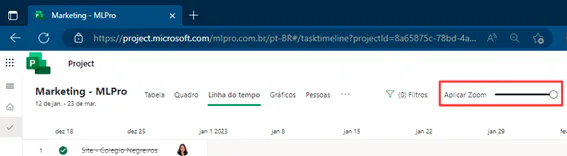
Set your team's custom workweek directly on Project for the Web.
If you have Project Plan 3 or Plan 5 subscriptions, you can create custom workweek calendars for each project directly on Project for the Web.
Each project is created using a standard work model, which is based on the typical workweek from Monday to Friday. However, not all teams follow this traditional workweek and need a way to schedule their tasks based on their own exclusive availability.
With Custom Calendars, you can select which days are part of your workweekand the Project scheduling engine will automatically update the project to schedule the work only these days.
01How to set a custom calendar
To configure a custom calendar for your project:
- Click on the title of your project to open the settings panel. (An example of the project title is "Market Campaign" in the upper left corner of the image below.)
- In Calendar Settings, select Custom Standard Workweek. This will open alternation buttons for each day of the week with Monday to Friday selected by default.
- Change the days to be included in your workweek and disable others.
- Click Apply and your project will be updated automatically to show the new run dates.
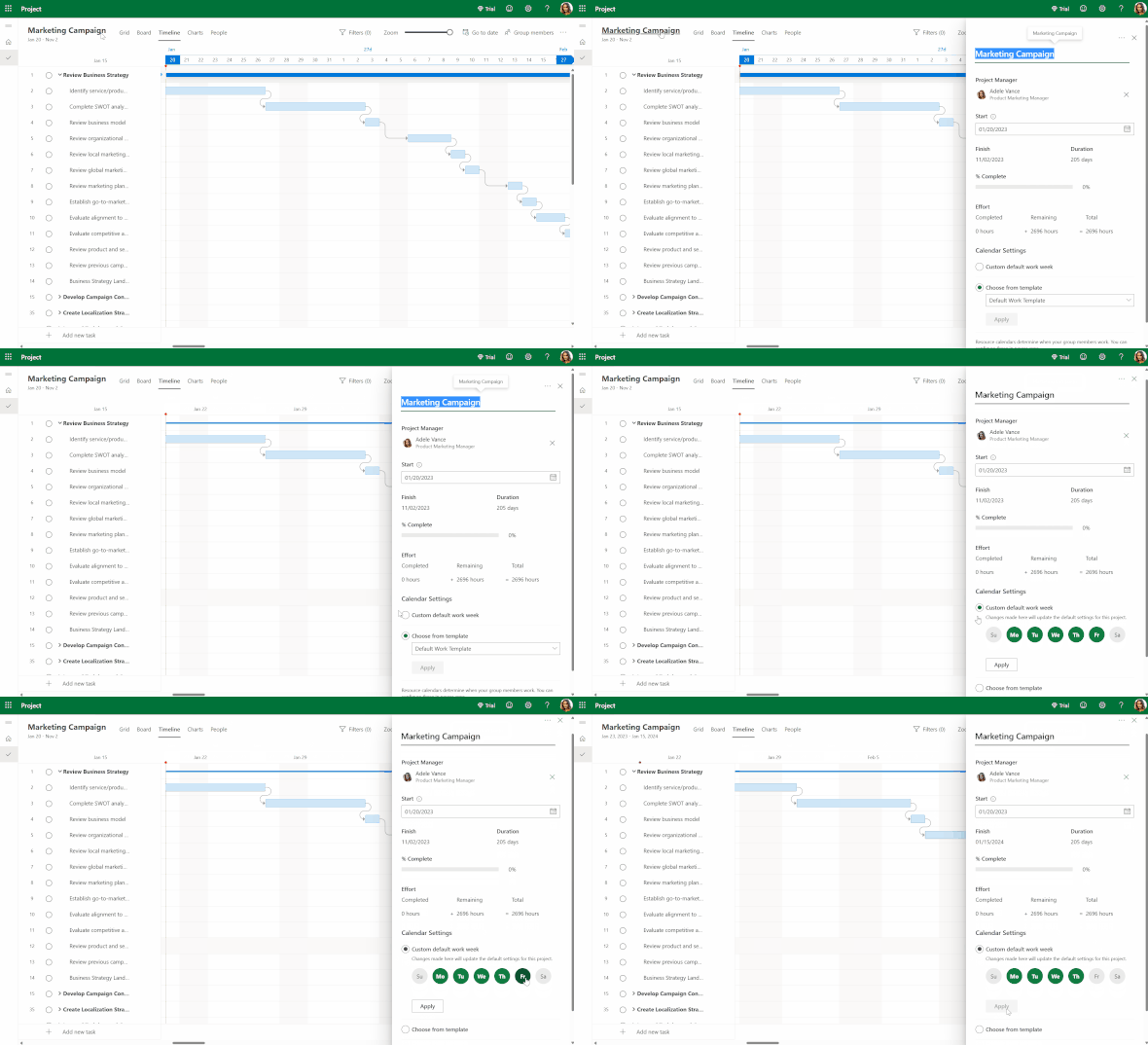
In the example above, you can update the project calendar to use Monday to Thursday as the established workweek. By applying these changes, you can see the end date of the project pushed from November 2, 2023 to January 15, 2024.
The timeline for the project is also updated to show Friday, Saturday and Sunday as non-working days and extends the tasks accordingly.
02Using resource calendars
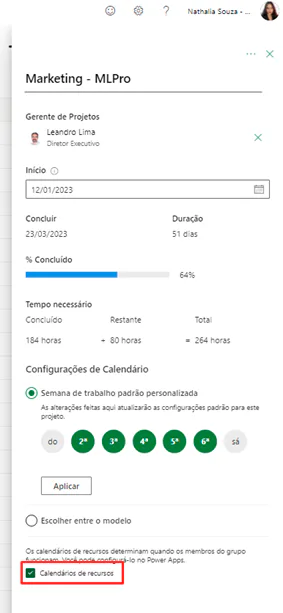
If you have resource calendars configured for your team, you can use them in conjunction with the custom project calendar. At the bottom of the project settings panel there is a Resource Calendars selection box. If you want your custom design calendar to replace any resource calendars that may be associated with this project, uncheck the box. Otherwise, if the box is marked, all resource calendars will be applied to their respective resources.
Let's take an example:
- The X feature has a configured resource calendar that specifies your working hours from Monday to Wednesday.
- The Marketing Campaign project has a customised calendar that specifies business days as from Monday to Thursday.
- If the box Calendar of resources is checked, all tasks of the X feature will only be scheduled for Monday through Wednesday, based on your unique resource calendar. All other team members will have their work scheduled from Monday to Thursday, based on the custom schedule of the project.
- If the box Resource Calendar are demarcated, all tasks will schedule the work from Monday to Thursday, based only on the custom calendar of the project. All resource calendars associated with team members will not be considered.
03Who can edit a project calendar?
Any member of a project with a Project Plan 3 or Project Plan 5 signature may edit the working days of a project. Those who have only one Microsoft 365 or Plan 1 subscription may see the current defined workweek, but cannot make changes.
04Can I edit my team's resource calendars directly on my project?
No, resource calendars should still be edited in Power Apps. To learn more about how to do this, check Resource Calendars in the Web Project - Microsoft Community Hub.
05Next Resources
- Advanced dependencies: Set non-standard dependencies between tasks such as From Start to Finish and From Start to Finish.
- Assigned to Me: Display and update project tasks assigned to you in the tab "Assigned to me" at Planner, Tasks at Teams and To Do.
So, did you like the news? Follow our blog to stay on top of all updates and make the most of Project Online!
If you are interested and want a product presentation, please schedule an appointment with us at the following link: Microsoft PPM presentation .
Original content from the MLPro editorial library, fully preserved and translated for the English website.
