
What you will find here
Follow the archived Microsoft Flow example for reminding Project Online users to check in projects and release checkout locks.
We know that Microsoft Project Online facilitates collaborative work by allowing multiple users to share or update the same schedule, but sometimes a user forgets to check-in a project and this prevents other users from performing Check-out to update the schedule.
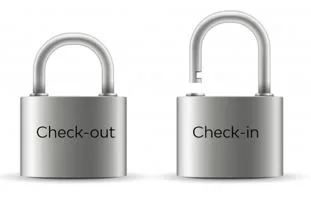
When this happens, you need to ask the administrator to “force Check-in” of the project objects, so that other users can check-out, update the schedule and check-in by releasing it to other users.
This feature should be used in the last case for solving the problem, but if this occurs frequently in your company, perhaps some users do not know how to use the correct procedure.
To help solve this “Check-out Lock” problem, we share here a solution that can help remind those users who forget to check-in projects.
To make it possible to edit a project, we can set up Microsoft Flow to check which projects are not with open check-out, notify via email or Microsoft Teams the user to check-in the project, releasing it for editing other users.
Through Microsoft Flow we can configure, automate and customize flows and tasks by integrating it with other platforms. We can create alerts to be fired by email or send cards via Microsoft Teams notifying that checkout is open.
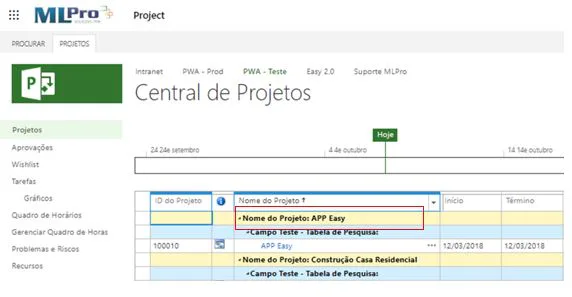
In the example below, we entered the project center and selected the Easy APP project.
Then we opened the project via PWA:
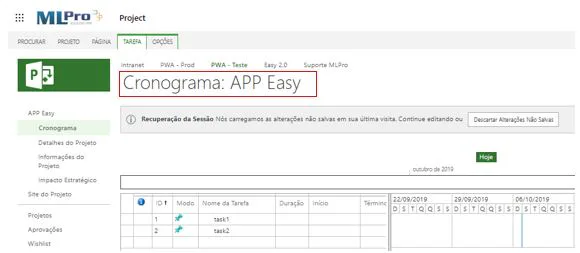
Right now, we leave the Easy APP project with Check-out open.
In the following example, we set Microsoft Flow to follow the following steps:
- Rotate flow at a specific time;
- Check the amount of existing projects in PWA;
- Check each project with open Check-out;
- Check user who is with open Check-out;
- Send email notifying user;
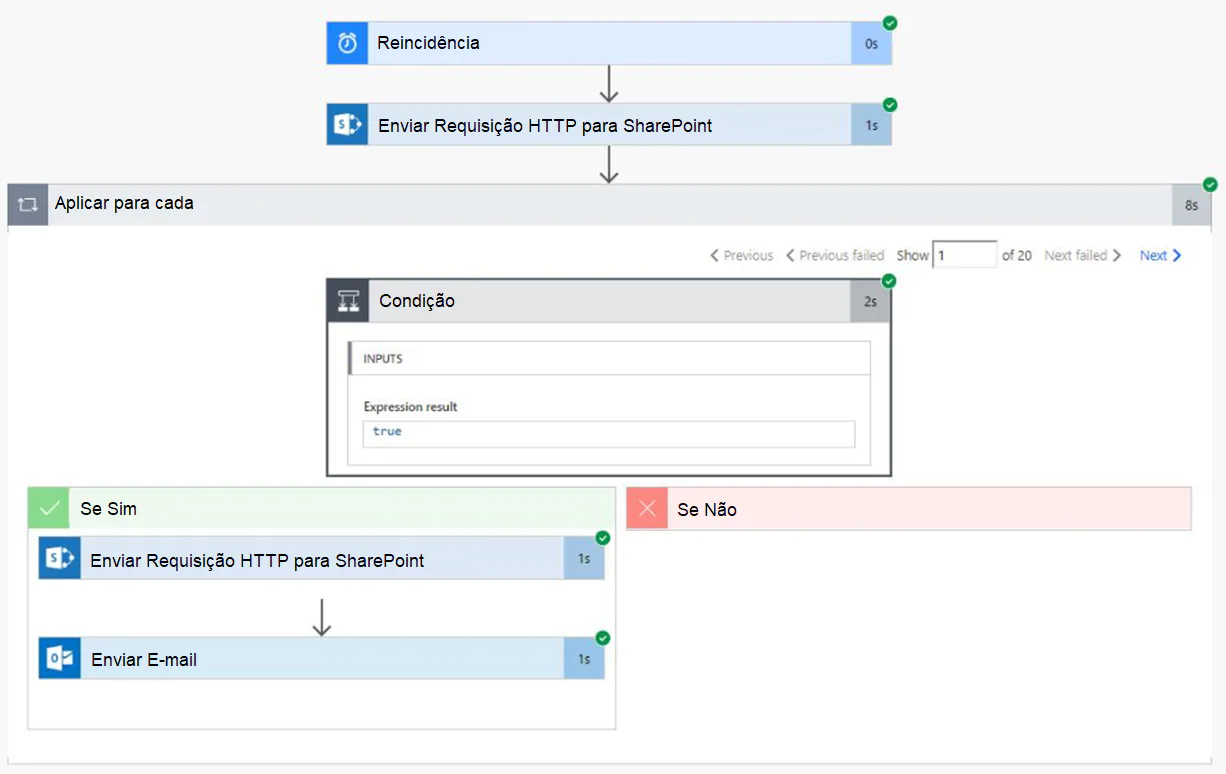
When running the flow above, Microsoft Flow will verify that the EASY APP Project is open Check-out and will forward a message to the user, as shown below:
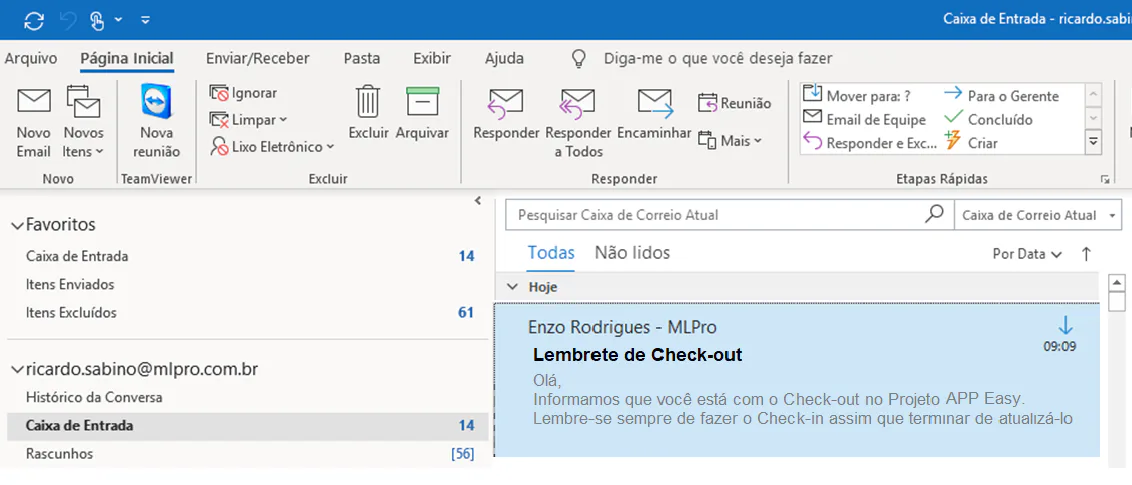
With the implementation of this simple flow, we were able to automate the Check-out verification process and gain more agility from professionals and, consequently, obtain greater productivity.
To learn more about optimizing your processes with Microsoft Flow, please contact us.
Original content from the MLPro editorial library, fully preserved and translated for the English website.
