← Back to the blogMicrosoft Project

Project Web App: What is and how to install

What is Project Online?

Project Web App (PWA) is a web application for project management that contains its functions connected to a SharePoint website, Microsoft's collaboration platform and larger team cooperation tool.

Through this site, it is possible to store, organize, share and access information from any device, in addition to risk management, problems, resources and acquisitions, allowing a more visual control of the progress of the project, based on grid and graphic visualization of Gantt.

Thus, monitoring can be done by any stakeholders without the obligation of knowledge in Project Desktop.

Project Web App Functions

  • Portfolio analysis: Allows you to analyze your portfolio to determine which ones will give you the best return on your budget investment and resources.
  • Proposal management: It includes tools to manage each part of a project, from the initial proposal to scheduling, task production, schedules, and budgets, including different tools to manage each part of a project.
  • Insert hours into a schedule: It is possible to assign hours in an existing frame.
  • Update status and tasks that compose the general project: The application allows collaborative work, so that users (who have permissions assigned by project managers) can access, review and update projects simultaneously.
  • Installation Process PWA

    First Steps

  • Set what the base language will be: This step is the most important, as it will define all future assembly of PWA.
  • Set whether the site will be /PWA or /PPM or the name you want.

    E.g. conto.SharePoint. with/sites/PWA.

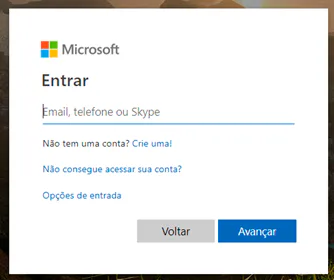
  • Tenant Login

  • Enter and log in to Tenant by Office Portal.
  • Then the license will be assigned to users and the validation of the environment. To verify that everything is correct, you must assign a Project Online license to your user.
  • Tenant Login

    Access Microsoft SharePoint option to create it from PWA
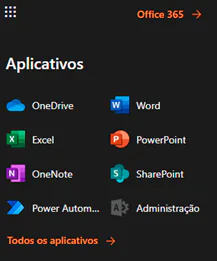
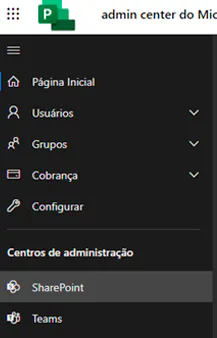
  • Enter the Administration Centre (user must have SharePoint admin permissions)
  • Central administration SharePoint
  • In the left corner of the page you will have an option “Admin Center”, click on “SharePoint”.
  • Central administration SharePoint

    Create the new Site Collection with PWA
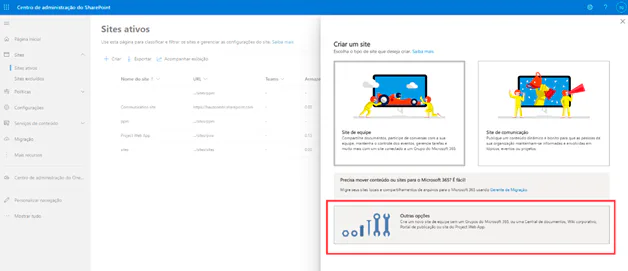
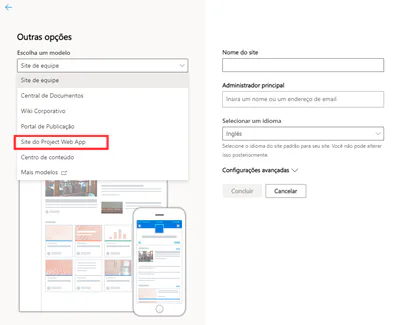
  • Click on: Sites > Active sites > Create a website > Other options
  • Create a website on SharePoint

  • Select option Project Web App website
  • Project Web App website

    In the site name option, type “PWA”, “PPM” or another preferably (it is possible that “PWA” is unavailable).

    Fill in fields for PWA creation
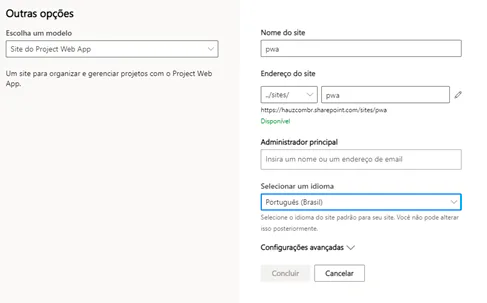
  • Fill all fields according to data to create PWA.
  • PWA Data

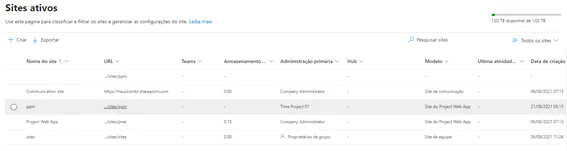
  • Finally, click on the URL of the website that was created and access your Project Web App.
  • Sites active in PWA

    It is worth remembering that the creation of PWA and project site comes in a "crude" and standard version of Microsoft. To parameterize with best practices, as well as insert lists and reports relevant to project management, a specialized consultancy is required.

    If you are interested and want a product presentation, please schedule an appointment with us at the following link: Microsoft PPM Easy Presentation.

    Original content from the MLPro editorial library, fully preserved and translated for the English website.

    Talk to a specialist

    Would you like to apply this knowledge in your organization?

    Talk to an MLPro specialist and see how to organize portfolios, teams, deadlines and KPIs across the Microsoft ecosystem.

    Fast response, no-obligation conversation.