
What you will find here
Explore how Microsoft Roadmap presents projects in a shared view using the walkthrough recorded in the MLPro archive.
Imagine a situation where you are the project manager responsible for reporting the progress of the projects at an executive meeting that was scheduled last minute. As much as you keep up-to-date schedules, at this meeting, you need to show the fast, practical and visual information to the directors, however, opening each of the schedules may not be the best solution for you.
And now how can you solve this case?

If you have identified yourself with this situation this post may interest you.
To resolve this there is a Project Online feature called Roadmap.
This feature is available to all Project Online subscribers Professional or Project Online Premium and allows you to view the status of each of your projects.
It was developed on Microsoft Power platform, a robust solution that combines a number of Microsoft products - Office 365, Dynamics 365, Azure DevOps, Power BI, PowerApps and Flow in a single data connection solution. The Roadmap itself is based on Microsoft Flow. [1]
If Roadmap is not available for viewing on your home page contact the Office 365 administrator to enable it.
Maybe you're thinking cool, "can solve my problems," but how do I do that?
To use Roadmap just follow the following steps:
To access Roadmap click Create New and then on Screenplay as shown below.
To add a project and then add tasks related to it you must first add a line, just click on the "Add Line" button.
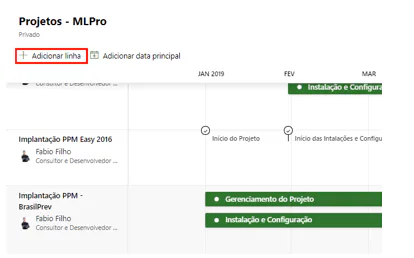
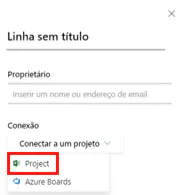
After clicking you will see some lines to fill as title, owner and connection. In "Connect" you must select Project option.
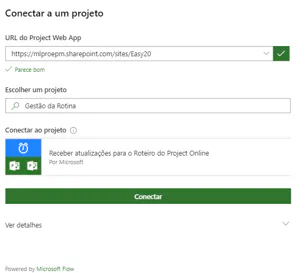
After selecting the Project option you should put the url of the site where the projects are, enter the Project name and click Connect.
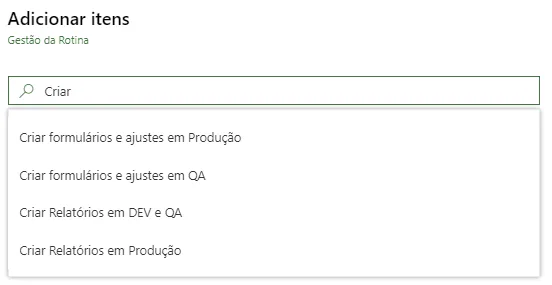
Now just enter the name of the tasks you want to select and then click Save.
After performing the above steps you will have a preview in the timeline of your tasks or milestones as example below:
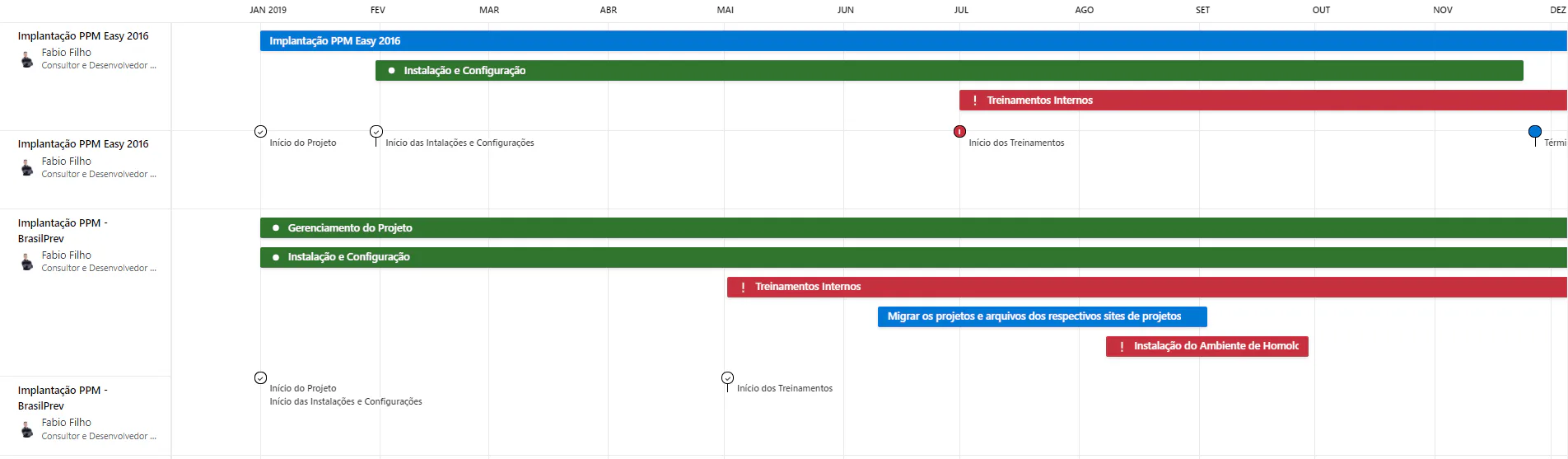
There, now you already have a simple and visual way to view the status in tasks, projects, portfolios or programs. You can see all types of current projects, such as Project Online and Azure Boards, in one place and easily edit and filter only the tasks, milestones and phases you want to view.

The Roadmap will facilitate both the executive vision and the vision of the PMO that can monitor the progress of the most relevant activities of the project by monitoring any deviations of the schedule in a visible way in a timeline. You can create multiple Roadmaps thus creating an executive vision for the project portfolio, accelerating information analysis and decision making.

Understanding now how Roadmap works, perhaps at your next meeting, to present the status of the projects, you can use it and deploy in your company the use of this functionality by improving your company's project management.
In the solutions offered by MLPro in addition to the implementation of Project Online, parameterization, training and personalized reports we contemplate the use of Roadmap so that your company can access information from your project portfolio quickly, practical and agile.
To learn more about MLPro solutions for your company please contact us and request a proposal.
You can learn more about starting using Roadmap by accessing Microsoft links below:
[1] Adapted text from the site View the status of your projects with Roadmap today.
Original content from the MLPro editorial library, fully preserved and translated for the English website.
