
What you will find here
Follow the archived walkthrough for linking Project Online tasks to a Planner plan and tracking activities across both tools.
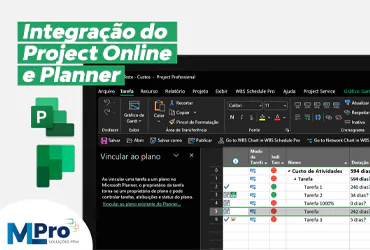
Currently, Microsoft 365 users can use Microsoft Planner as a lightweight project management tool that enables better team productivity. However, as projects become more demanding, Planner's next logical step is to use the Project, which can handle this work.
The Project offers the resources most requested by Planner users, such as Timeline (Gantt's graph), subtasks, advanced scheduling and to-dos. In short, it allows managing tasks and projects at a much more advanced and flexible level, while Planner helps you in a limited way to manage and monitor team tasks on a shared plan.
Therefore, in order to keep your workflow within your Microsoft 365 environment, Microsoft has taken an initiative to offer resources and capacity for broad integration between Project and Planner.
01Why integrate MS Planner with Project Online?
The Microsoft Project allows only one user at a time to edit projects. This person is usually the project manager or some specific feature. And often the projects are extensive, very detailed and with many resources. Integration ends up making collaboration between project managers and project teams much more efficient.
Using both tools together allows you to create the basic structure of your project in the Project and export the details to MS Planner. To do that, create an activity in Project Online for each task package and add a link to that activity to the corresponding plan in MS Planner. Your team can then set individual tasks to provide necessary details.
It wants to ensure that integration between Project Online and Planner works efficiently and without rework? Talk to our Microsoft PPM experts and find out how to implement this connection in a practical way, avoiding common errors and accelerating the visibility of your projects.
02The limitations of integration
To summarize: By default, there is no way to link a project activity to a part of a plan, such as a bucket, in MS Planner. Therefore, you must create a separate plan in MS Planner for each work package that requires a detailed plan.
03How to add a project task to Project Online in Planner?
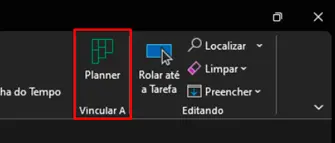
- Inside the project, click "Planner" in the upper right corner;
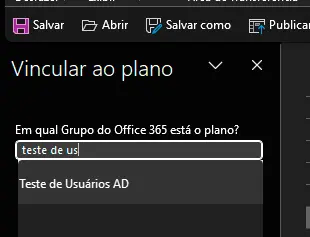
- After this, search and select which Planner Plan you want to assign the task to;
- Select “Create Link”;
- Ready! Your task will be assigned to your Planner.

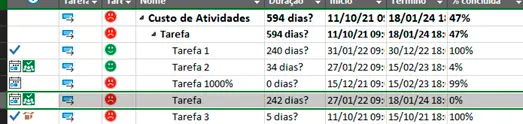
Now, you can get into your Planner Plan Panel and track your activity there!
04Update 2025: features that will facilitate your project management
In 2025, integration between Project Online and Planner became even more powerful with the support of Project Management Agent AI, which assists in the distribution of tasks, risk prediction, and suggestion of automatic schedule adjustments. This evolution makes the combined use of even more strategic tools for PMOs that seek greater productivity and control.
If you do not know these tools, access our article with more information from comparison.
Integrating Project Online to Planner is an opportunity to transform project management by uniting detailed planning and agile execution into a single stream. If you want to optimize processes, reduce risks and gain predictability in deliveries, count on MLPro to drive this implementation safely and efficiently.
Get in touch and find out how we can support your PMO in practice!
Original content from the MLPro editorial library, fully preserved and translated for the English website.
