
What you will find here
Follow the archived introduction to Microsoft Flow and its use for connecting SharePoint with automated workflows.

Microsoft Flow is a cloud-based service that allows the user to automate and customize flows and tasks, integrating it in a simple way with various platforms such as Office 365, Project Online, SharePoint, Outlook, Microsoft Teams, OneDrive and third-party tools such as Salesforce, Facebook, Twitter among others.
Microsoft Flow basically works through a trigger that triggers an action. A trigger is the event that will initiate the flow. The trigger can be an email received, an approval stream that was created or even when something is created in SharePoint. Below are some examples of triggers that can be used:
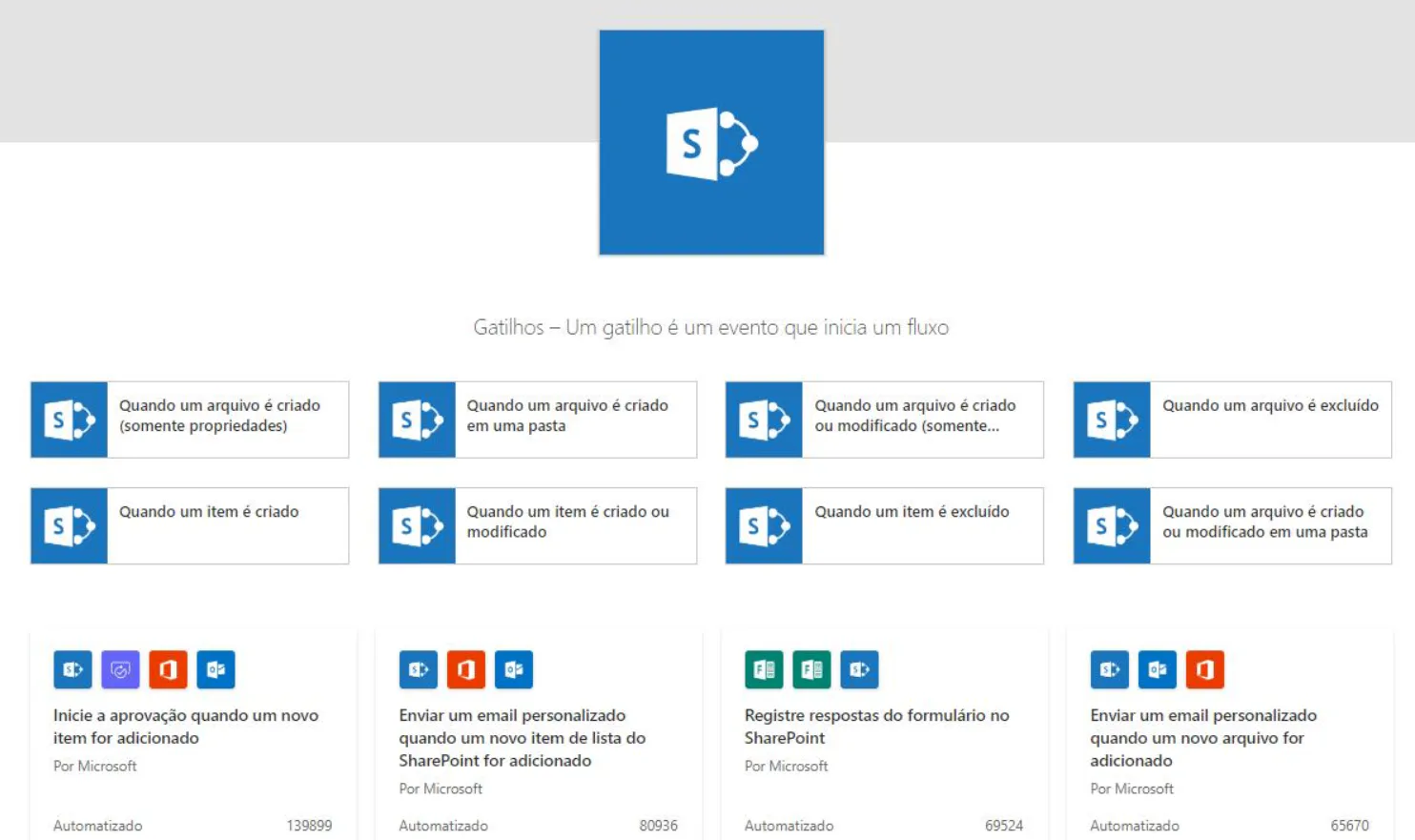
To create a flow, the user must specify which action should occur when a specific event occurs. The action will be what is desired to be done next. For example: When the trigger "I received an email" is fired you can create the action "shoot notification via Microsoft Teams".

In order to use Microsoft Flow, it is necessary to use connectors that serve to integrate across multiple platforms. Below we list the main Microsoft Flow connectors:

To see the full list of connectors available, go to the link Microsoft Flow.
If your user is linked to Office 365, you will already have the basic Microsoft Flow package.
To use some specific connectors, you will need a premium license. Below, we list the difference of each of the plans and their respective values.
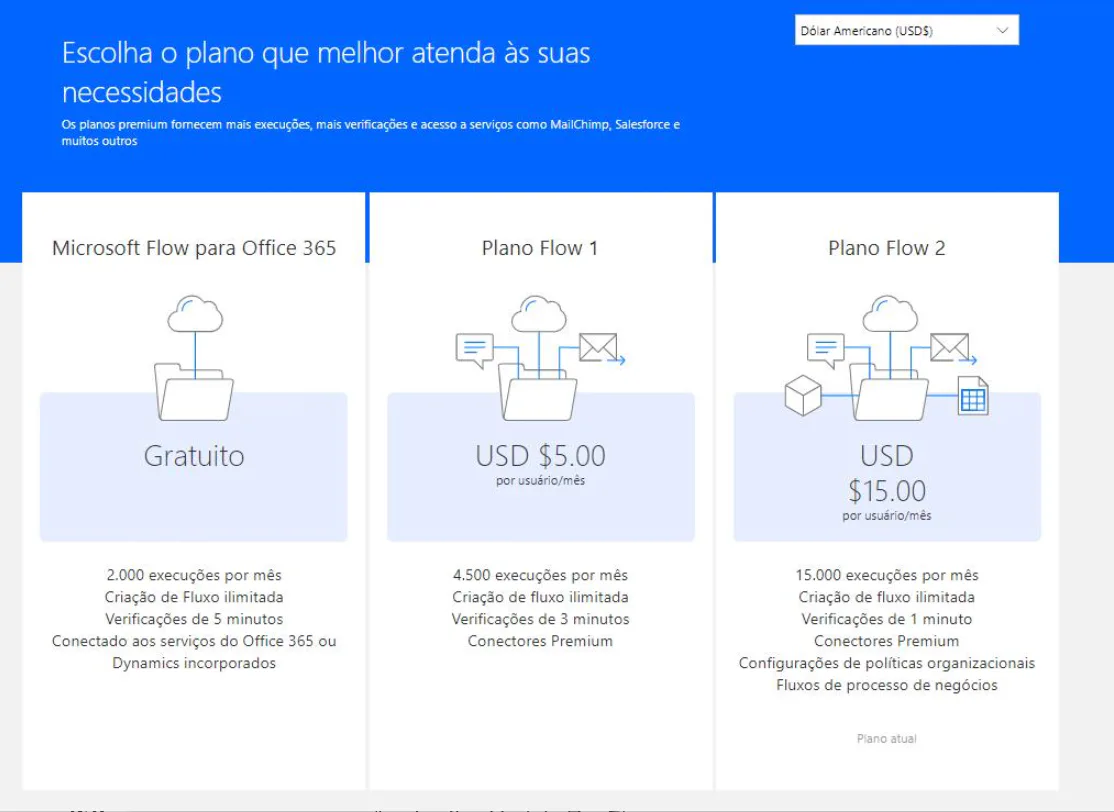
To learn more about your plan, licenses, and resources, contact your network administrator.
01 Accessing Microsoft Flow
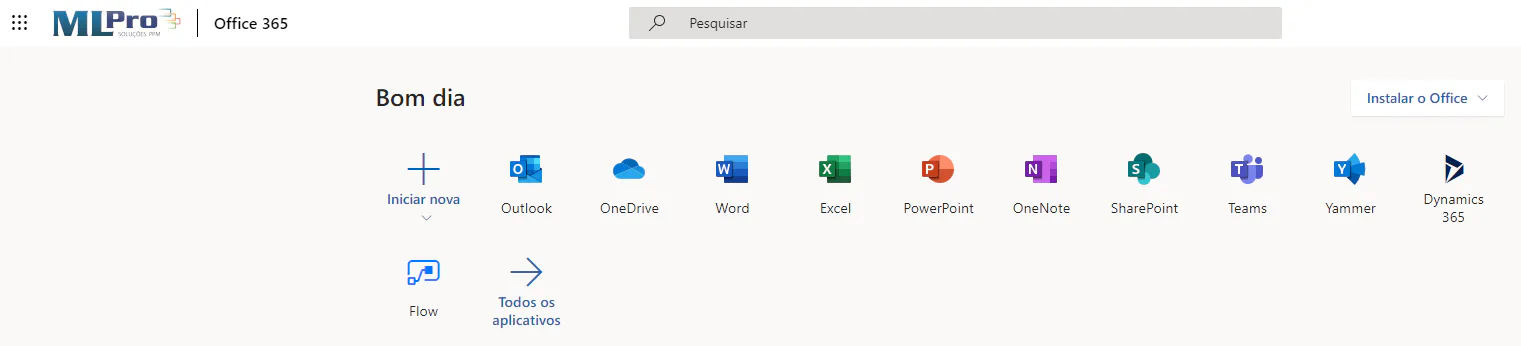
Accessing the site Portal Office 365 you can click the Flow icon as shown below:
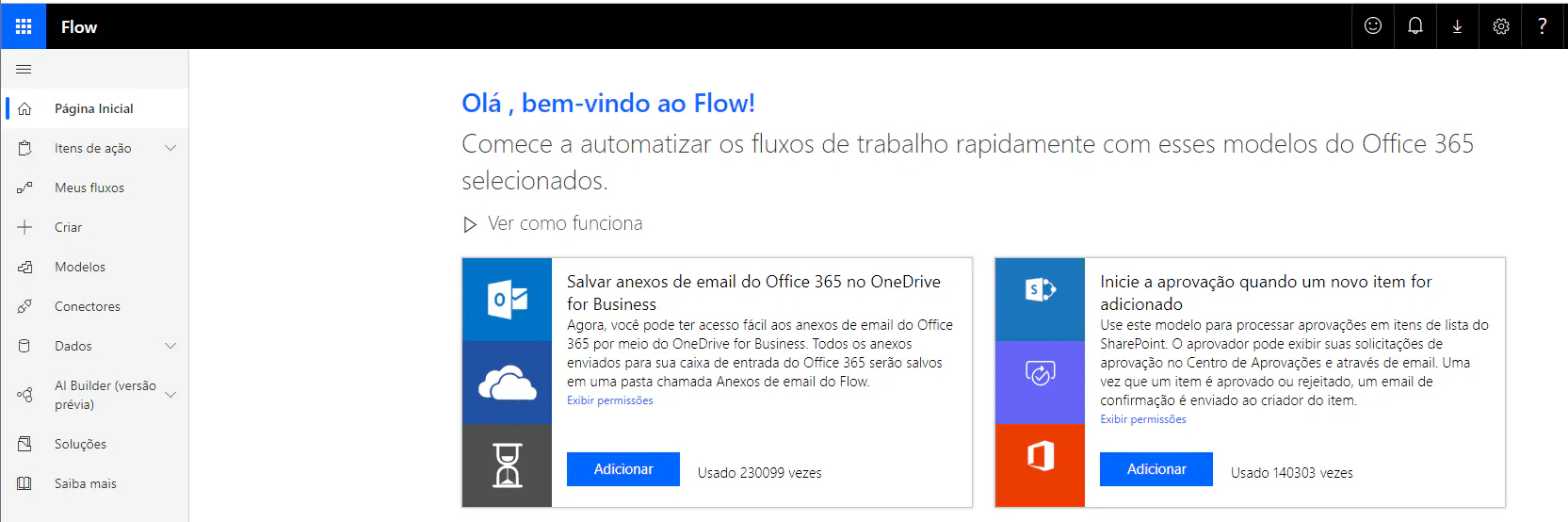
After clicking the icon, the screen below will be displayed:
You can create a custom flow or, if you prefer, you can use any of the models already available on the site, as follows:
In addition, there are other applications you can perform to use Microsoft Flow and optimize your activities. On the Microsoft website you can find other models available for your use, among which we can highlight:
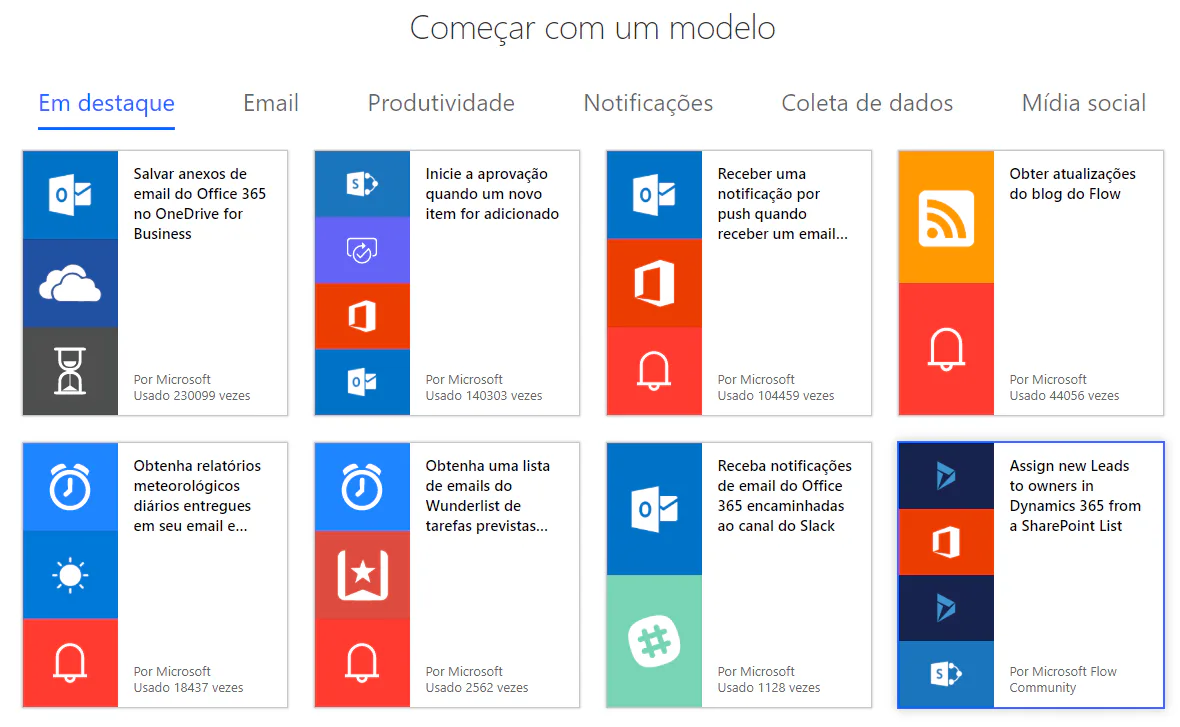
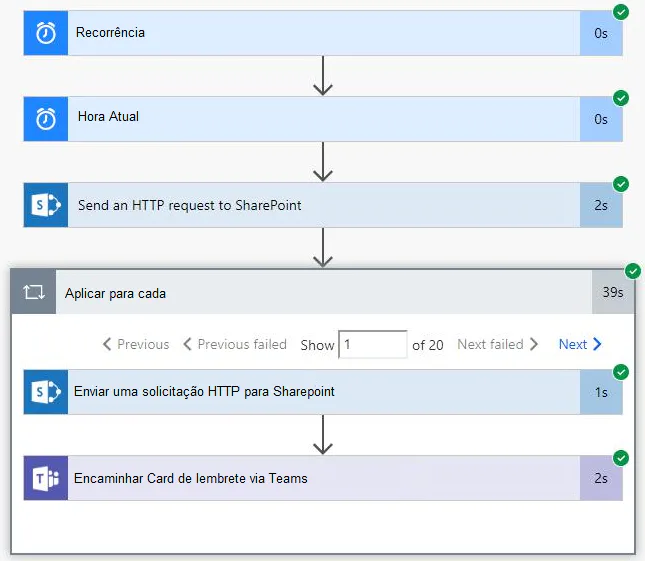
There are several possibilities for using Microsoft Flow. For example, we can create a flow where a message will be triggered via Microsoft Teams, if any Project Online Project has not been published more than 20 days ago, warning you that this activity has not been performed.
To create each flow, you need to configure each of the steps that the flow will perform.
In this case, we need to configure each of the following steps so that Microsoft Flow is integrated with the data that is in a SharePoint list:
When the flow is ready, if the employee has not updated and published the project, you will receive an alert message in Microsoft Teams as the message below:
We can also cite an example of integration with Project Online. In this case the Roadmap will be updated whenever a project is published in the Project. For this, we need to configure the flow described below:

In this example, every time a project was published Microsoft Flow would automatically update Roadmap, allowing it to always be with the latest version.
In case you don't know what Roadmap is, we have a article on the subject published earlier.
These are just two examples of using Microsoft Flow, but we can integrate it in various ways according to the need of your company.
To learn how we can optimize your processes, save time and improve communication between your teams, contact us.
Original content from the MLPro editorial library, fully preserved and translated for the English website.
