
What you will find here
Explore the latest PSA Easy improvements in approvals, Microsoft Project integration, risk management and navigation: 13 features are released and 1 remains in development.
A task comes back to a team member marked as rejected. They don't know why, message the manager and wait for an answer before fixing it. Meanwhile, a supplier emails the project schedule and someone in the company has to publish it by hand. Situations like these eat up hours that should go into the project.
PSA Easy continues to evolve to address exactly these points. Its latest improvements add context to approvals, bring more Microsoft Project data into PSA Easy, make risk management more detailed, add artificial intelligence support and clean up navigation.
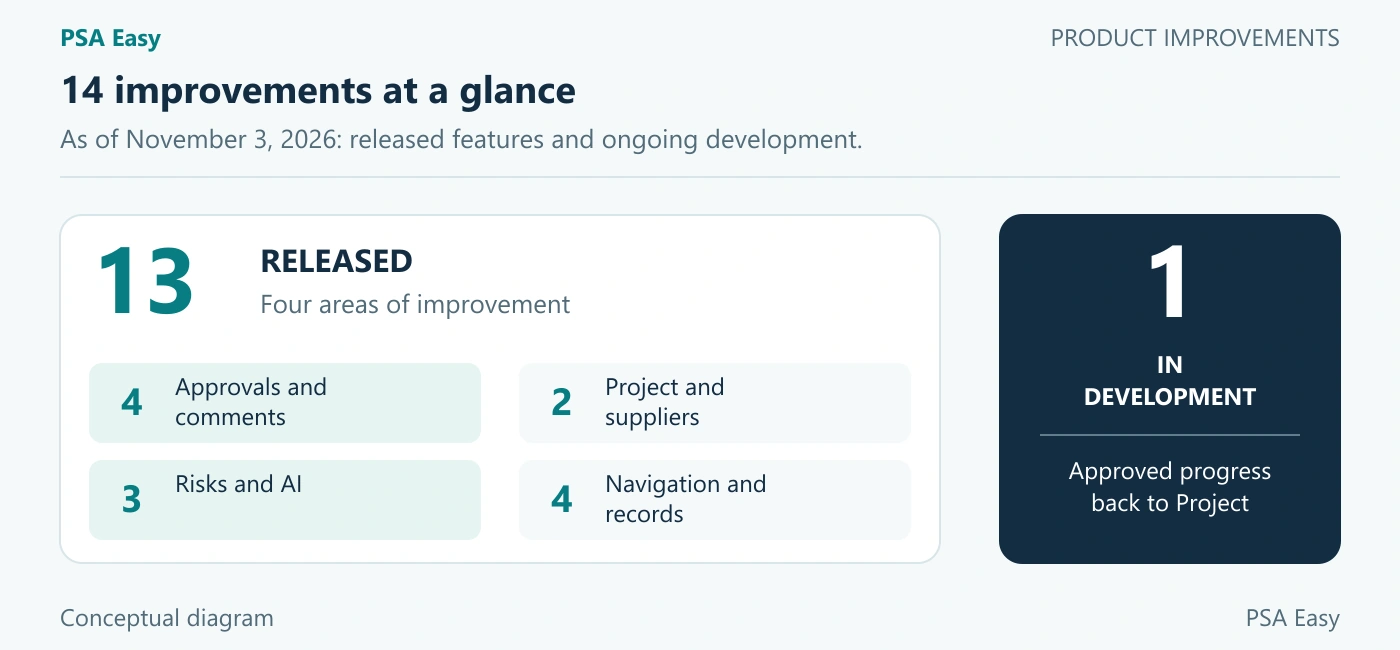
This article brings together 14 improvements checked against the backlog on November 3, 2026. Thirteen are released in the standard product and one remains in development. You will also see how these improvements reach the environment of existing customers.
The table uses two stages. Released means completed in the standard product. In development means work is still in progress. The status was checked in the Improvement Backlog on November 3, 2026.
01Summary: the 14 improvements and the stage of each one
| Improvement | What changes for you | Stage as of November 3, 2026 |
|---|---|---|
| 01Approval history | Every submission, approval and rejection is recorded on the task | Released |
| 02Reason for rejection | The approver's comment goes back to the submitter | Released |
| 03Rejected task alert | An alert icon replaces the rejection text | Released |
| 04Microsoft Project fields | Up to 70 custom fields per task reach PSA Easy | Released |
| 05Suppliers in the schedule | Suppliers work on the schedule with their own identity | Released |
| 06Risk probability | Options in 10% steps instead of four ranges | Released |
| 07Side menu | No more Home, Recent and Pinned | Released |
| 08Standardized navigation | Each report has its own icon | Released |
| 09AI-suggested likely risks | Risk suggestions based on company history | Released |
| 10AI mitigation plan | A proposed plan for each risk | Released |
| 11Power BI dashboard icons | Redesigned, sharper icons | Released |
| 12Resubmission for approval | The latest submission replaces the pending one | Released |
| 13Manager as stakeholder | Added automatically when the project is created | Released |
| 14Progress back to Project | Approved progress updates the schedule | In development |
Prefer to see the improvements in action? Watch Leandro Lima's PSA Easy demo (in Portuguese). The approved-progress return to Microsoft Project is still in development; the stage in the table above prevails.
 Play the Portuguese demonstration: PSA Easy: novidades em aprovações, Microsoft Project e riscos com IA
02Where each improvement stands today
 Enlarge image
PSA Easy evolves through a backlog with defined phases. An improvement is only called released after it goes through development, testing, validation and deployment in the standard product.
Of the 14 improvements in this overview, 13 are released and one is still in development. PSA Easy has also received bug fixes and stability gains that are not on this list but improve day-to-day use.
03Approvals with history and the reason for rejection
Task approval is where a team member reports progress and the manager confirms it. It was also where most context got lost. Three released improvements change that.
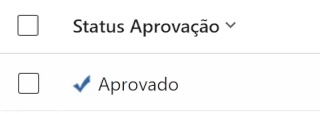
- Full history: the task now shows every submission, approval and rejection, with the approver and the comment recorded. Anyone following the project can see the task's path without having to ask.

 Enlarge image
Improvement 01: Approval historyApproval history showing submitted progress and the result recorded on the task. Real PSA Easy interface in Portuguese.Detail of the approval history: a record marked Aprovado (Approved). Real PSA Easy interface in Portuguese. - Reason for rejection: when the approver rejects a task, the comment goes back to the submitter. They understand the reason and fix it without back-and-forth messages.

 Enlarge image
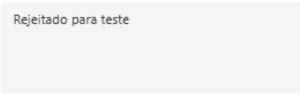
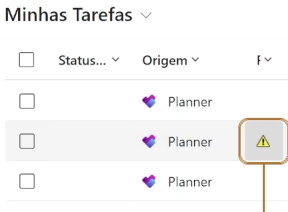
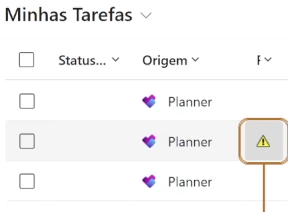
Improvement 02: Reason for rejectionApprover comment recorded in the approval form. Real PSA Easy interface in Portuguese.Approver comment in the demonstration: Rejeitado para teste (Rejected for testing). Real PSA Easy interface in Portuguese. - Visual alert: the rejection text was replaced by an alert icon. Hovering over it shows the reason. The change came from customer feedback, where the word "rejected" felt too personal.
 Enlarge image
Improvement 03: Rejected task alertDetail of the rejection alert in My Tasks. Real PSA Easy interface in Portuguese.


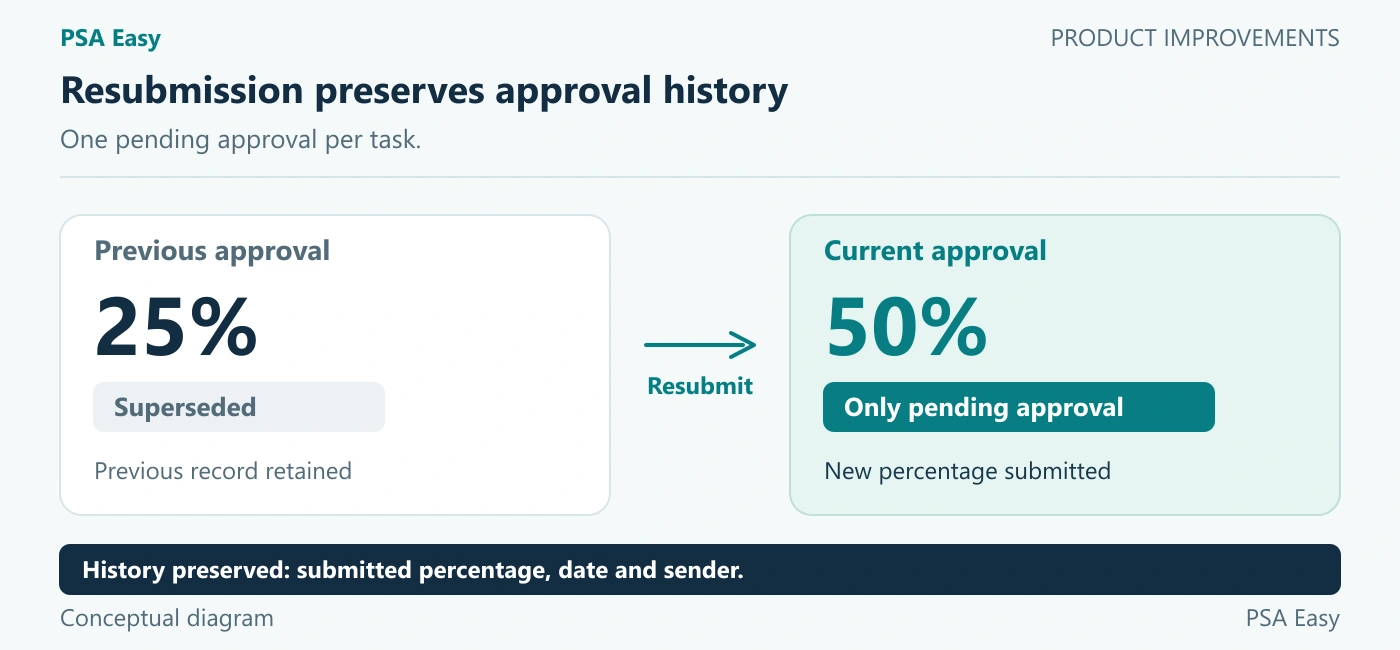
A fourth adjustment has also been released. Previously, if the same task was submitted two or three times before approval, the approver received duplicate requests. Each task now keeps a single pending approval: the latest submission replaces the earlier one, and the approver reviews only the current version.
 Enlarge image
04Microsoft Project data inside PSA Easy
Until recently, the PSA Easy integration with Microsoft Project brought in only basic task information, such as start and finish. It now also captures the schedule's custom fields.
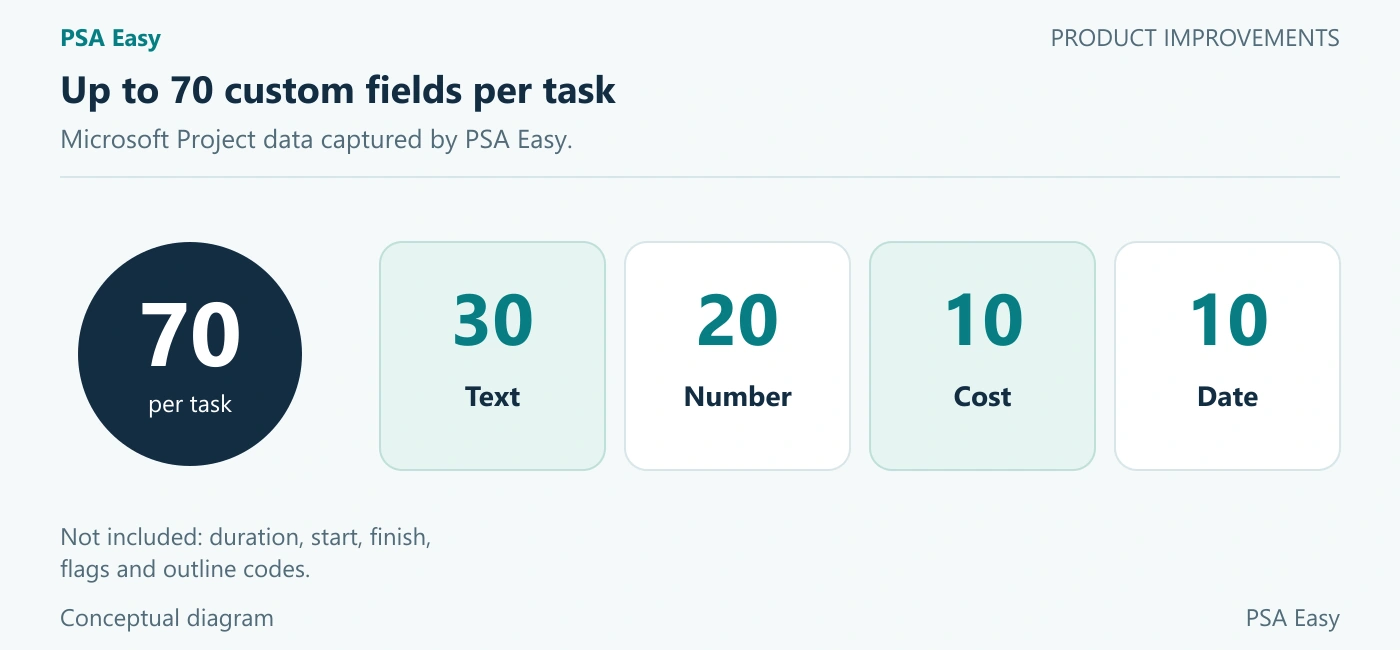
That means up to 70 fields per task: 30 text, 20 number, 10 cost and 10 date. Each field can take the name the project uses and appear as a column and in reports. For example, a text field can become Contract, a cost field can hold the Approved cost and a date field can record the Acceptance date. Number fields can also serve as activity weights to calculate project progress.
MLPro consultants define the name and use of each field with each customer. Duration, start, finish, flag and outline code fields are outside the scope of this release.
 Enlarge image
05Suppliers collaborating on the schedule
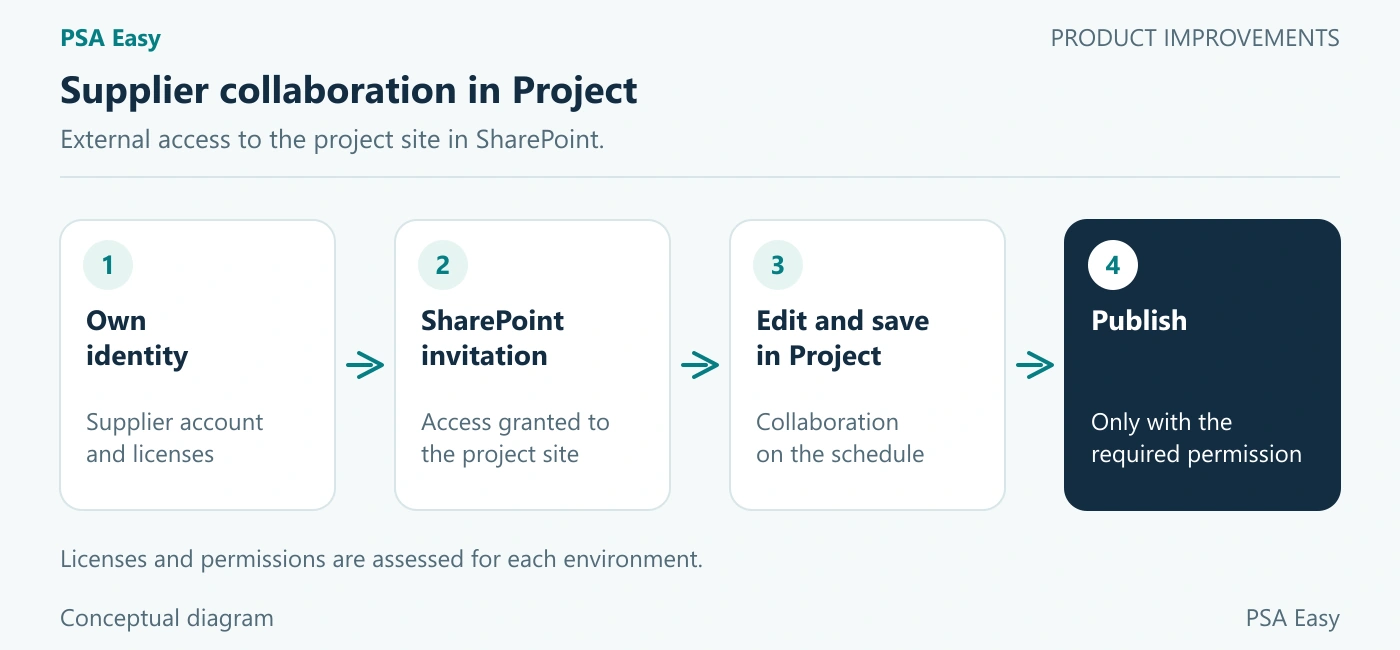
Many projects rely on suppliers who update part of the schedule. Without proper access, the file goes around by email and someone in the company has to publish it.
The released improvement uses Microsoft 365 external access. The supplier signs in to the project site in SharePoint as an external guest, with their own company identity, without needing a corporate account in your company. They can then edit and save the Microsoft Project schedule. With the right permission, they can also publish it. With save-only access, the person in charge at the company reviews and publishes.
The supplier uses their own company's licenses. Permissions, security policies and licensing must be assessed for each environment before access is granted.
 Enlarge image
06Risks with more detail and AI support
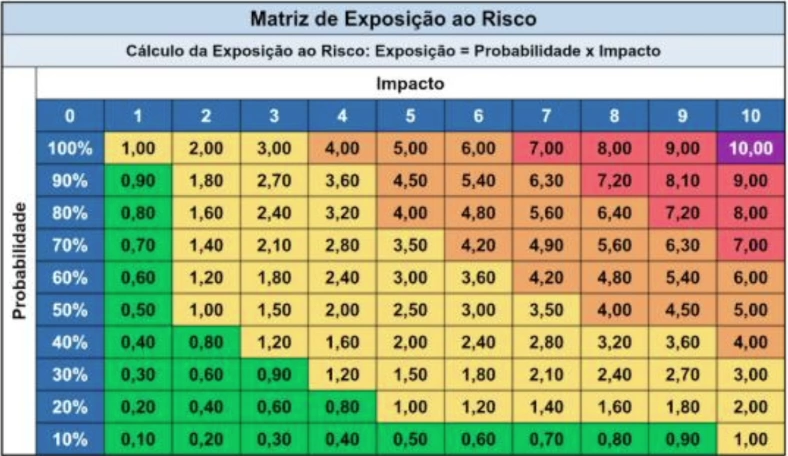
Risk probability now offers options in 10% steps, from 10% to 100%, instead of the four ranges of 25%, 50%, 75% and 100%. The assessment becomes more detailed, and risk exposure reflects that granularity.
For customers who already use the risk register, this change is not deployed automatically. Risks recorded at 25% and 75% need to be converted, so MLPro handles each environment separately.
 Enlarge image
Two artificial intelligence improvements were released on November 3, 2026:
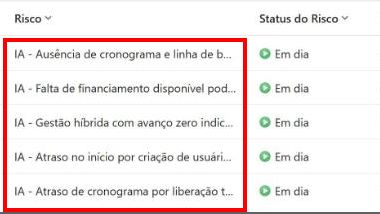
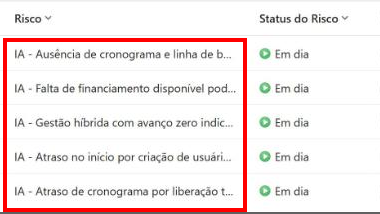
- Likely risks: AI analyzes risks from similar projects and the company's history and suggests risks for the current project. The project needs at least one registered stakeholder. The manager approves or rejects each suggestion. The more risks and issues the company records, the better the suggestions get.
 Enlarge image
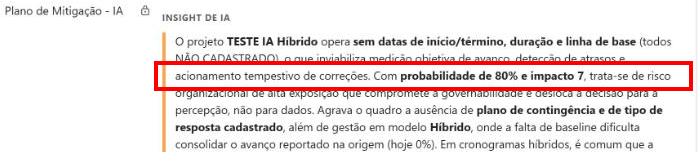
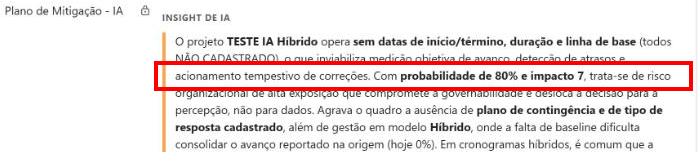
Improvement 09: AI-generated risk suggestionsAI-generated risk suggestions in a demonstration project. Real PSA Easy interface in Portuguese.Detail of one AI-generated risk suggestion and its Em dia status in a demonstration project. Real PSA Easy interface in Portuguese. - Mitigation plan: AI reviews past risks and action plans and proposes how to reduce the chance of each risk occurring. The text is saved on the risk, with the date it was generated, for the manager to review.
 Enlarge image
Improvement 10: AI mitigation plansExcerpt from the AI Mitigation Plan field, including the risk probability and impact. Real PSA Easy interface in Portuguese.Excerpt from the mitigation plan showing the risk parameters: 80% probability and impact 7. Real PSA Easy interface in Portuguese.
In both cases, the decision stays with the project manager. These features run in the environment through Copilot Studio, not through each user's license. They therefore require Copilot Studio capacity purchased for the environment.
07Clearer navigation and less manual setup
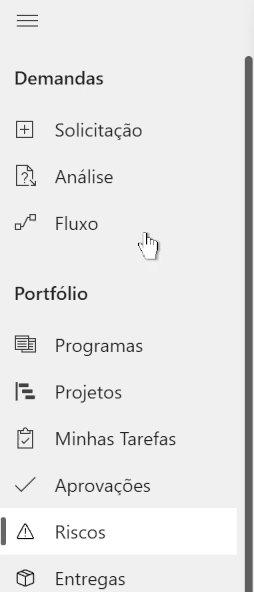
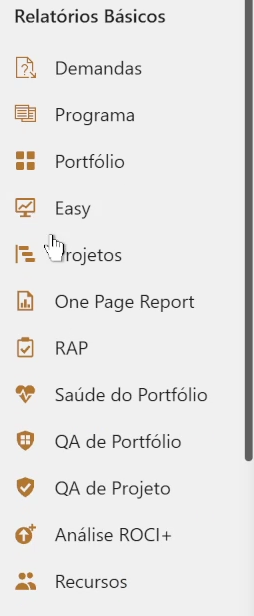
Two navigation improvements are released. The side menu no longer shows Home, Recent and Pinned, items that took up space and were rarely used. Navigation was also standardized: each report has its own icon, and the same subject uses the same icon in the records menu and in the reports menu, with a different color for each type.
 Enlarge image
 Enlarge image
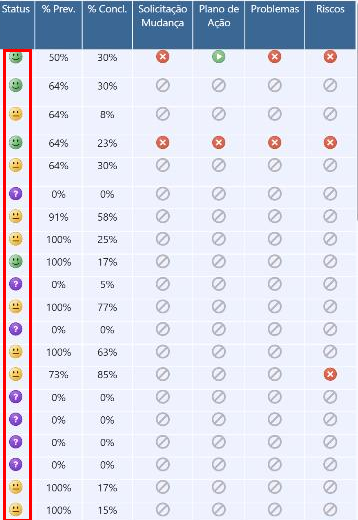
The PSA Easy Power BI dashboard icons were also redesigned, sharper and with a single visual standard. This improvement was completed on October 27, 2026.
 Enlarge image
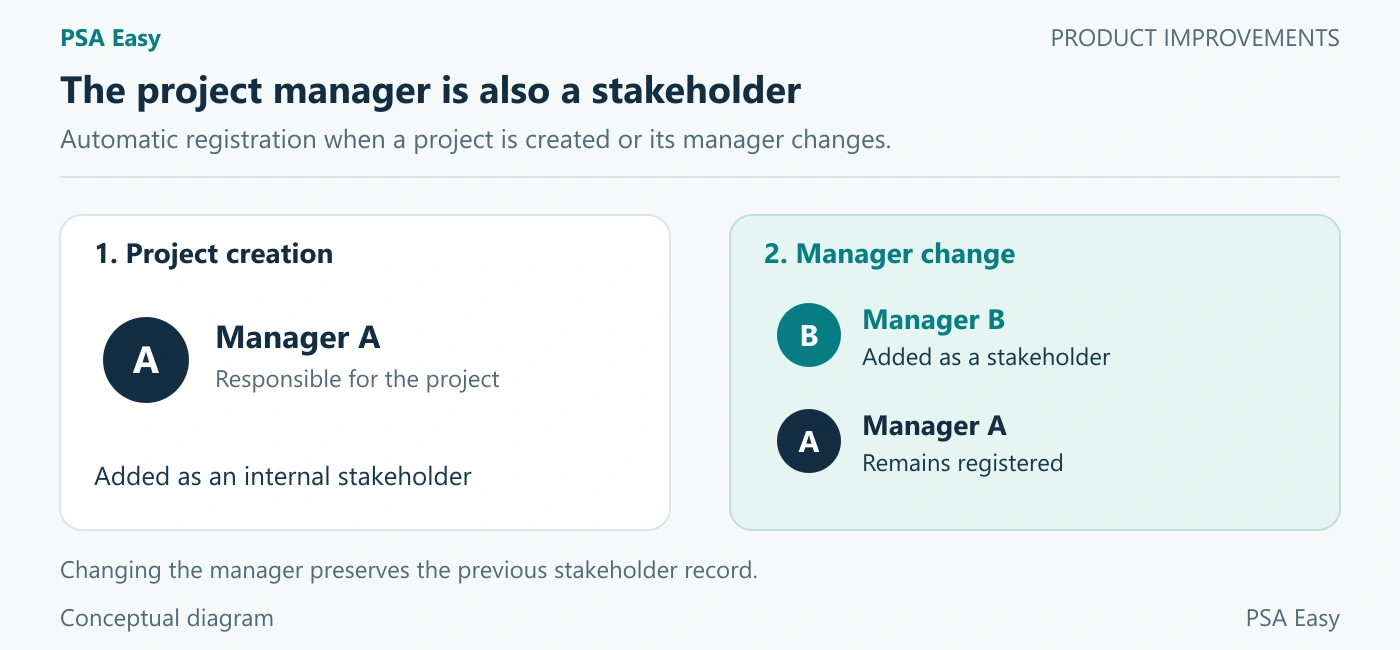
The project manager is now added automatically as a stakeholder when the project is created. It is one less manual step at the start. If the manager changes, the new one is added as a stakeholder and the previous one stays on record.
 Enlarge image
08Approved progress back to the Project schedule
This is the improvement that closes the loop with Microsoft Project, and it is in development. The planned flow is:
- The team member reports task progress in My Tasks, in PSA Easy.
- The update goes to the manager for approval.
- Once approved, percent complete, start and finish go back to the Microsoft Project schedule, with no retyping.
A rejection does not change the schedule. There will also be no schedule editing screen inside PSA Easy: approval is the only way back. The team feeds the schedule through PSA Easy, and the manager keeps control over what goes in.
 Enlarge image
09How the improvements reach your environment
For new customers, released improvements are part of the PSA Easy implementation.
For existing customers, not everything is deployed automatically. The project management tool is customized for each company, and a standard change can conflict with a tailored configuration. That is why MLPro assesses each environment and applies the improvements according to each customer's needs.
The exception is the Microsoft Project integration. Since it is maintained as a standard product, with no per-customer customization, its improvements, once released, reach every customer who uses the integration.
10Frequently asked questions
I'm already a customer. Will the improvements show up in my environment on their own?
Not all of them. Released Microsoft Project integration improvements reach every customer who uses the integration. The others are assessed and applied per environment, because they may affect existing customizations.
Do I need an additional license for the AI features?
Yes. Likely risks and the mitigation plan run in the environment through Copilot Studio and require Copilot Studio capacity purchased for the environment. This is not an individual license for each user.
Does a supplier need a user account in my company to update the schedule?
They don't need a corporate account. They access the project site as an external guest, with their own company identity. Permissions, security policies and licenses must be assessed for each environment.
When will approved progress go back to Microsoft Project?
As of November 3, 2026, the return of approved progress to Microsoft Project was still in development, with no new release date confirmed.
11Continue your journey
- Related article: PSA Easy 5.0: keep using Planner and Project after Project Online retires
- Product page: explore PSA Easy, MLPro's project and portfolio management solution
- YouTube channel: follow new content on project management, PMO and portfolio
12About MLPro
MLPro specializes in PPM solutions within the Microsoft ecosystem, with more than 20 years of experience. We help companies structure project, portfolio and demand management with method, integration and clarity, from schedules to executive decisions.
Want to know which recent PSA Easy improvements make sense for your environment? Contact MLPro using the form on this page.