
PSA Easy User Guide: From Questions to Action
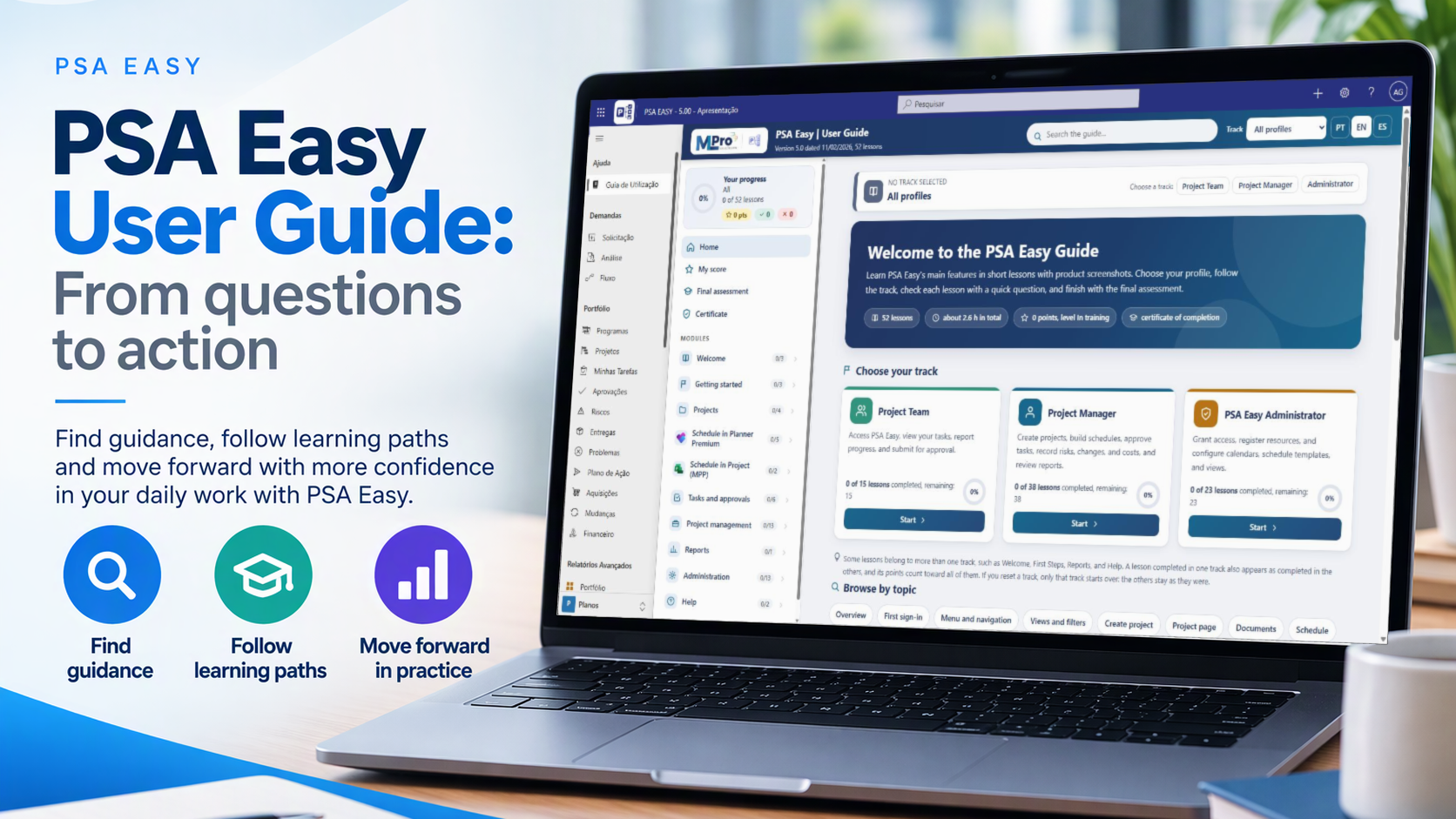
You're working in PSA Easy when a simple question comes up: where do I click next?
Maybe you need to filter a project list, understand what's shown on a screen or identify the next step in an activity. A small question can quickly become disruptive when the answer is scattered across different materials.
The PSA Easy User Guide is designed to bring guidance closer to the task at hand. Instead of working only as a manual to be read from beginning to end, the guide supports two approaches: users can look up a specific topic when they need an answer or follow a track aligned with their role.
Prefer to see it in action? Watch the video.
Find guidance when you need it
In PSA Easy, the guide is available from Ajuda > Guia de Utilização (Help > User Guide), depending on the updates and permissions available in each environment.
Version 5.0 of the guide contains 52 lessons across ten modules. Some lessons are shared across more than one track. Users do not need to complete all 52 lessons before finding an answer.
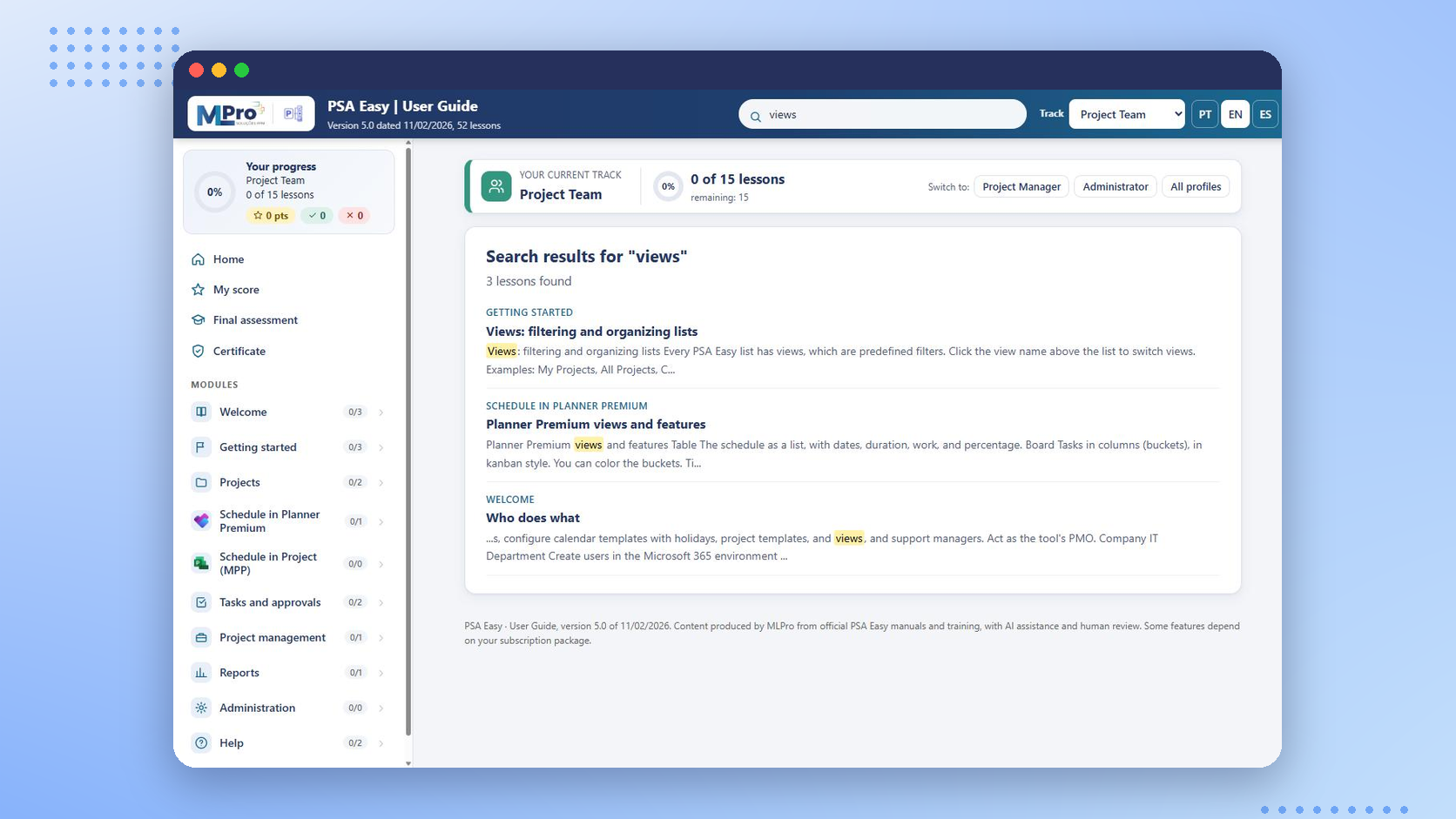
For example, someone looking for help with filtering and organizing a project list can search for a related topic and open the relevant guidance. The principle is straightforward: start with the question and move toward the guidance.
Tracks for different roles
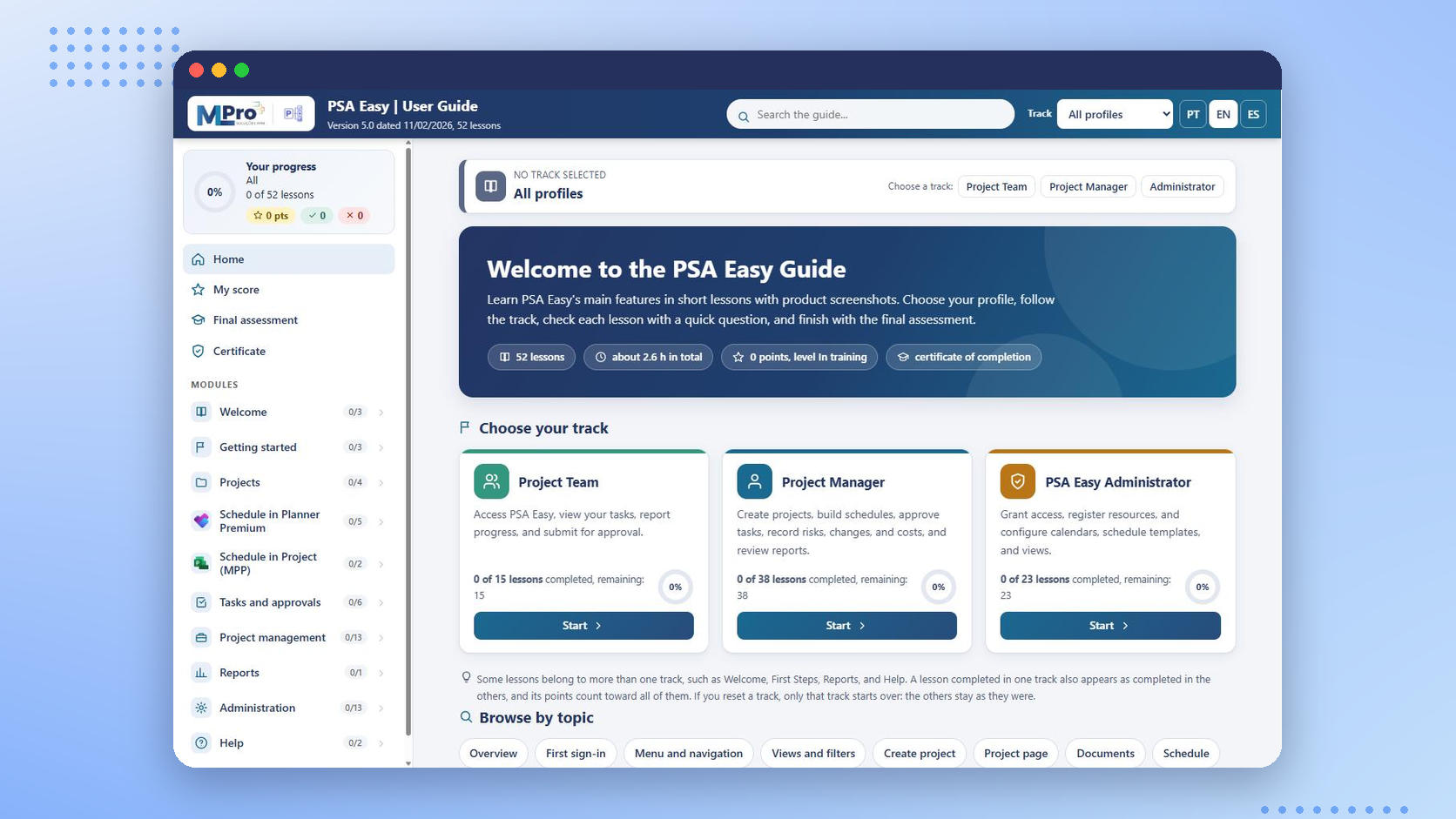
People use PSA Easy in different ways, so the guide organizes learning into three tracks:
- Project Team, focused on day-to-day participation and work tracking;
- Project Manager, expanding into project organization, schedules, approvals and management;
- PSA Easy Administrator, covering guidance related to environment configuration and administration.
In the demonstrated version, 15 lessons are associated with the Project Team track, 38 with the Project Manager track and 23 with the PSA Easy Administrator track. These numbers should not be added together because some lessons belong to more than one track.
The guide also includes guidance related to scheduling with Planner Premium and Microsoft Project MPP files within the context of PSA Easy.
Connect the explanation to the screen
Finding an answer is only part of the challenge. When guidance involves a user interface, seeing exactly where an action takes place can make a meaningful difference.
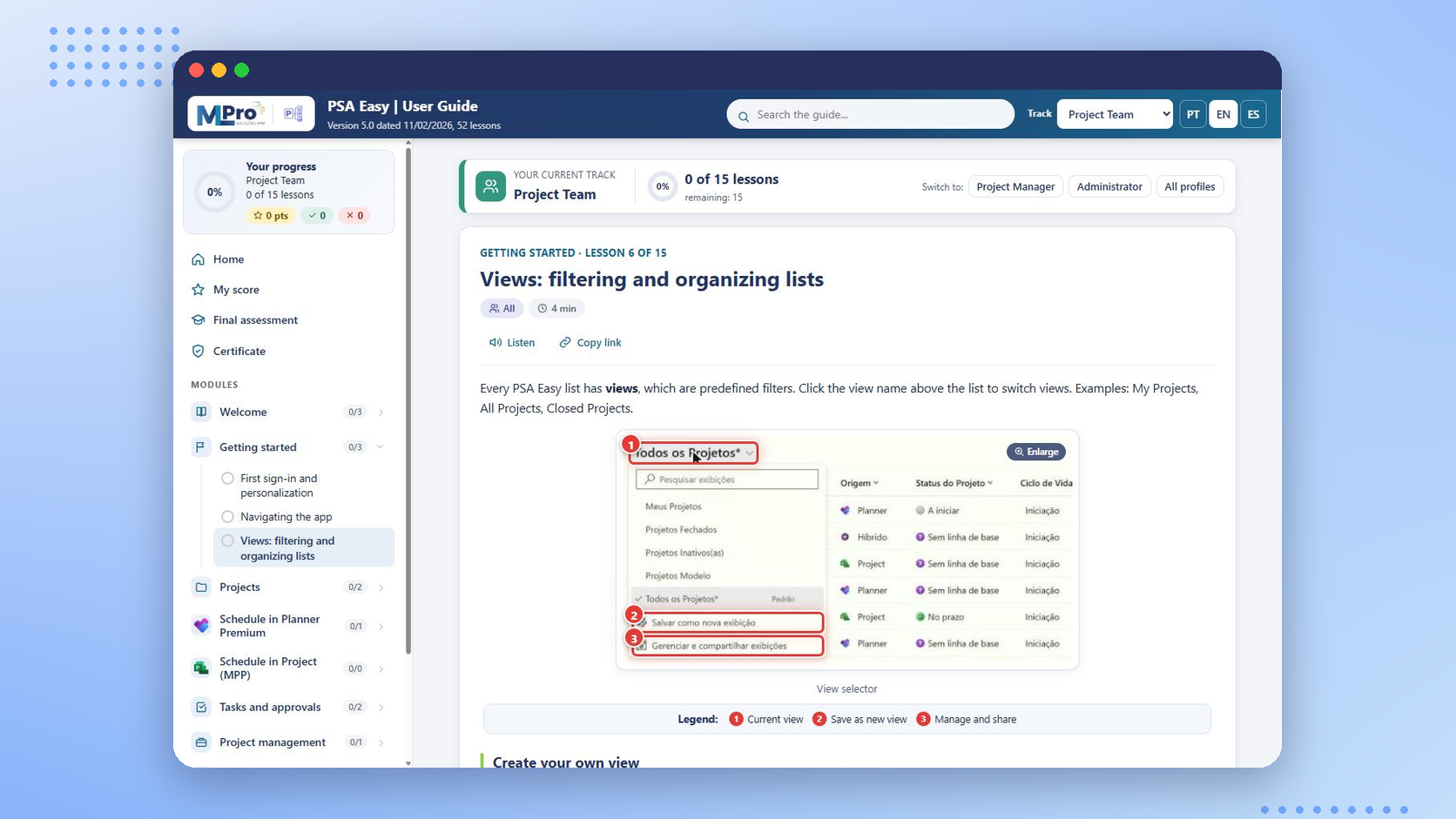
The lessons therefore combine written explanations with annotated screenshots. Images can be enlarged so users can inspect the relevant parts of the interface while following the instructions.
In an example about views, users can follow how to start from an existing view, adjust information and work with filters to organize a list. The goal is not simply to point at a button. It is to provide enough context for users to understand what they are doing.
Lessons also offer read-aloud and link-copying features, supporting both content consumption and sharing with another user who has access to the environment.
Check understanding and track progress
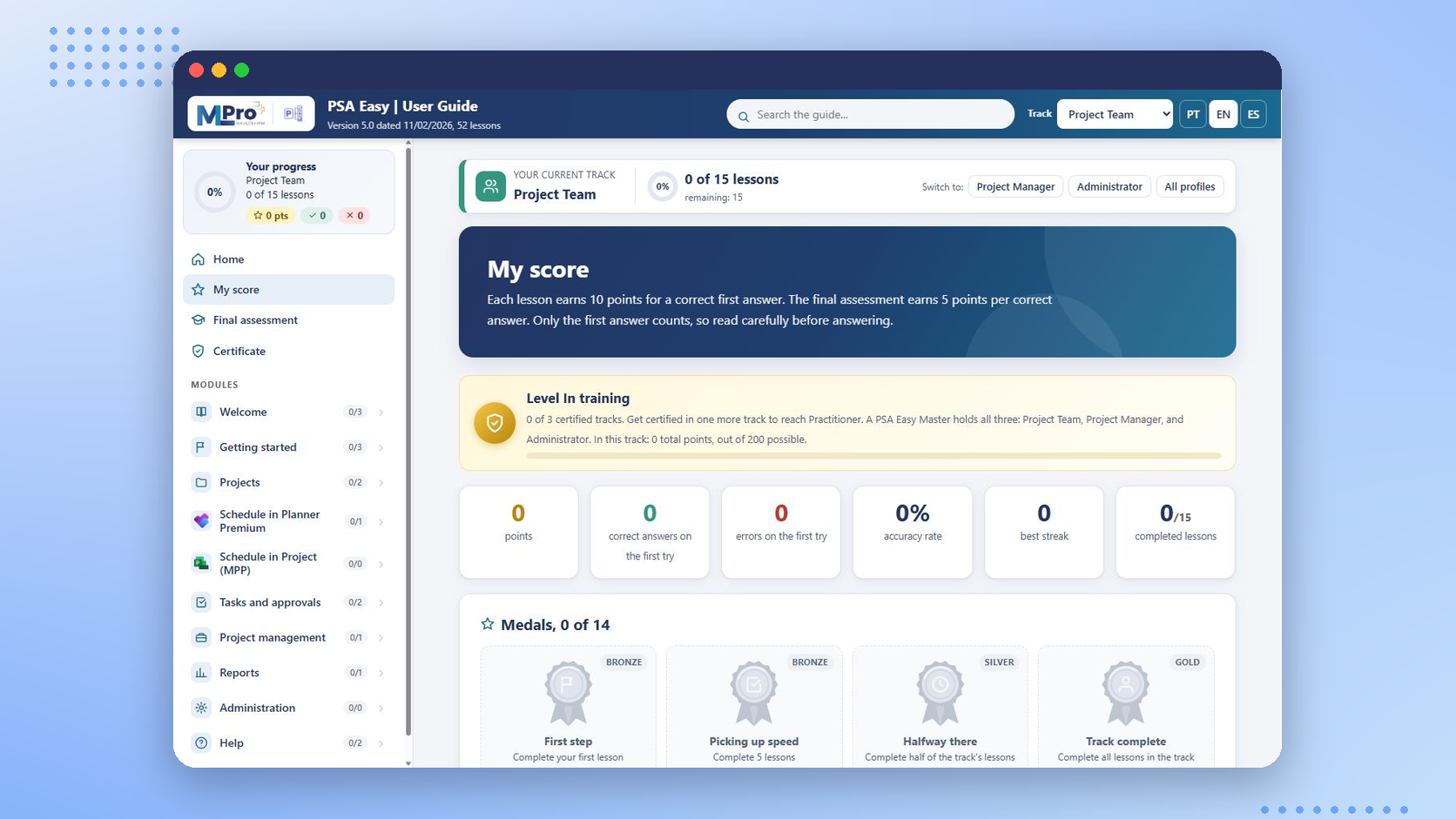
Selected lessons end with a question related to the guidance that was just presented, so users can check whether the main point is clear. Progress can be followed in My score, which shows progress indicators for each module, as well as points, correct and incorrect answers, and medals.
That means someone can use the guide to answer a specific question today and return later to continue the track.
Final assessment and certificate
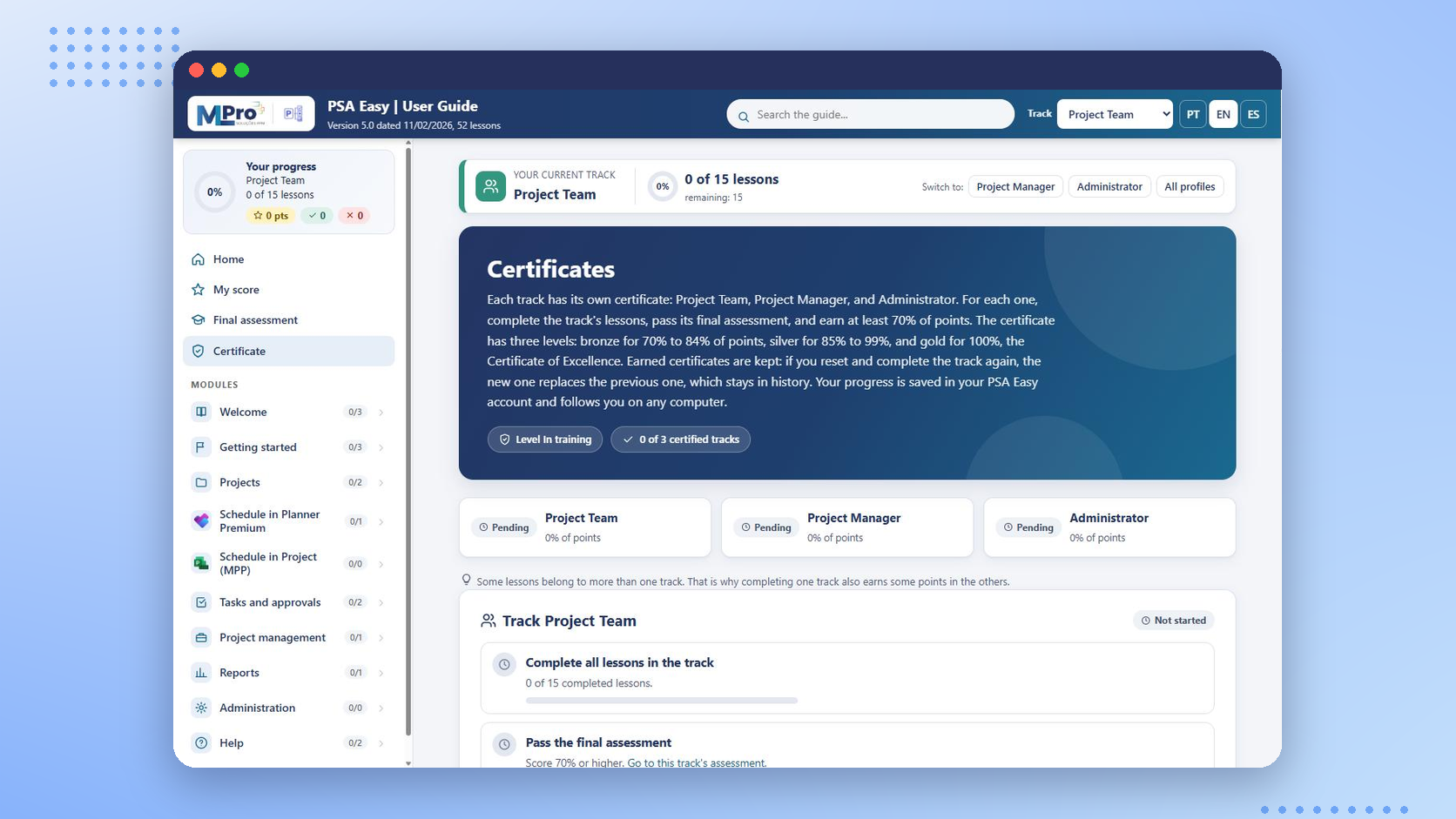
The demonstrated version also includes a final assessment and a completion certificate for each track, issued within the guide itself.
To earn the certificate, users need to:
- complete the lessons in the track;
- achieve at least 70% correct answers on the final assessment;
- obtain at least 70% of the available points.
Beyond the minimum of 70% of the points, the score determines the certificate level: bronze from 70%, silver from 85% and gold at 100%. The aim is to show not only that the content was accessed, but also the progress made along that track.
From a one-time manual to continuous guidance
A traditional guide may be consulted only during training or when a specific issue comes up. The PSA Easy approach brings learning closer to daily work.
A user can begin with a question, find a lesson, review the relevant screen and then decide whether to continue through the track. For an organization, this creates an opportunity to provide more structured guidance during the adoption of the solution itself.
Formal training still has an important role. The guide supports a different moment: when someone is already working and needs to turn a question into a next action.
A foundation for future MLPro guides
The PSA Easy User Guide also illustrates a direction MLPro intends to develop further. Its structure organizes topics into lessons, connects them to the relevant tracks, supports guidance with images, and tracks learning through questions and progress.
MLPro intends to use this experience as a foundation for guides on other topics. On October 22, 2026, there was still no catalog of ready-made guides and no platform that generates this content automatically, and no timeline had been confirmed. Each future guide will require its own audience definition, content preparation, screenshots and review.
Today, the concrete example is the PSA Easy User Guide.
Frequently asked questions
Where can I find the PSA Easy User Guide?
In the environment demonstrated by MLPro, navigate to Ajuda > Guia de Utilização (Help > User Guide). Availability depends on the updates and permissions in your environment.
Do I need to complete every lesson to find an answer?
No. You can search for a specific topic and consult individual guidance. Tracks provide a structured option when you want to progress through the content.
Does everyone follow the same track?
No. The demonstrated guide includes tracks for Project Team members, Project Managers and PSA Easy Administrators.
Does the guide cover Planner Premium and Microsoft Project?
Yes. It includes guidance related to Planner Premium schedules and Microsoft Project MPP files within the context of PSA Easy.
Does the guide provide a certificate?
Yes. In the demonstrated version, certificates are associated with track completion and depend on lesson, assessment and scoring requirements.
Continue your journey
If PSA Easy is already part of your work, start with a question you need to answer today. Open Ajuda > Guia de Utilização (Help > User Guide), select the track that fits your role and explore the relevant guidance. Availability depends on the updates and permissions configured in your environment.
About MLPro
For more than 20 years, MLPro has worked with project and portfolio management in the Microsoft ecosystem. MLPro provides implementation, consulting, support and training for Microsoft PPM, Planner Premium, Power Platform, Power BI and PSA Easy.
Want to learn more about PSA Easy? Fill in the form on this page and talk to MLPro.