
What you will find here
Review the SharePoint alerts retirement timeline described in the article and the alternatives discussed, including Rules and Power Automate.
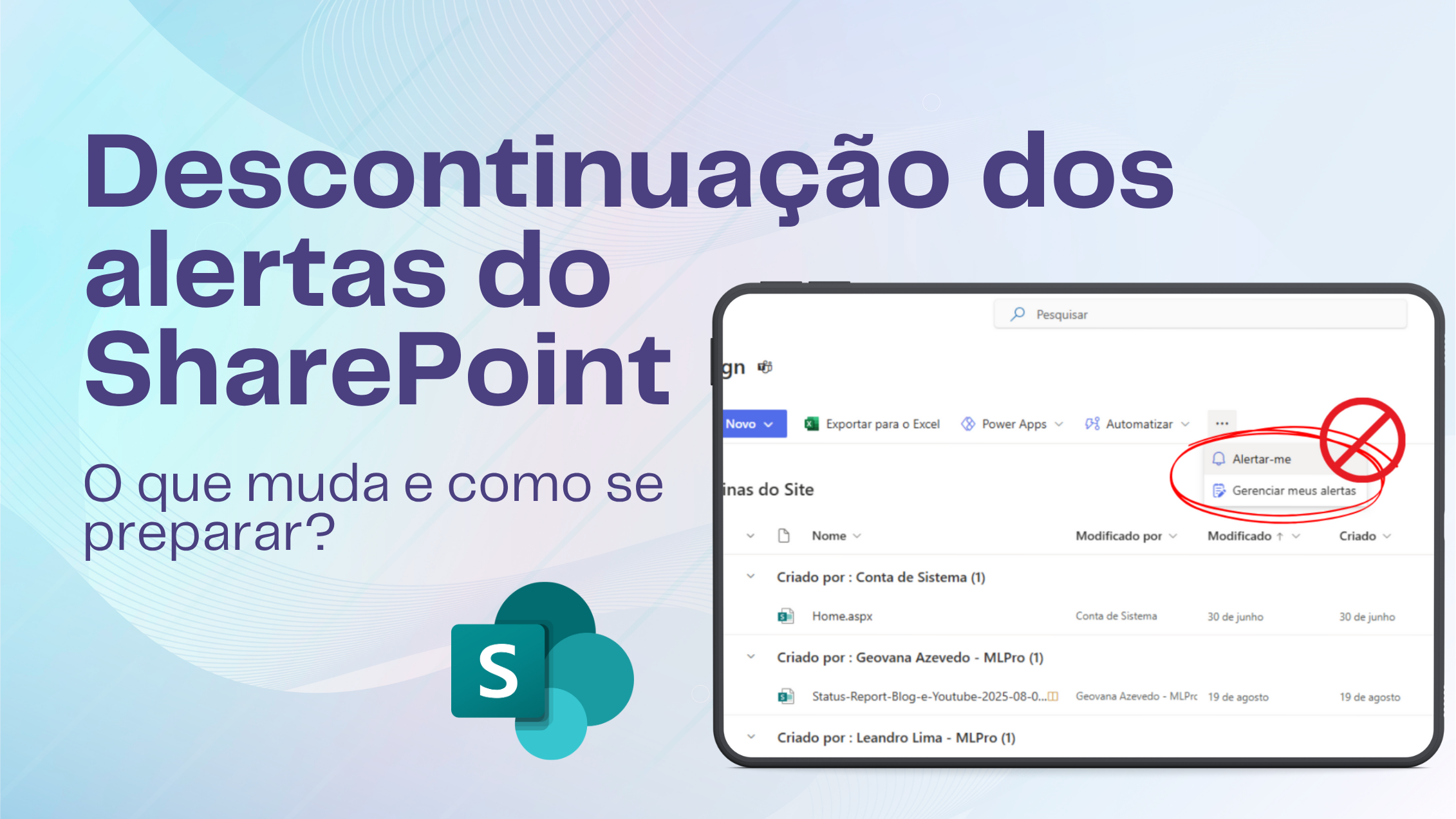
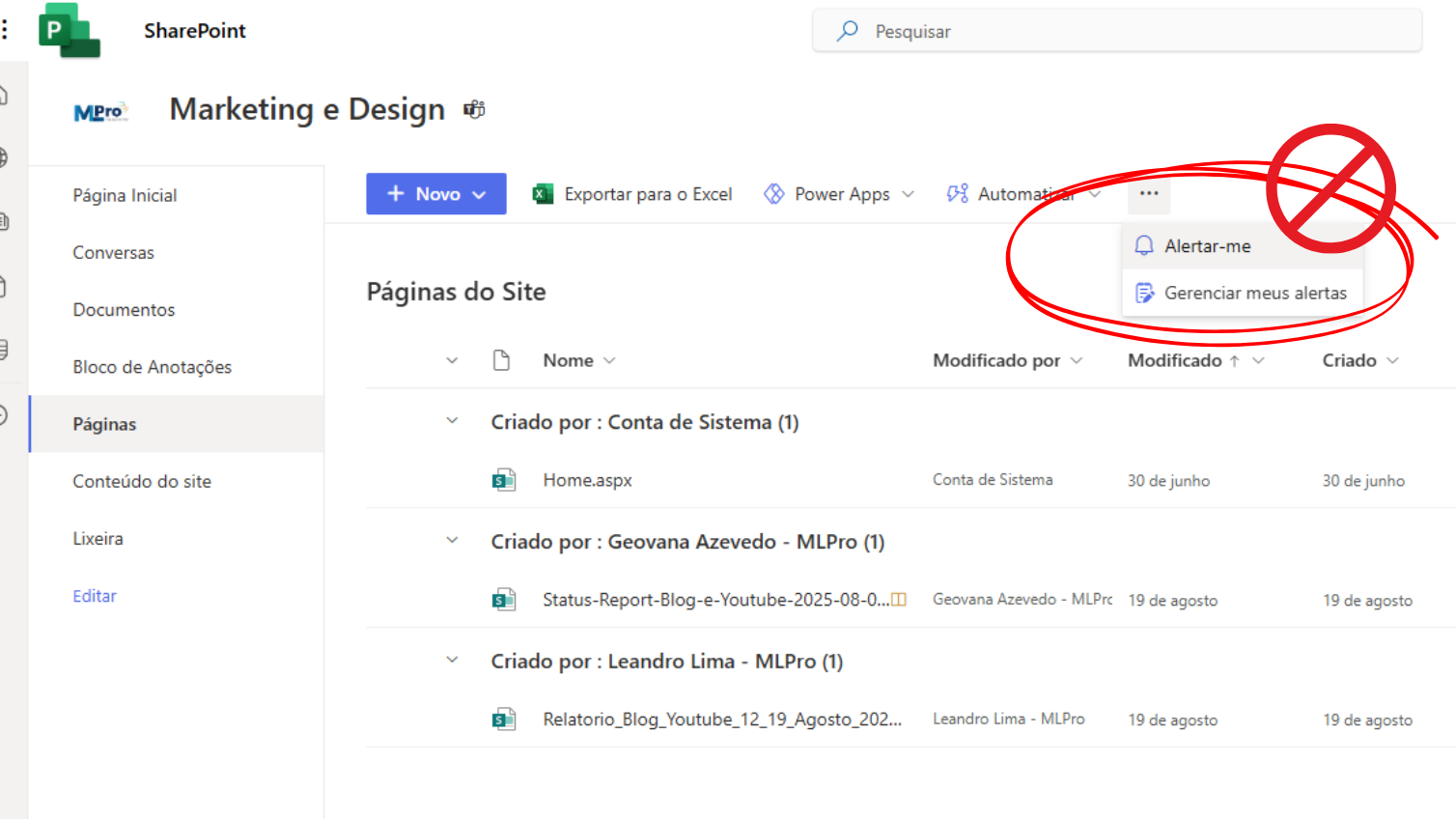
Do you receive automatic emails when something changes in a SharePoint list or library? For know that this resource, known as SharePoint alerts, has a date to end. Microsoft announced the gradual withdrawal of this mechanism on SharePoint Online, starting in 2025 and ending in July 2026. The idea is to encourage the use of more modern notification solutions such as SharePoint Rules and Power Automate. This change directly impacts those who depend on alerts to follow deadlines, approvals, and document updates.
 Play video: End of alerts on SharePoint - How to resolve?
By migrating to new tools, you gain control over who receives each notice, integrates different channels (Teams and Planner) and creates a history of executions. Thus, instead of losing notifications due to failures or limitations of old alerts, your team starts using a solution with auditing and compliance integrated to Microsoft 365. Next, understand timeline of this transition and see a step by step to adapt their processes.
01Timeline: when alerts stop working
Discontinuation occurs in stages, affecting first new tenants and then existing tenants. According to Microsoft:
- From July 2025, new tenants of SharePoint can no longer create alerts.
- September 2025 marks the blocking of creating alerts for all tenants.
- October 2025 activates the automatic expiration feature: all alerts expire in 30 days and can be reactivated by the user only once.
- January 2026 begins the gradual deactivation of the creation of new alerts in all tenants.
- July 2026 closes the feature definitively: alerts no longer work and cannot be extended.
In practice, this means that any routine that depends on this type of notification should be reviewed before September 2025. After that, new alerts will not be saved, and from October the existing ones expire in 30 days, requiring user reactivation. As you anticipate, you avoid surprises and maintain visibility of processes.
02Why is Microsoft retiring SharePoint alerts?
Alerts were created many years ago to cover a gap in notifications in lists and libraries. However, they have limitations: they do not offer fault records, they only work by email and do not allow sophisticated conditions (such as warning only when a specific field is changed). With the evolution of Microsoft 365, more robust alternatives emerged. The very Microsoft recommends migrating to SharePoint Rules or Power Automate, which are integrated, flexible and audit compatible.
In addition, new features enable to trigger messages in Microsoft Teams, create tasks in Planner and consolidate notifications in a single stream. So you avoid overloading emails and keep the team aligned in real time.
03SharePoint rules: for simple and fast notifications
As SharePoint Rules are ideal when the goal is only to be warned whenever an item is created or modified. Imagine a list of internal requests where each new record needs to be forwarded to the responsible: with the Rules, the person receives an email or message in Teams without you having to schedule anything. They are configured directly in the list or library, have low learning curve and do not require additional license.
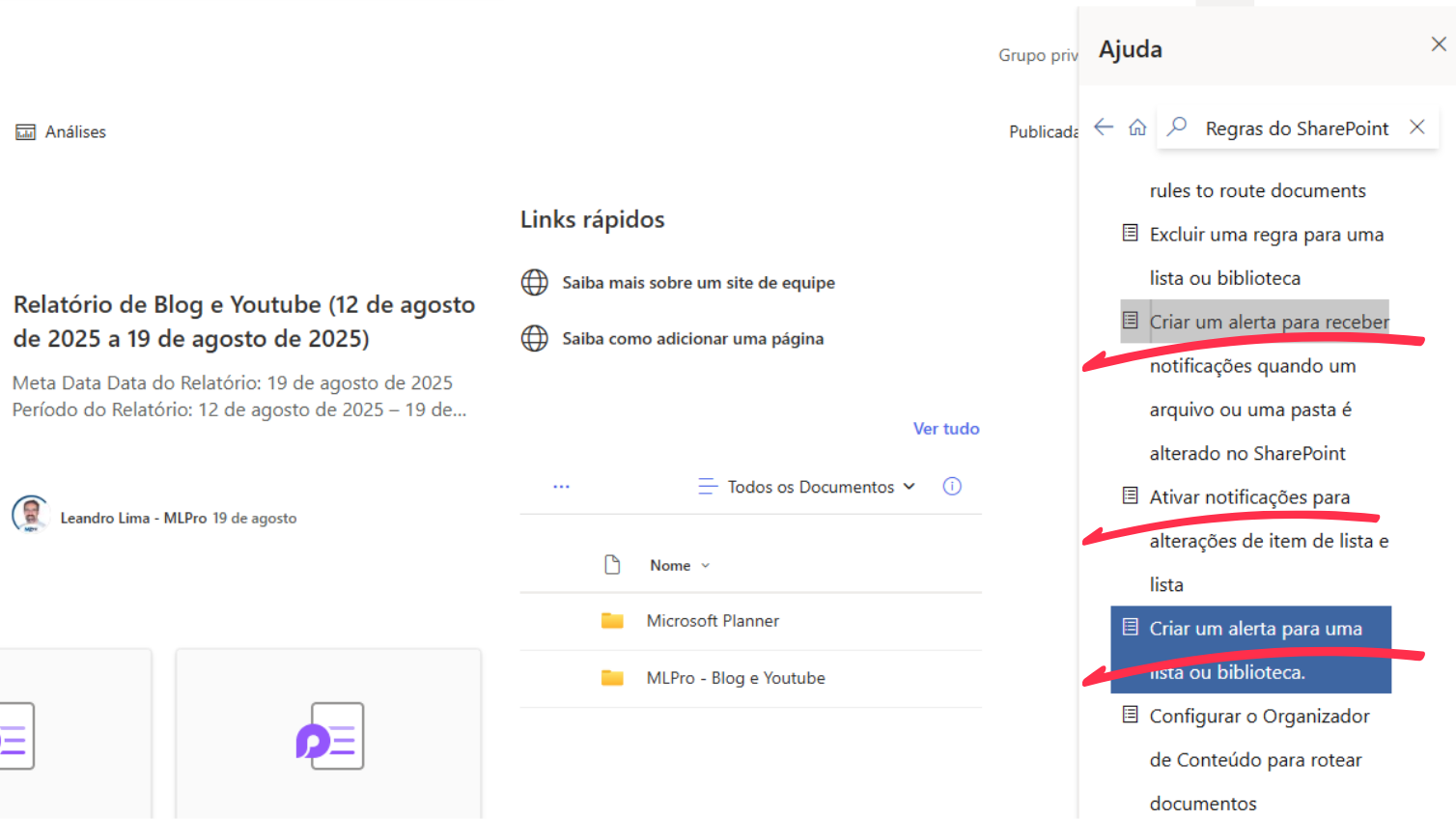
To make the most of it, standardize text messages, clearly indicate the recipient and document who can adjust the rules. This prevents duplicity of warnings and facilitates maintenance when the process changes.
04Power Automate: when you need more control and traceability
For scenarios with approvals, multiple conditions or the need for logs, the Power Automate It's the best choice. With it, you define triggers (such as “when the status changes to ‘Awaiting approval’) and actions in sequence (send email to the manager, create task in the Planner, post on Teams). The Power Automate also allows you to add attachments, integrate external services, and maintain a history of executions, providing more security and governance.
Migration requires planning: review who can edit the streams, create nomenclature patterns, and monitor faults to fix quickly. Although Power Automate may require specific licensing, productivity gain and visibility compensates investment.
05Step by step to migrate without losing deadlines
Map all current alerts. Raise lists and libraries that depend on alerts and classify by criticality. Eliminate redundant notifications to reduce noise.
Set the solution for each case. Use SharePoint Rules for direct notices (creation or item change). For processes with conditions, approvals or integrations, choose Power Automate.
Implement and test. Adjust the text of the messages, review upload times and validate with users in each area. Document responsible and procedures.
Establish governance. Standardize stream names, monitor executions and establish periodic reviews. In periods of many updates, prioritize messages on Teams to avoid email overload.
06Does your project depend on alerts? So it's time to act
The old alerts will disappear, but your notifications don't have to stop. A MLPro is expert in helping companies modernise communication flows in the Microsoft 365. We mapped your current alerts, designed the best notification model with SharePoint Rules and Power Automate, we publish the flows and train your team to operate with governance and security.
You want to see how this works in practice? Click here and schedule a free presentation and find out how to keep your operation up to date with reliable notifications, integrated with SharePoint, Teams and Outlook. Please contact: Request free presentation or call us at WhatsApp.
Follow MLPro on social networks:
Original content from the MLPro editorial library, fully preserved and translated for the English website.
