
What you will find here
Explore the 2023 guide to creating project goals, linking tasks and tracking objectives through Board, People, Grid and Charts views, with licensing notes.
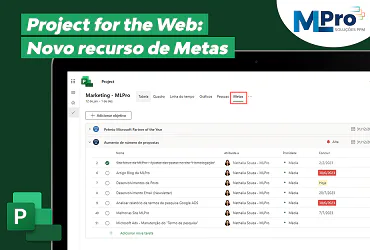
Setting goals for your project is essential for team alignment and ensuring success in achieving the organization's goals.
The new Targets feature in Microsoft Project for the Web allows you to easily set and track goals for your project and even link the tasks to ensure that the work you have defined is aligned with your team's goals.
01How to access the Metas feature in Project for the Web
To begin, navigate to display mode Targets on your Project.
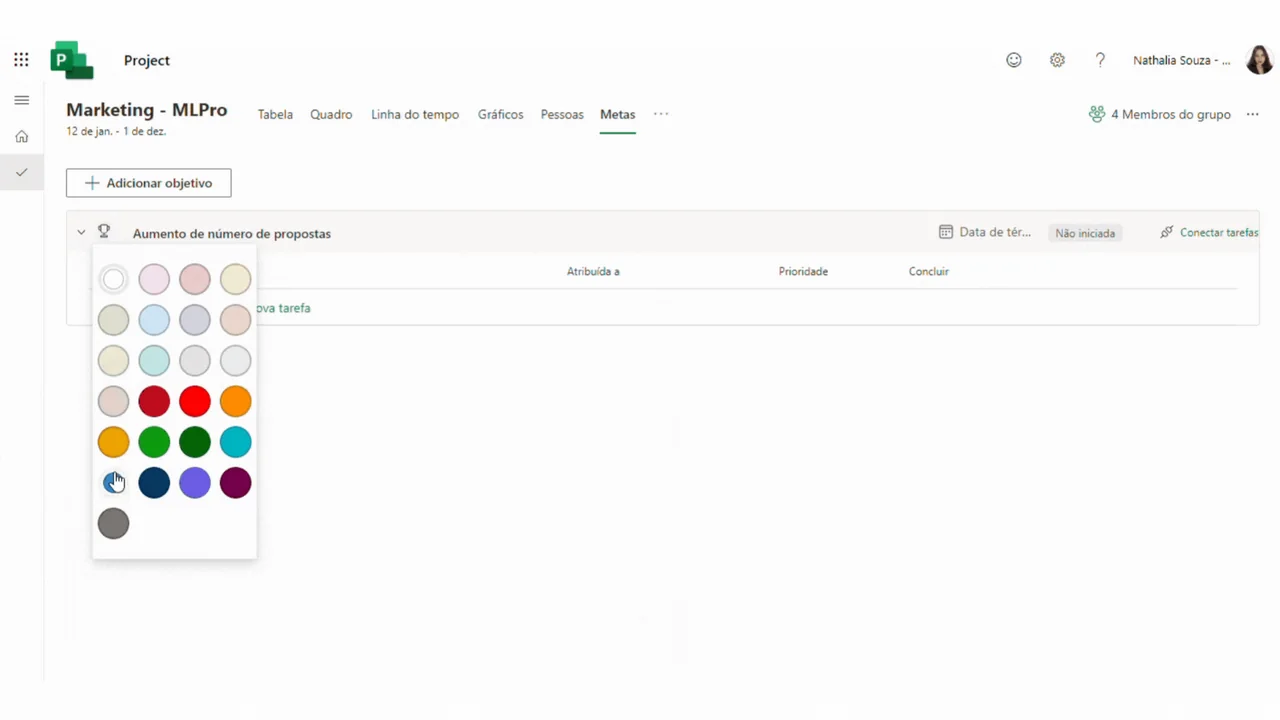
You can add goals by clicking the button "Add meta" and insert some initial details, such as the title of the goal, end date, status and an exclusive color.
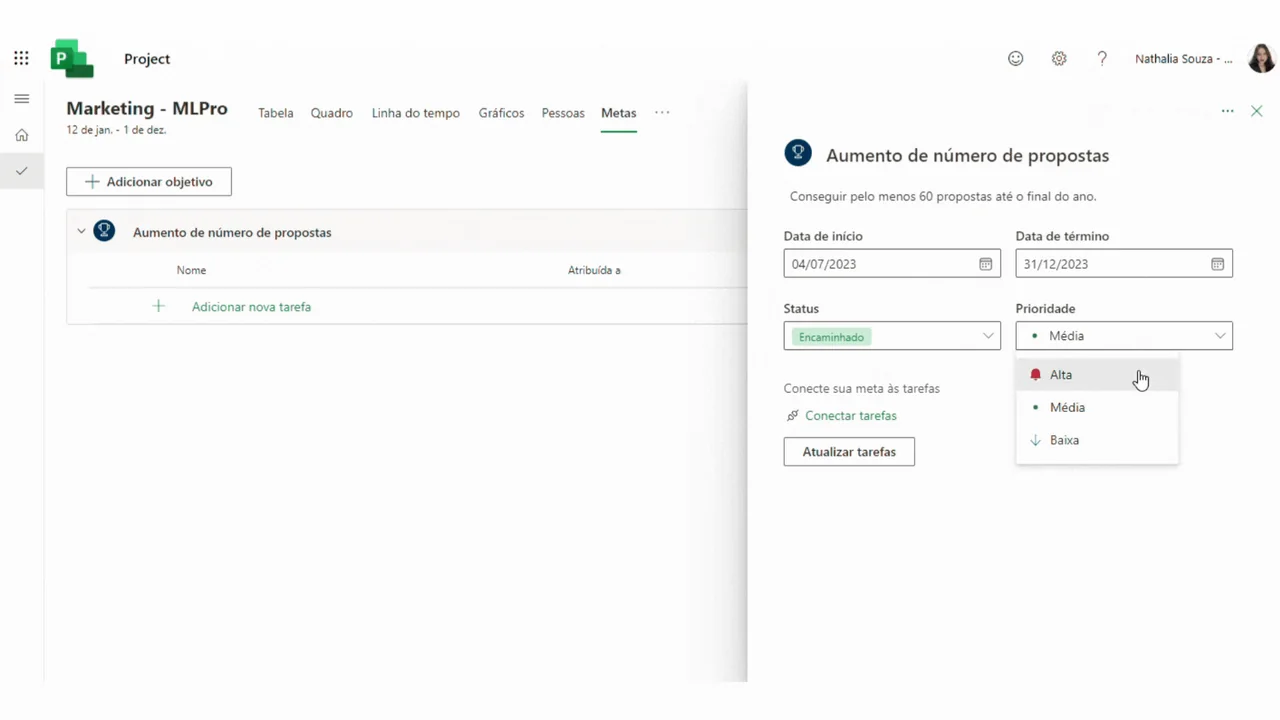
After setting your goals, you can add additional details by clicking on a goal and adding a description, start date and priority.
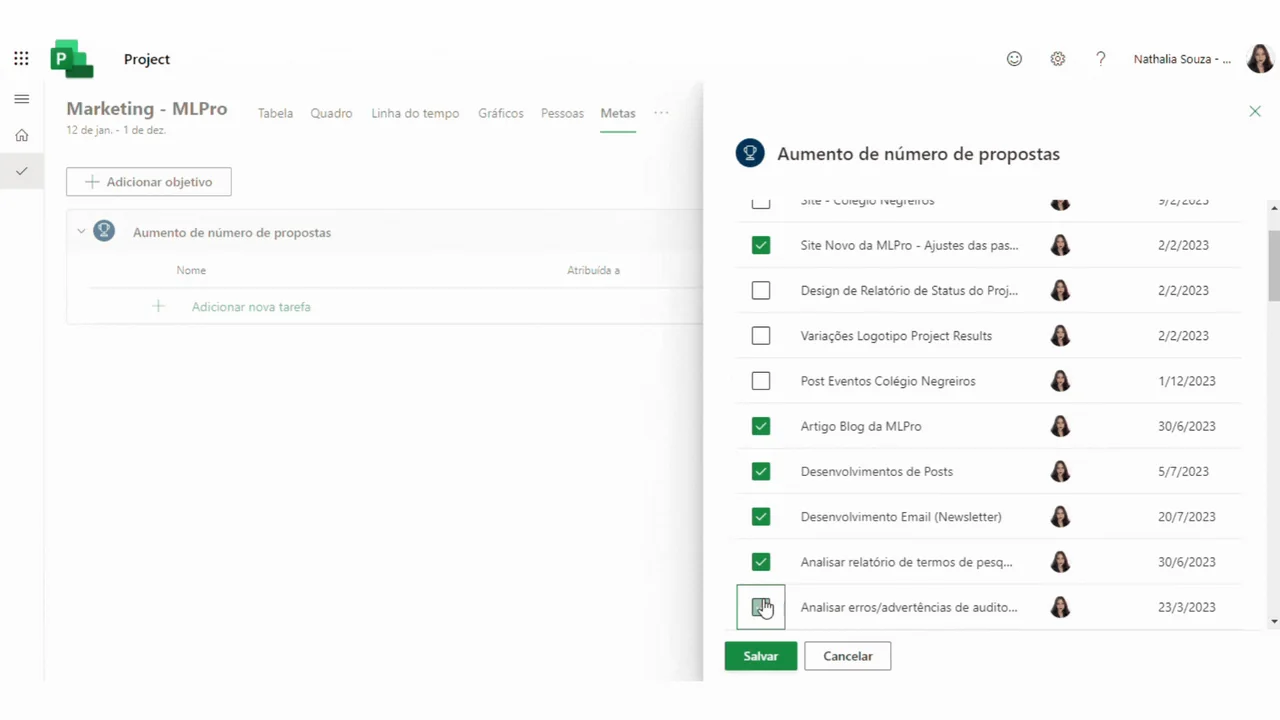
To help track progress towards your goal and ensure that you have the right amount and type of investment for each, you can link tasks related to your goals.
Linking your tasks will help you track if any goal is at risk due to tasks that are falling behind, analyze the priority and help bring clarity to the team about how your work is helping achieve a broader goal.
02Target View Types (Goals)
- Table:
- Persons:
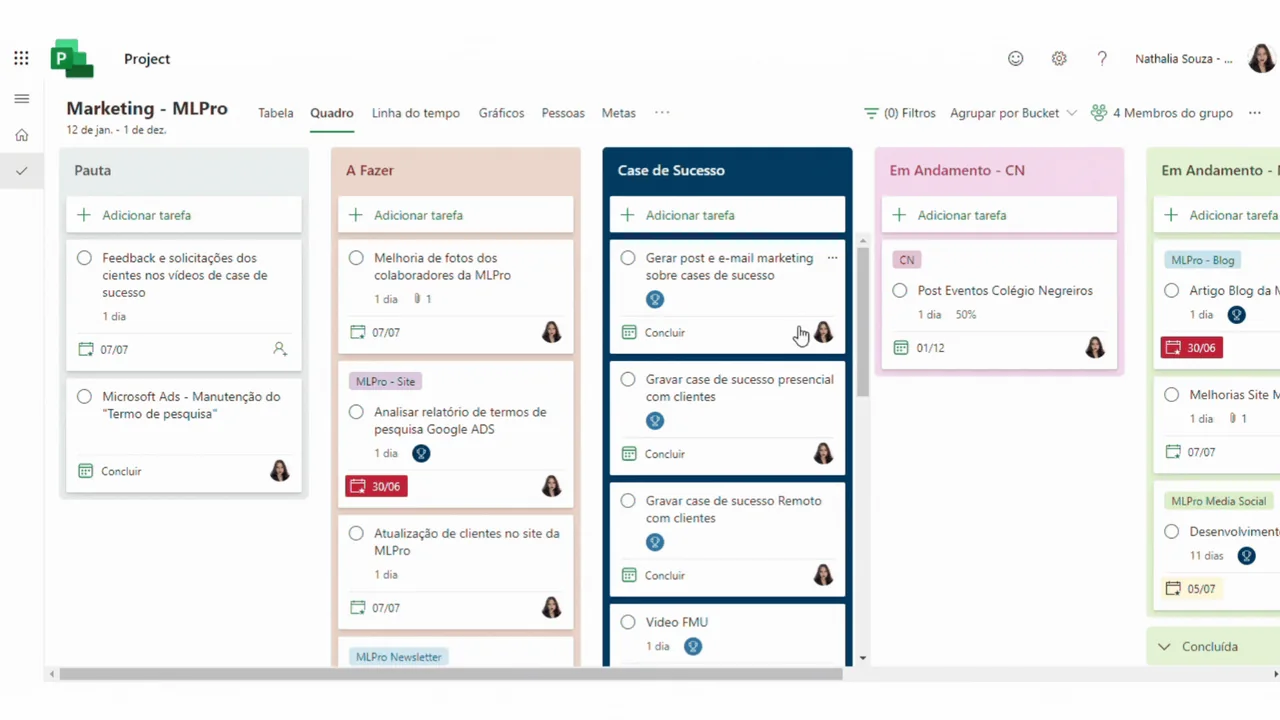
In the Frame view, you can group by target to see how tasks are distributed and analyze if there is any task that is not helping to achieve the desired goals. In this way of viewing you can redistribute tasks, add new tasks to goals, and even edit on your own goals by clicking on the title.
In addition to grouping, you can also filter by target to see a subset of tasks aligned to your target focus.
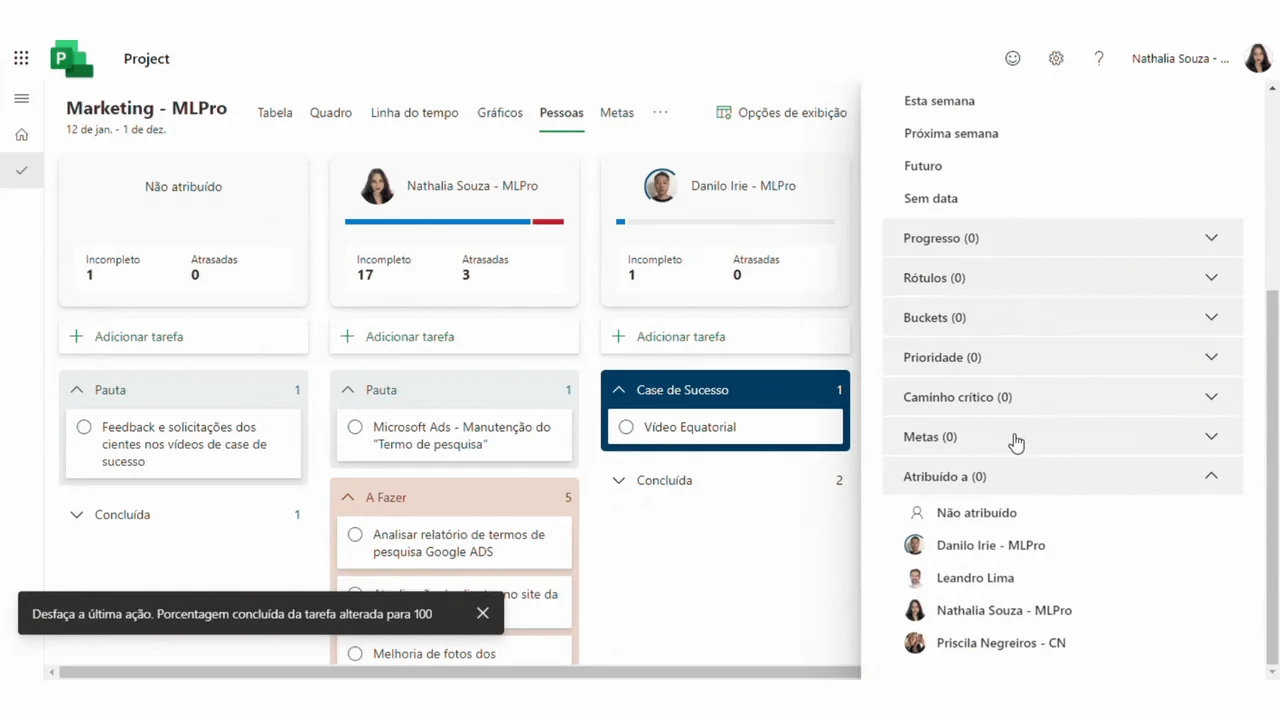
In People display mode, you can also group or filter by goal. This allows you to see who is responsible for achieving what goals, so that you know with whom to follow if there is doubt of progress and objective.
You can also filter by target to view a subset of tasks aligned to your target focus.
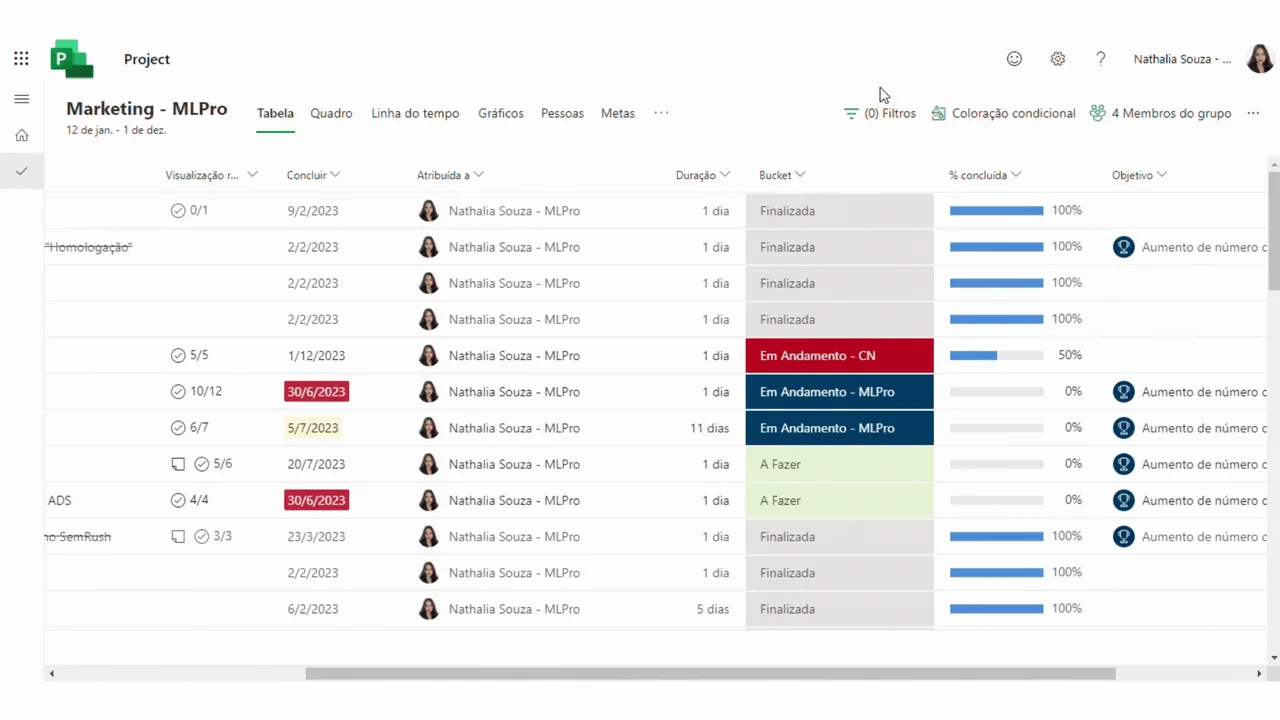
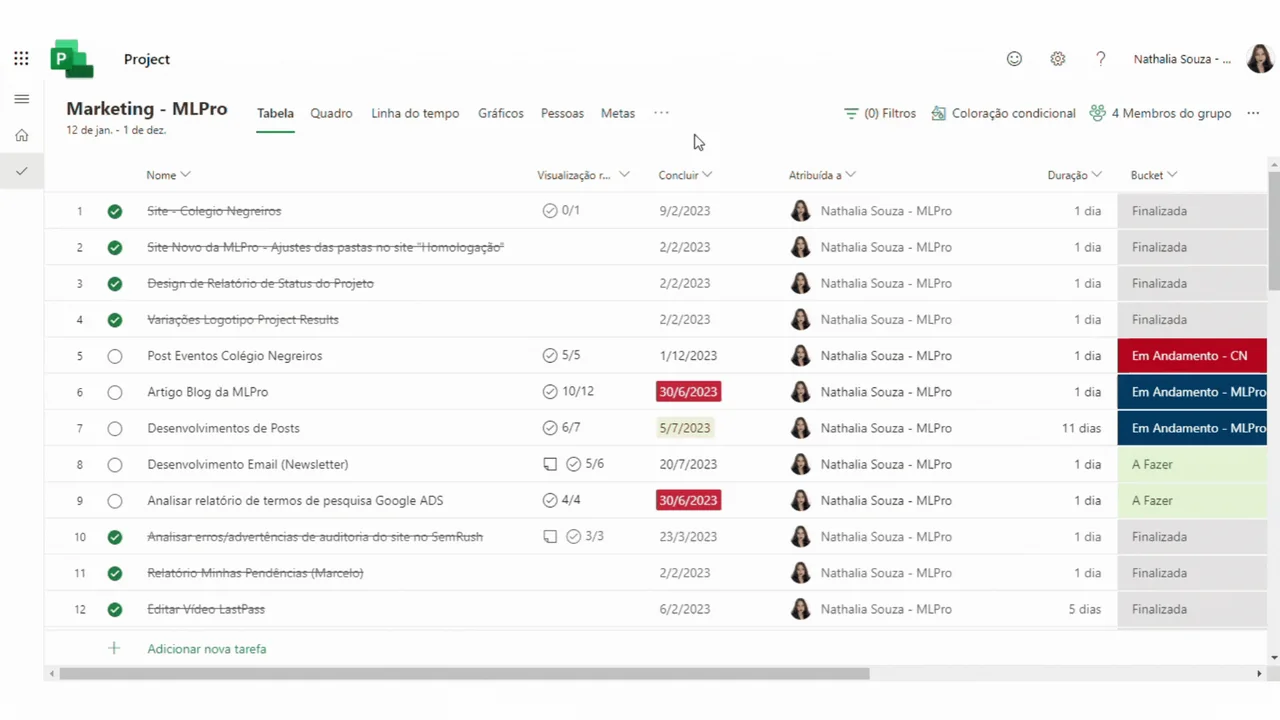
In Grid display mode, you can add a Meta column to view easily to which you target a task is linked. The filter option is also allowed.
In the Graphics view, you can filter by Meta to analyze how tasks that work towards your focus goal are being interrupted. This is especially useful to get a quick and visual understanding of the state of a goal.
03Who can view, create and edit the goals of my project?
Users with a Project Plan 1, 3 or 5 license can display, create and edit goals in a project. Users with only one M365 license who are invited to your project will not be able to view or interact with their goals in any way.
04Is there a limit to how many goals I can create?
Each project is limited to 10 goals. This limit is intentionally created to encourage best practices to create goals, where each project has a limited set of goals that it is seeking to achieve. Setting many goals is overwhelming and often unattainable, so limiting your project to 3 to 5 well-defined goals ensures the highest level of focus to boost the success of your project.
05What tasks can I link to the goals?
Any task other than a summary task can be linked to a goal. In addition, each task can only be linked to one goal at a time.
06Did you like the article? You may be interested:
If you are interested and want a product presentation, please schedule an appointment with us at the following link: Microsoft PPM Easy Presentation.
Original content from the MLPro editorial library, fully preserved and translated for the English website.
