
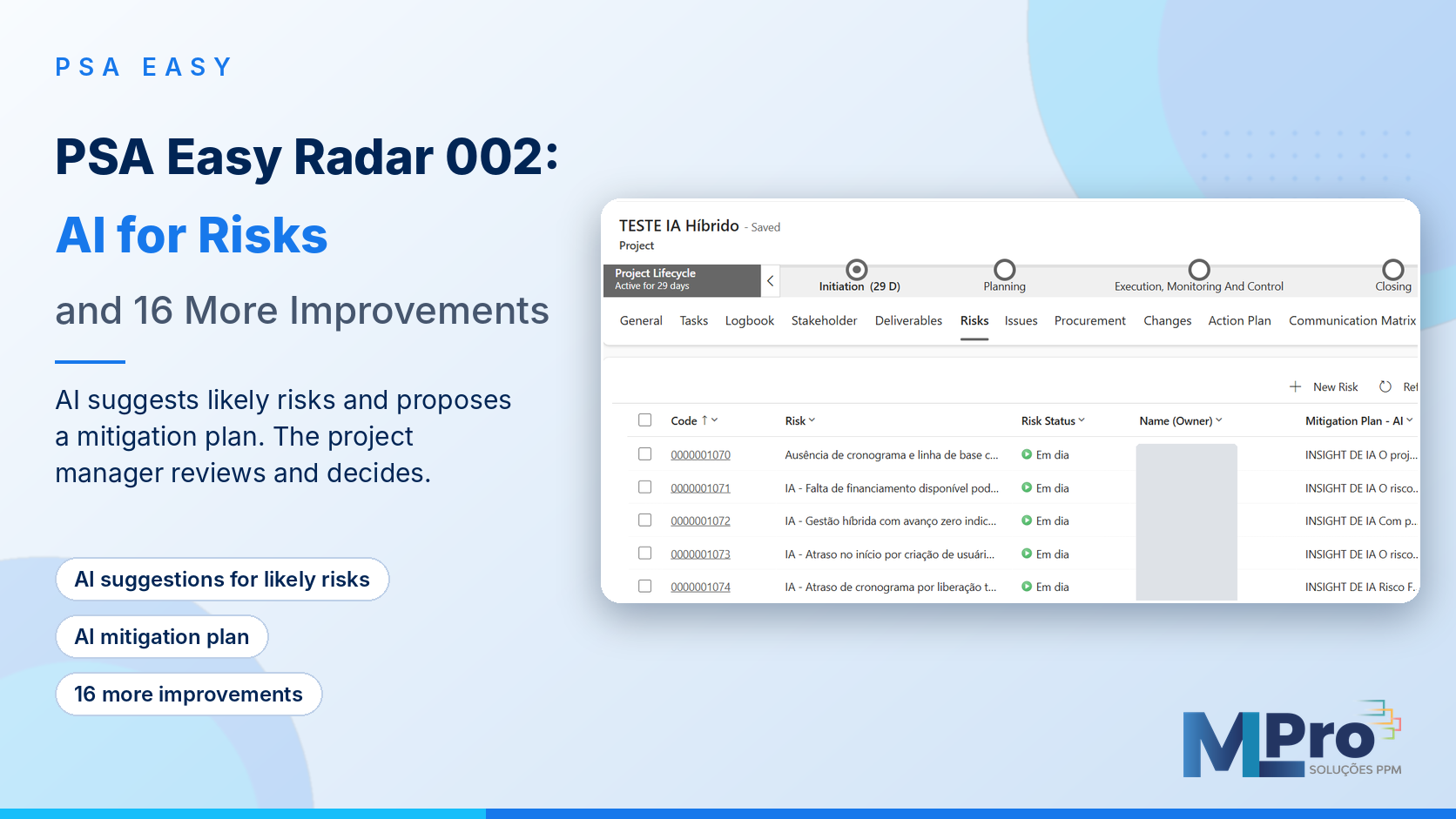
In the planning meeting, the team lists the project risks. The list comes from the memory of the people in the room. A few weeks later, a problem shows up that had already happened in a similar project, but nobody remembered to record it.
Identifying a risk is only half of the work. The other half is deciding what to do about it.
In this second edition of PSA Easy Radar, the highlight is two artificial intelligence features that support these two moments: suggesting likely risks and proposing a mitigation plan. In both cases, AI suggests and the project manager reviews, adjusts and decides.
After AI for risks, the article presents the other 16 improvements shown in the video, in the same order: risk matrix and probability, tasks, approvals, projects, changes, procurement, reports, the User Guide and navigation.
Some of these improvements were already announced in the article PSA Easy: explore the latest improvements. Here, they are shown in use, in the order of the video.
Prefer to see it in action? Watch the demo with Leandro Lima.
 Play video: Riscos com IA + 16 melhorias no PSA Easy
Video in Portuguese.
Summary: the 18 improvements in PSA Easy Radar 002
| No. | Improvement | What changes for you |
|---|---|---|
| 01 | AI suggestions for likely risks | AI suggests risks based on similar projects and the company's history |
| 02 | AI mitigation plan | AI proposes actions to reduce the chance of each risk happening |
| 03 | Easier-to-read risk matrix | Larger numbers and legend, with the matrix and rule side by side |
| 04 | Probability in 10% steps | Ten options, from 10% to 100%, instead of four ranges |
| 05 | Tasks in a tree view | Expand and collapse summary tasks and choose the level shown |
| 06 | Backup owner | The substitute receives the tasks during an absence |
| 07 | Resource column | My Tasks shows who is assigned to each row |
| 08 | New submission replaces pending | Only the latest submission remains for approval |
| 09 | Tip: multiple edit | Update several approvals at once |
| 10 | Manager as stakeholder | Registered automatically when the project is created or the manager changes |
| 11 | Change analysis date | Filled in automatically on approval, rejection or completion |
| 12 | Procurement in the Follow-Up | List of the project's active procurements in the Follow-Up |
| 13 | HTML reports | Viewing without a Power BI license |
| 14 | HTML in three languages | Interface in Portuguese, English and Spanish |
| 15 | Power BI icons | Sharper status indicators managed in the icon table |
| 16 | User Guide | Lessons, search and progress inside PSA Easy |
| 17 | Side menu | No Home, Recent or Pinned |
| 18 | Standardized navigation | Dedicated icons and reorganized areas |
All items above are released in the standard PSA Easy product. For existing customers, MLPro assesses each environment before applying an improvement, because it may affect tailored configurations.
AI for risks
Improvement 01. AI suggestions for likely risks
The first feature helps answer the question that opens any risk analysis: what could go wrong in this project?
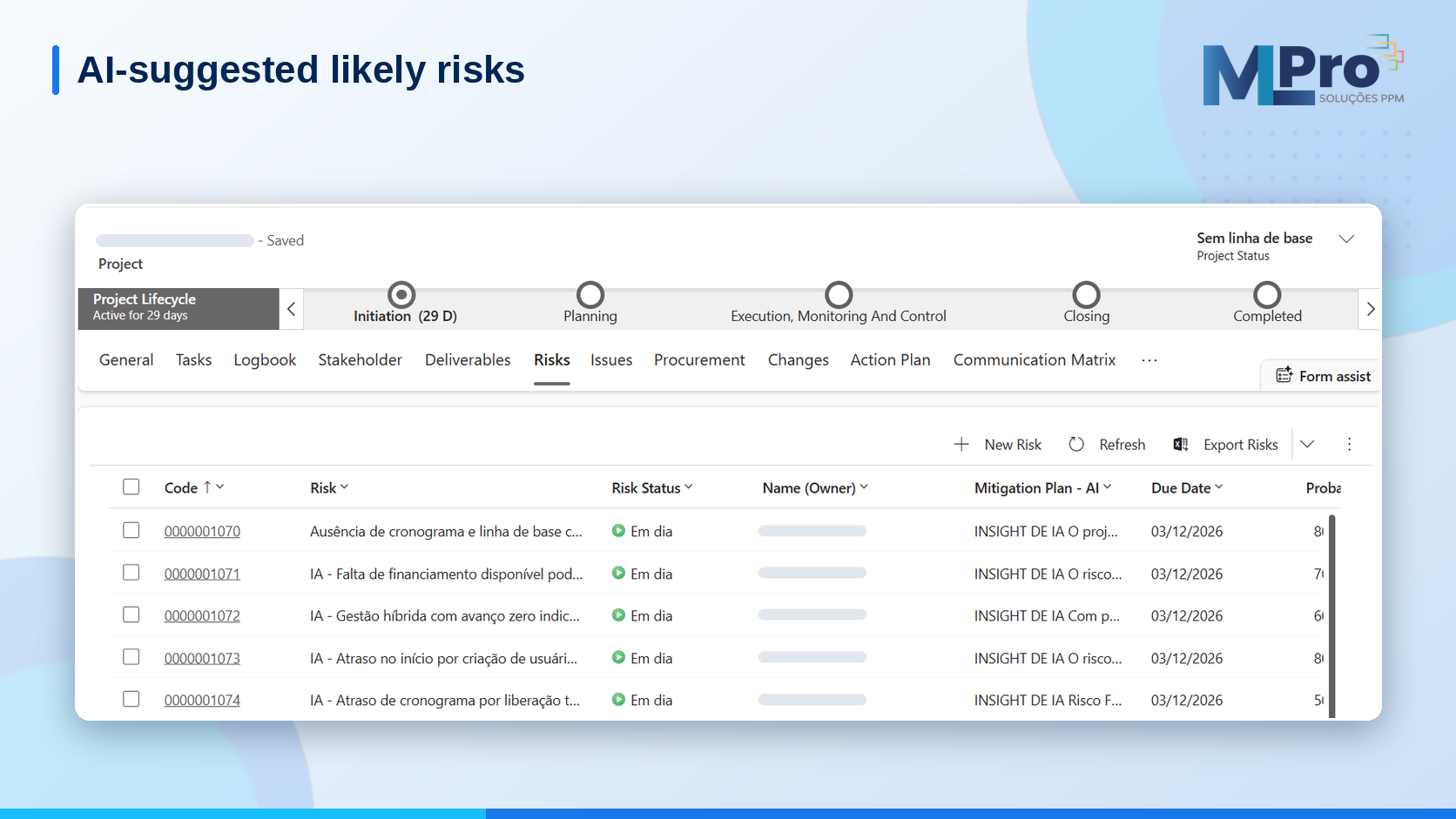
In the project, the Likely Risks button has AI analyze risks recorded in similar projects and the company's history and suggest risks for the current project, with probability and impact. The project manager assesses each suggestion, adjusts what is needed and decides what goes into the risk register.
A suggestion is not a prediction. The more risks and issues a company records in its projects, the more useful the suggestions tend to become.
Improvement 02. AI mitigation plan
Once a risk is identified, the second question follows: how should the team respond?
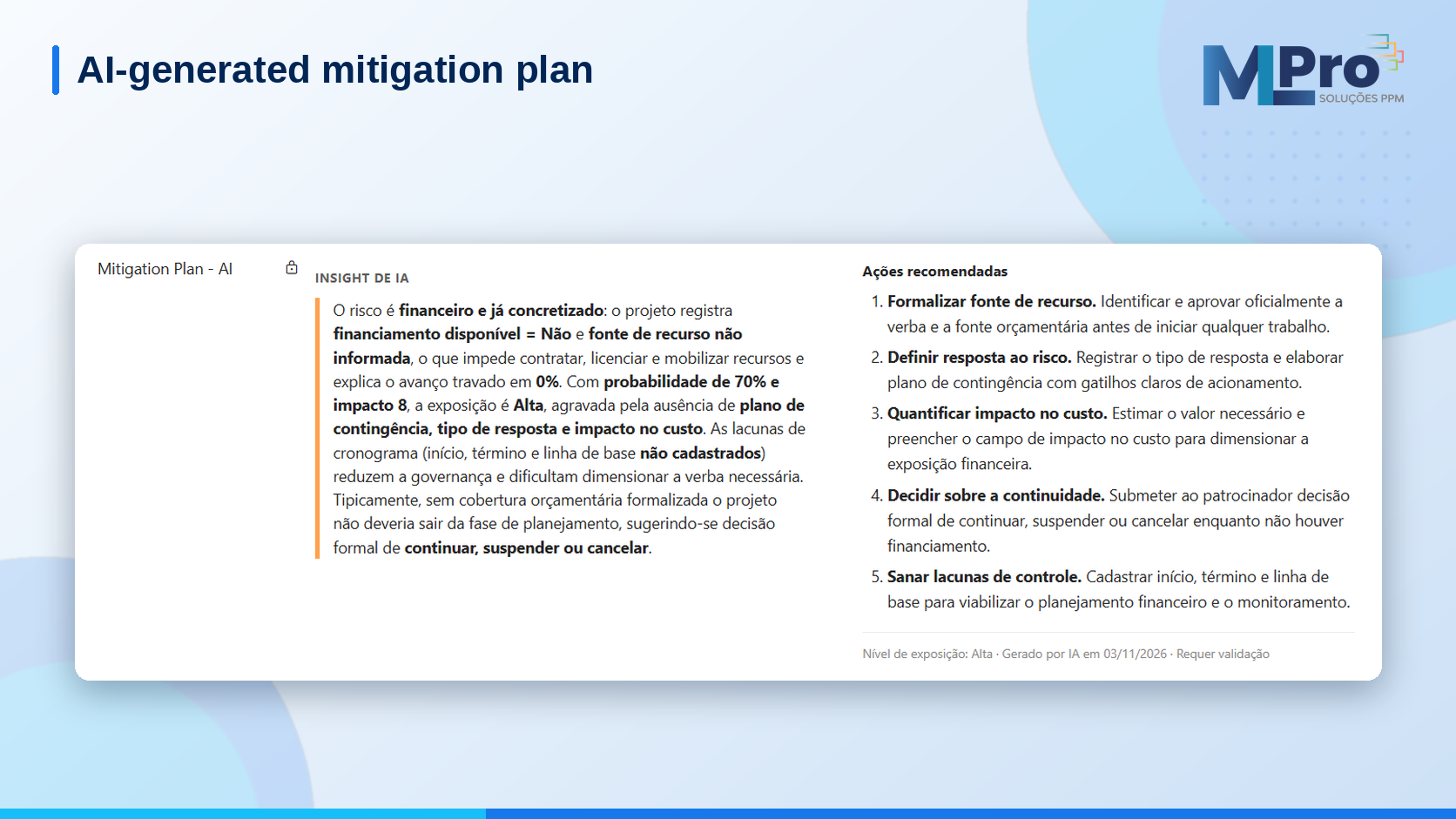
The Risk Mitigation button generates suggestions in the Mitigation Plan - AI field of each project risk, considering the registered probability and impact. The text is recorded in the risk itself, together with the date it was generated. The generation fills in this field and does not create records in the Action Plan list.
The project manager reviews the suggested measures, adapts them to the project and decides what to do. The proposal speeds up the start of the analysis, but the decision remains with project management.
Both features run in the environment through Copilot Studio, not through an individual license for each user, so they require Copilot Studio capacity purchased for the environment. Likely risk suggestions also require the project to have a registered stakeholder.
Risks
Improvement 03. Easier-to-read risk matrix
The risk matrix now has larger numbers and legend, with the matrix and the exposure rule side by side. It is easier to read, and the exposure calculation stays the same. The matrix is at the end of the risk form.
Improvement 04. Risk probability in 10% steps
The Probability field now offers options from 10% to 100%, in 10% steps, instead of the four ranges of 25%, 50%, 75% and 100%. The exposure matrix follows this scale. Risks already recorded at 25% or 75% do not change on their own: MLPro handles the conversion in each environment.
Tasks
Improvement 05. Project tasks in a tree view
In the project's Tasks tab, tasks appear in a tree, with arrows to expand and collapse summary tasks. There are also options to expand all, collapse all and show up to a chosen level.
Improvement 06. Backup owner during absences
When an absence is registered with a substitute, the tasks receive that person as backup owner (Responsável de Apoio) and appear in the substitute's My Tasks. The original resource of the task is preserved.
Improvement 07. Resource column in My Tasks
The My Tasks view shows a resource column, which identifies the person assigned to each row, including when the project manager follows tasks for several people.
Approvals
Improvement 08. A new submission replaces the pending approval
When the same task is submitted again, the previous pending approval is marked as replaced, and only the latest submission remains for approval. The earlier history is preserved.
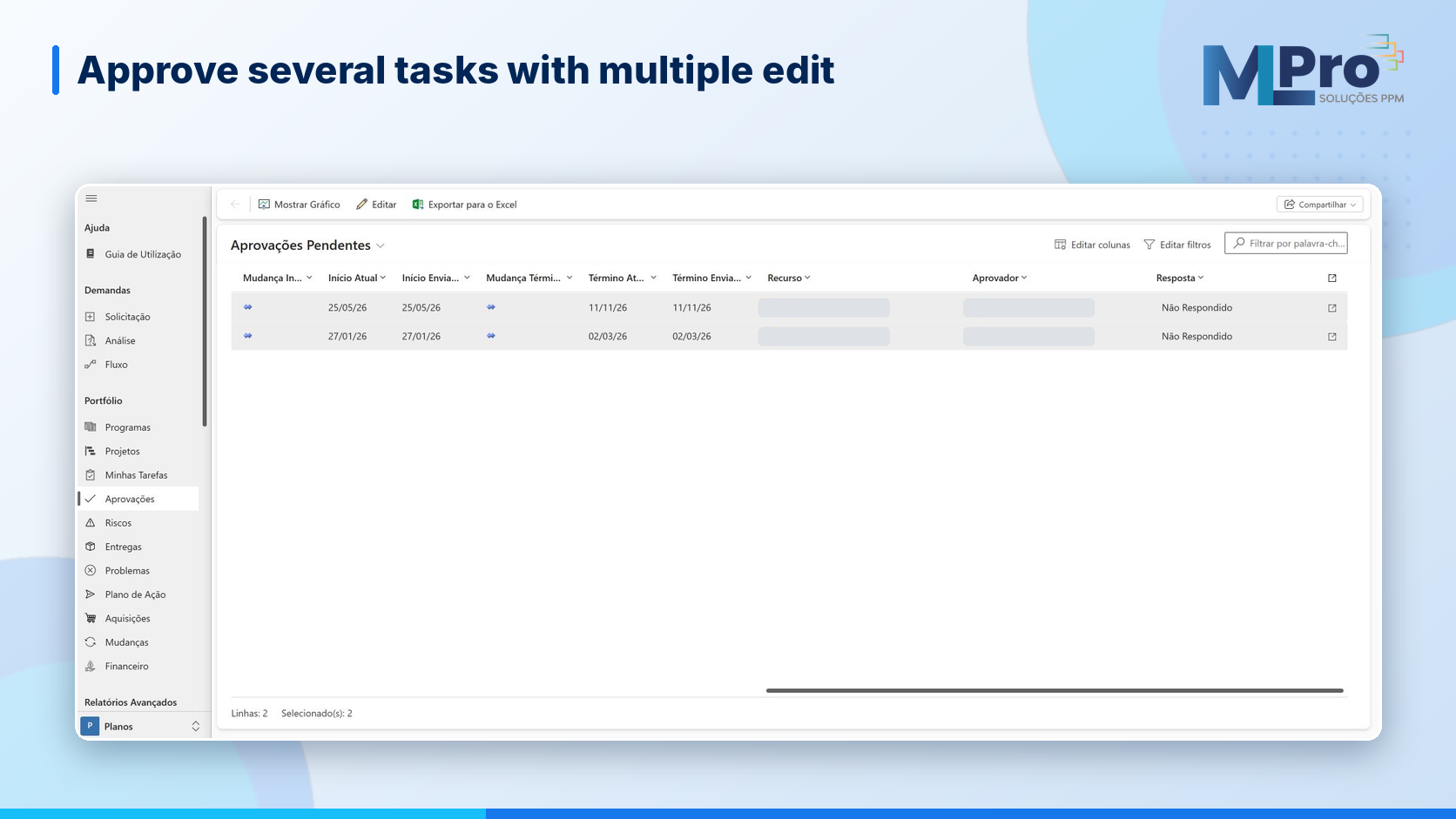
Improvement 09. Tip: approve several tasks with multiple edit
This is a usage tip, not a new button. In the pending approvals list, you can select several approvals and use multiple edit to update them all at once. The capture below shows the PSA Easy interface in Portuguese.
Projects
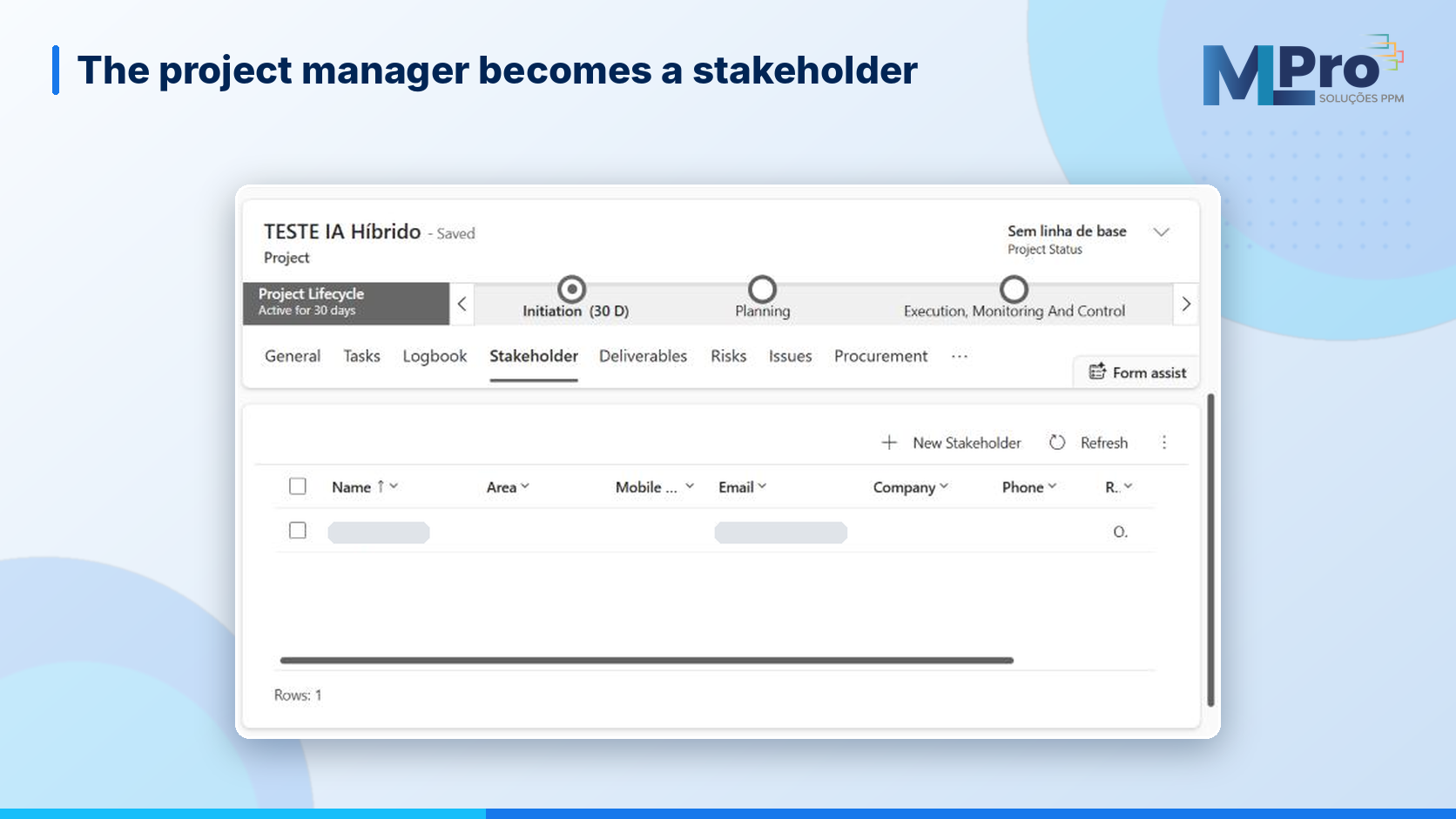
Improvement 10. The project manager becomes a stakeholder automatically
When the project is created, the project manager is automatically registered as a stakeholder. When the manager changes, the new manager is added and the previous stakeholder is preserved. It is one less manual step at the start of the work.
Changes
Improvement 11. Analysis date filled in automatically on change requests
When a change request is approved, rejected or completed, the analysis completion date is filled in automatically, if empty, and becomes read-only. The analysis delay is now measured against the analysis deadline.
Procurement
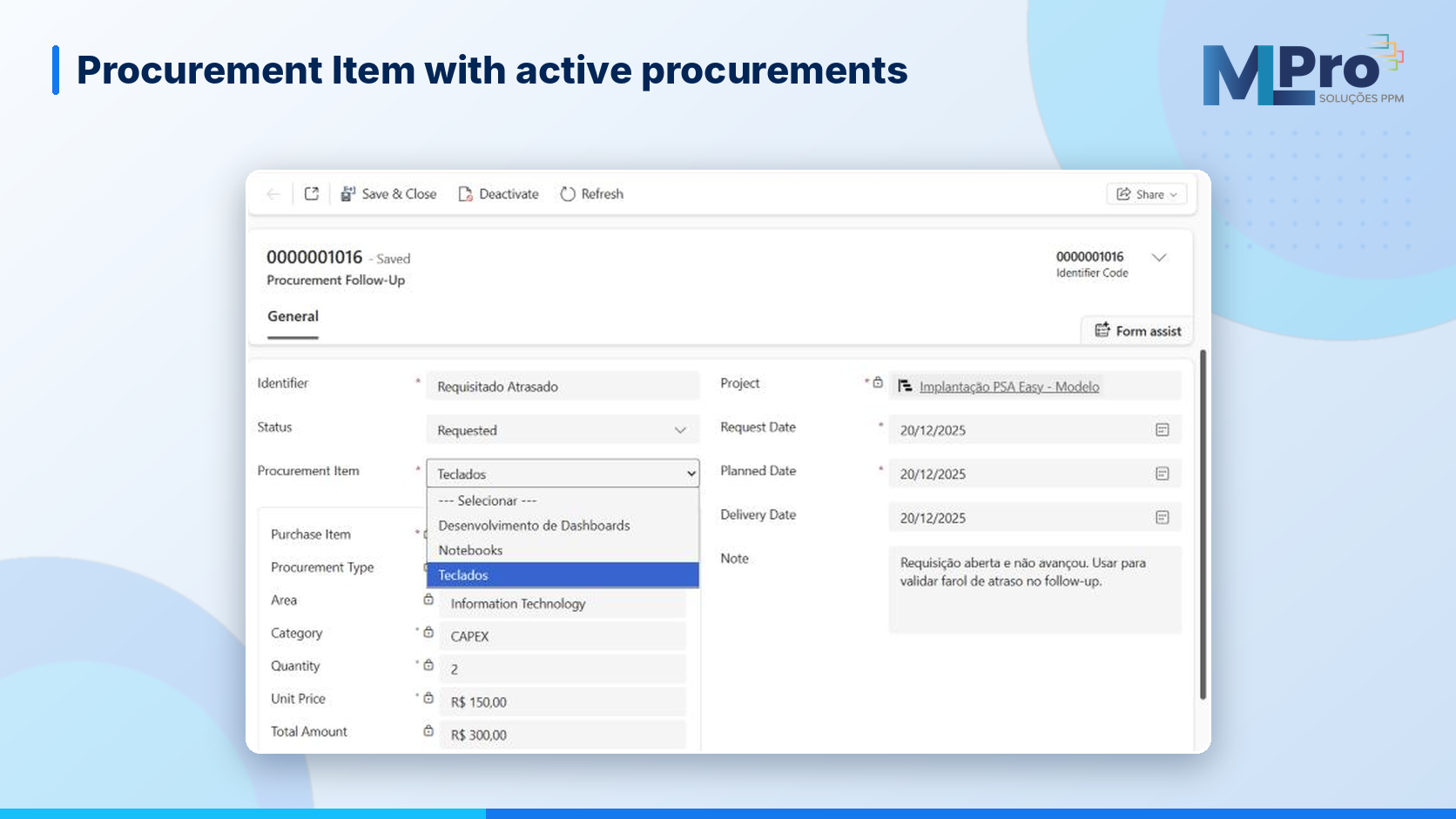
Improvement 12. Active procurements in the Follow-Up
In the procurement Follow-Up, the procurement item field offers a drop-down list with the project's active procurements, in alphabetical order. The selection is saved, and the quick view of the procurement remains available.
Reports
Improvement 13. HTML reports without a Power BI license to view them
PSA Easy HTML reports can be viewed without a Power BI license. The requirements of PSA Easy and of each customer's environment still apply, and the PSA Easy Power BI dashboards remain available. Learn more in our article on reports without Power BI.
Improvement 14. HTML reports in English and Spanish
HTML reports now show interface text in Portuguese, English and Spanish. Registered data, such as project names, remain as they were entered.
Improvement 15. Sharper icons in Power BI dashboards
The status indicators in Power BI dashboards now use 64 by 64 pixel images, for sharper reading. Image updates are managed centrally in the PSA Easy icon table.
Interface and guidance
Improvement 16. User Guide inside PSA Easy
The User Guide is in the Help area of PSA Easy, with organized lessons, search and progress tracking. It brings together guidance to get started and use the product's features. Learn more in the article PSA Easy User Guide: From Questions to Action. The guide is available in Portuguese, English and Spanish.
Improvement 17. Cleaner side menu
The side menu no longer shows Home, Recent and Pinned. PSA Easy areas sit closer to the top and are easier to reach.
Improvement 18. Standardized PSA Easy navigation
Basic reports received dedicated icons, and the menu was reorganized. The plans, settings and training areas concentrate navigation, without the former administrative area.
Frequently asked questions
Does AI decide which risks go into the project?
No. AI suggests likely risks and proposes mitigation plans. The project manager reviews each suggestion, adjusts what is needed and decides.
Do I need an additional license for AI for risks?
The features run in the environment through Copilot Studio and require Copilot Studio capacity purchased for the environment. It is not an individual license for each user.
Do the improvements appear automatically in my environment?
Not always. For existing customers, MLPro assesses each environment before applying an improvement, because it may affect tailored configurations.
Do HTML reports replace Power BI?
To view these reports, yes: no Power BI license is needed. The requirements of PSA Easy and of the environment still apply, and the PSA Easy Power BI dashboards remain available.
Continue your journey
- PSA Easy: explore the latest improvements
- PSA Easy User Guide: From Questions to Action
- Reports without Power BI (MLPro blog)
- Explore PSA Easy
- MLPro on YouTube
About MLPro
For more than 20 years, MLPro has worked with project and portfolio management in the Microsoft ecosystem. MLPro provides implementation, consulting, support and training for Microsoft PPM, Planner Premium, Power Platform, Power BI and PSA Easy.